

A lot of the agent work I rely on isn't a chat I sit and watch. It's a review pipeline that runs on a pull request, an automation that runs a prompt every morning, a watcher waiting for something to finish. Until version 1.12.0, the Workflows page in the desktop app split those by kind: one tab for Automations, one for Pipelines, one for Watchers.
That matched how the features were built, not the questions I ask. When I open the page, I want to know what ran, what's waiting for me, what runs next, and what I could run. Those questions cut across all three kinds. So I rebuilt the page around them.
Workflows now has three tabs: Runs, Schedule and Library. Automations and pipelines open in the same full-page editor. And when you send the same kind of task twice, the app offers to turn it into an automation.
Three tabs, three questions
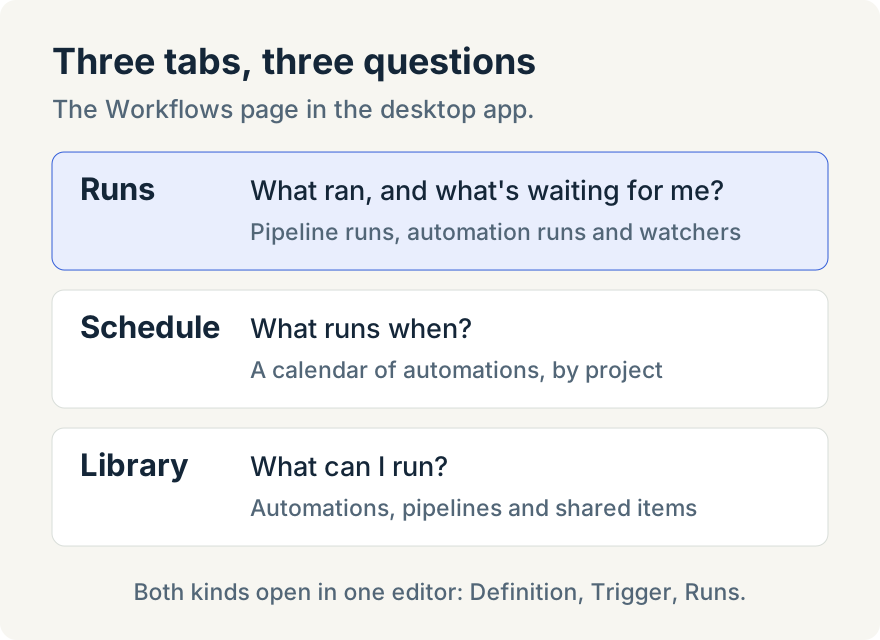
- Runs is one list of pipeline runs, automation runs and watchers, with columns for the workflow, its kind, who or what started it, where it ran, when it started and how long it took. You can search runs and filter by Status, Kind and Started by.
- Schedule is a calendar of automations, with Day, Week and Month calendar views, a Schedule list view and a Project filter.
- Library is everything you can run: your automations and pipelines, ones that come with a project, built-in ones, and shared items you haven't added yet. You can filter it by Trigger, Status, Project and Source, and sort it by when something last ran or runs next.
How I start the day: Runs
The first thing I open is Runs, filtered to the Waiting for you status. Those are runs that have stopped until a person answers, for example a pipeline asking for input. I can Respond from the row instead of hunting for the chat or pipeline that asked.
Then I look at Failed. From a failed row I can Retry, Rerun, Inspect what happened, or Go to chat when the run worked in a chat. If the problem is in the workflow itself rather than the run, Open in Library takes me to its definition.
The point is that one list covers all three kinds. Before, a waiting pipeline and a failed automation were on different tabs, and a watcher was on a third. Now the Status filter does the sorting.
Before I change a project: Schedule
When I'm about to restructure a repository or rename branches, I filter Schedule to that project and look at the week. That shows me which automations will run against it in the next few days, so nothing scheduled surprises me halfway through the change. The month view is useful the same way for things that run less often. Schedule shows automations only; pipelines and watchers appear in Runs.
What I could run: Library
Library is where I go to start something by hand or to tidy up. The Source filter separates items that are Yours from ones From project, Built-in ones and ones Shared with you. The Trigger filter tells me which items run on a Schedule, for a One time run, only when started (Manual), when a plan is approved (Plan approved) or when a task is ready (Task ready).
Each row has the actions I need without opening it: turn it on or off, Run, Edit, View runs, Duplicate, share it, or Delete.
One editor for both
Automations used to open in a form dialog, and pipelines in their own editor. Both now open in the same full-page editor with three sections:
- Definition: what the workflow does.
- Trigger: what starts it.
- Runs: its history.
The bar along the top has Run, Share and Save. Less frequent actions (turning it on or off, Duplicate and Delete) sit under More actions, and Delete asks you to confirm. A new draft can't run or be shared until it's saved, and the button tells you so: "Save it first to run it". If you try to leave with unsaved edits, including quitting the app, you're asked first.
Two details I use often in pipelines:
- Trigger shows everything that starts it. Under Starts from you see the pipeline's own trigger, and below it the Hooks and Automations that run it. When a pipeline runs at a time I didn't expect, this is where I find out why.
- Each pipeline run shows the definition it used. Pipelines change. When I'm comparing an old run with a new one, Definition used tells me what that run actually executed, not what the pipeline says today.
Turning a repeated task into an automation
Mike Sotnichek built this part, and it's the one most people will notice first.
When you send a task from New task that's similar to one you sent earlier in the same project, a card appears: "Turn this into an automation?" with Create automation, Not now and Don't show again. Create automation opens a new automation in the editor with a name, the prompt and the project already filled in. Nothing is saved or scheduled until you choose when it runs and save it.
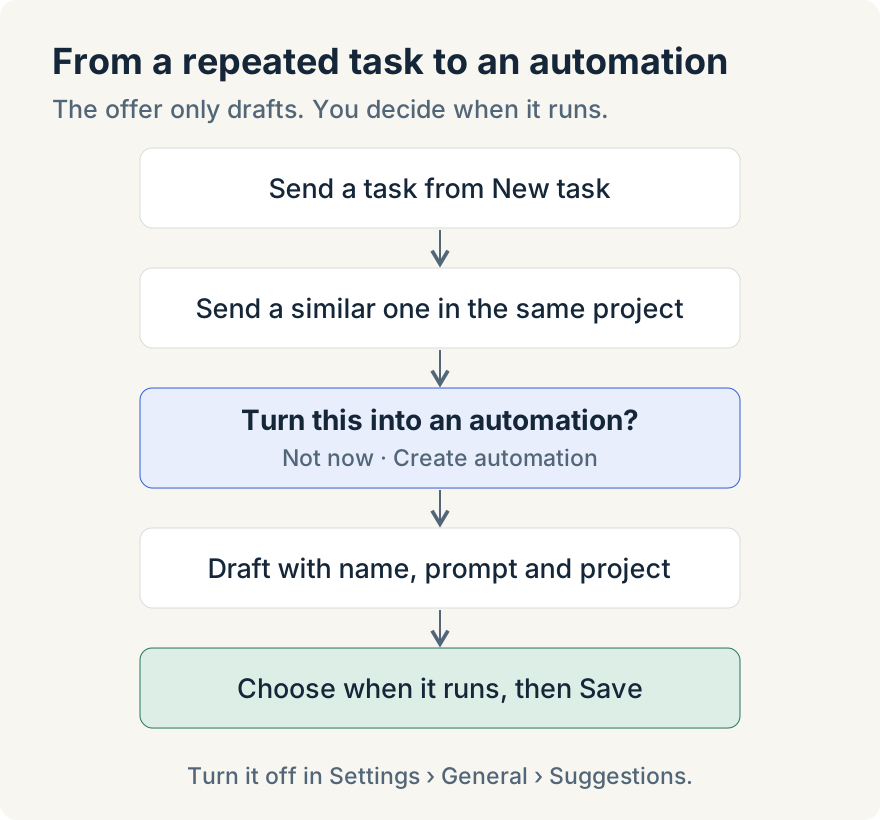
"Similar" is deliberately simple. It compares the words in plain-text prompts sent from New task, in the same project and account, and ignores numbers, dates and common words, so "Summarize open support tickets from Tuesday and draft a status report" and the same request for Wednesday count as the same task. Very short prompts are never compared. It doesn't offer anything if an automation you've turned on already runs a similar prompt in that project.
It also keeps very little. The app stores word signatures, not your prompt text, for at most 50 tasks over 30 days, on your computer. Not now stops the offer for that task. Don't show again stops these offers for good and forgets the tasks it recorded. To turn off every in-app suggestion, this one included, turn off Show suggestions in Settings › General › Suggestions.
Limits
- Desktop only. The web app doesn't have the Workflows page yet.
- Scheduled automations run from the desktop app. If a scheduled time passes while the app isn't running, it shows up in Runs as Missed.
- The offer looks at New task prompts only. Follow-ups, prompts with attachments or mentions, and scheduled sends aren't compared.
- Definition used is for pipelines. Automation runs don't record it.
If you're deciding what belongs in a pipeline in the first place, I wrote earlier about chaining connected apps in pipelines.
The new Workflows page is in the Unstoppable Code desktop app from version 1.12.0. Download the app and open Workflows in the sidebar.