
A lot of my work doesn't end in the editor. A bug only shows up after someone submits a form on staging. A report I need lives behind an admin page. A build has to be attached to a dashboard before anyone can test it. For a long time, those were the moments where I took over from the agent and clicked through things myself.
Unstoppable Code has a built-in browser in the desktop app, and agents could already open pages, click, fill simple fields and take screenshots there. In version 1.15.0, I finished the rest of what an agent needs to get through a real website: the controls that used to stop it, files in both directions, and a clean way to hand the browser to me when a person has to be involved.
Here is how I use it.
Reproducing a bug through a real form
When a bug report says "it breaks after you sign up with a date of birth before 1970", I don't want to describe the steps to the agent and then repeat them myself. I want the agent to do them, in the same browser I can watch.
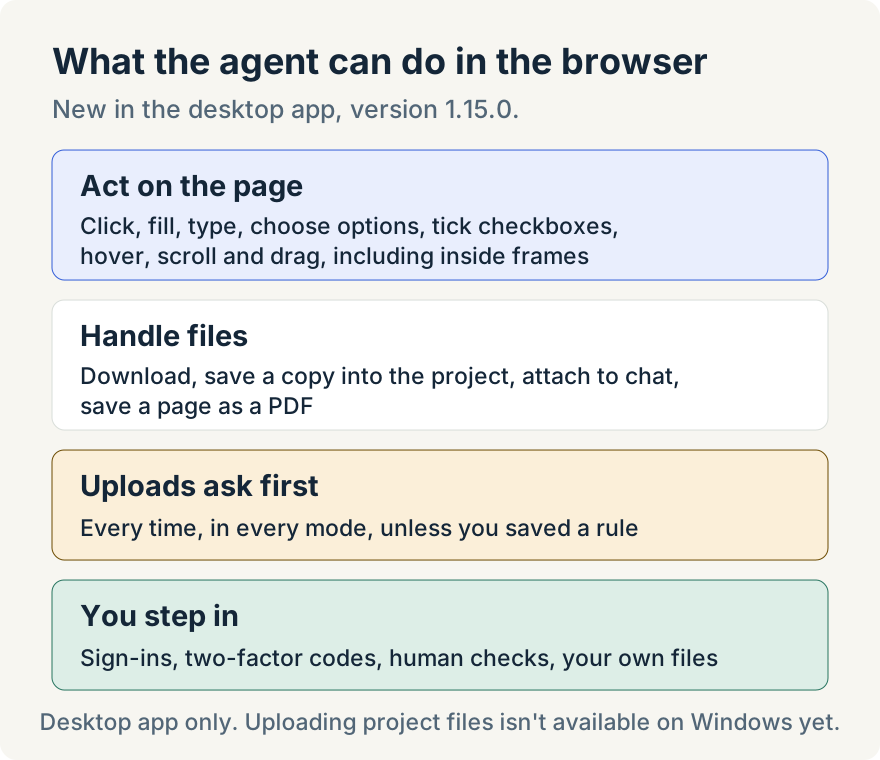
The agent can now type into fields the way a person does, pick from a dropdown, tick a terms checkbox, hover to open a menu, scroll a long page and drag a card between columns. It also works inside embedded frames and components that hide their insides from ordinary page scripts, which is where a lot of sign-up widgets, payment fields and rich text editors live. Before, those were the places it got stuck.
So I ask the agent to open the staging sign-up page, fill it in with the values from the report and submit it. Then it reads the console and network activity in the browser to see what failed. Because it's the same page I'd use, I can watch it in the Browser panel and stop it if it goes somewhere I didn't expect.
This is the workflow I use most. Reproducing the bug is often slower than fixing it, and now the agent can do that part.
Getting a file off a website
Some of what I need sits behind a download button: a CSV export from an admin page, an invoice, a log bundle from a dashboard.
When the agent downloads something in the built-in browser, the file goes to the task's own files, not into my project and not into my computer's Downloads folder. The browser's Files tab lists them, and each one has Show in folder, Save a copy… and Attach to chat.
If the agent needs to work on the file, it can copy it into the project, for example to exports/report.csv. That is an ordinary file write, so it follows the same approval settings as any other change the agent makes. Then it can read the file and check the numbers against what it expected.
Keeping downloads out of the project by default matters to me. A download is something a website gave us, and I'd rather decide which of those files become part of the code.
Pages that print are handled too. When a page tries to open the print dialog during an agent's action, the browser holds it as a request. The notice says the page "wants to print this page", with Dismiss, Print… and Save as PDF. The agent can save the page as a PDF in the task's files, so a printable invoice or receipt doesn't stop it.
Putting a file onto a website, with my approval
The other direction needed more care. An upload sends bytes from my machine to someone else's site, so I wanted it to be impossible to do by accident.
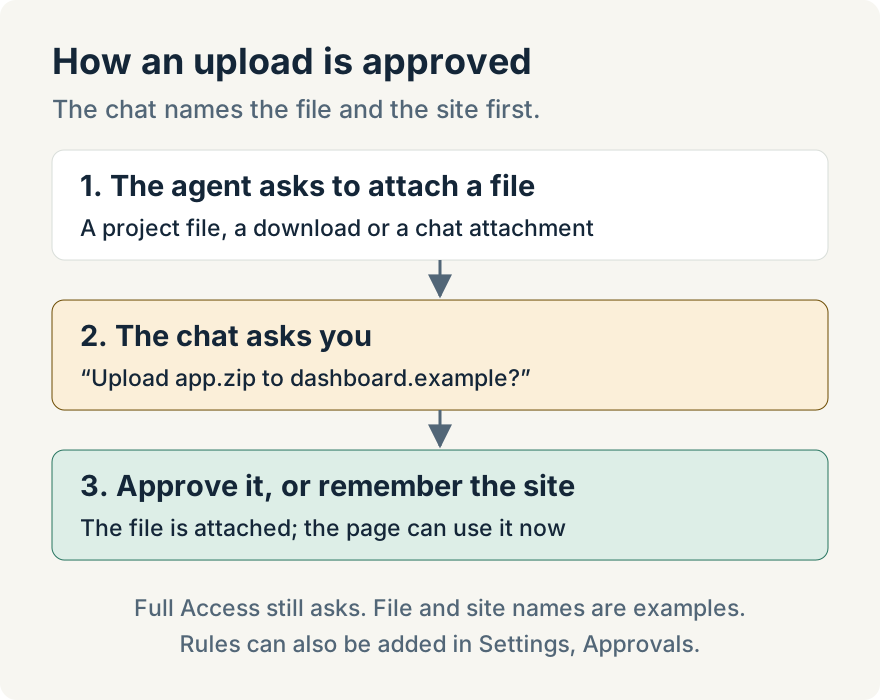
When the agent wants to attach a file to a page, the chat shows a card naming the file and the site, like "Upload app.zip to dashboard.example?". It asks in every approval mode, including Full Access. The only way to skip the question is a rule I saved for that site, either from the card or in Settings under Approvals, where I can also limit a rule to certain paths.
The file can be one from the project, something the agent downloaded earlier, or a file I attached to the chat. Approving is the moment that counts. Attaching doesn't submit the form, but some pages upload a file as soon as it's attached, so I only approve a file I'm happy for that site to have.
When I'd rather choose the file myself, the agent can ask me to. The card reads "Choose a file for" the site, with Choose file… and Decline. That's what I use when the right file lives outside the project.
Handing the browser to me
Some steps should never be done by an agent. Signing in, two-factor codes, "are you human" checks and consent screens all need a person.
When the agent reaches one of those, it hands the browser to me: it brings the page up, tells me in the chat what I need to do and ends its turn. I sign in, then reply in the chat, and it carries on from there. The agent is told to wait for my reply, not for a message from an automation. Sergii Iurevych built the part that keeps the browser in front of me while it waits.
Sites that ask for a username and password through the browser's own sign-in box work the same way. The notice says the site "needs you to sign in", with Cancel and Sign in…. Only I can fill that in. The agent never sees the password, and the browser doesn't store it.
This is the part that makes the rest usable for me. I can let the agent drive most of a flow and still be the one who proves who I am.
The limits
- The built-in browser is in the desktop app only. It isn't available in cloud chats, on the web or on mobile.
- Uploading files from the project isn't available on Windows yet. On Windows, the agent can still upload files it downloaded in the browser.
- The agent can't sign in, enter passwords or solve human checks. It hands those to you.
- Downloads stay in the task's files until the agent or you save a copy into the project.
- Dragging works within one page; it can't drag from one frame into another.
- A handoff doesn't survive restarting the app. If you restart while the agent is waiting, ask it to continue.
- A file field that takes one file gets one file.
Try it
The built-in browser and these agent actions are in version 1.15.0 of the desktop app. Open Browser from a task, then ask your agent to work through a page: reproduce a bug on staging, export a report, or fill in a form and stop before submitting. You can download the app here.