
A scheduled automation in Unstoppable sends its prompt every time it fires, whether or not there is anything for the agent to do. Version 0.26.11 of the desktop app adds an If Command: a short shell command that runs first and decides whether the automation's action runs at all. If it does run, the command's output can go straight into the prompt.
Where to find it
Open Automations, then create or edit a triggered automation. Above the Action picker there is a collapsible box labelled If Command (optional). Its help text sums up the rule: "Runs before the action. Exit 0 runs the action; any non-zero exit skips it."
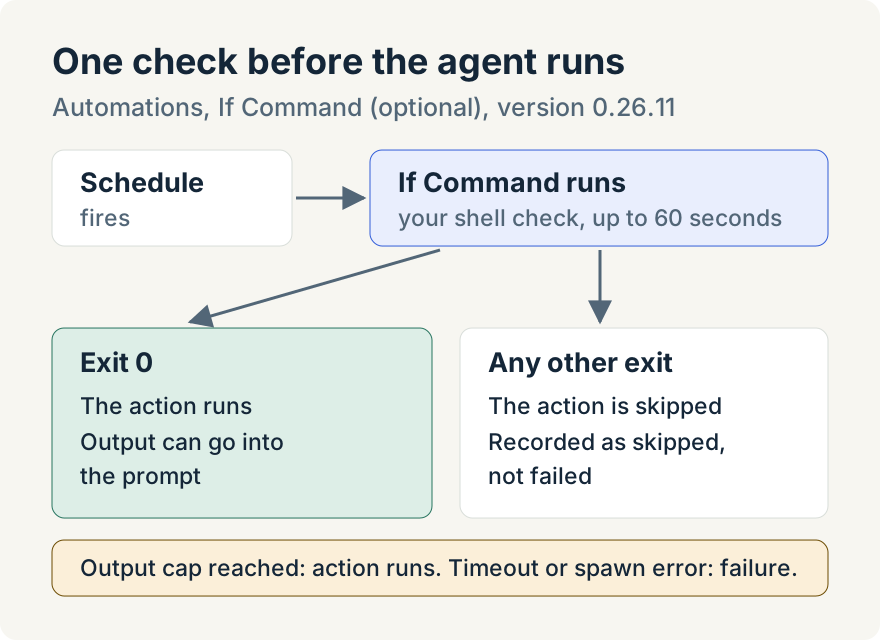
Leave the box empty and the automation behaves as before. Put a command in it, for example test -f ~/ready-to-run.txt, and each time the schedule fires the app runs that command first:
- Exit code 0: the action runs, whether that's a prompt or a pipeline.
- Any other exit code: the action is skipped. The run is recorded as skipped, not as a failure, so a quiet day doesn't look like a broken automation.
- Timeout or error: if the command can't start, or runs longer than 60 seconds, the run is recorded as a failure.
Run now goes through the same check, so you can try a gate by hand before you rely on the schedule.
Passing what the check found to the agent
Whatever the command prints to standard output is kept. In a prompt action, the Insert variable menu under the prompt adds {{UNSTOPPABLE_CODE_AUTOMATION_IF_CMD_OUTPUT}}, and the app replaces it with that output before the prompt is sent. The variable stays disabled in the menu until the automation has an If Command.
That lets the command do the cheap part of the job. A script can collect a list of new items and print them, exit with a non-zero code when the list is empty, and leave the agent to work only on what it printed. Error output is never added to the prompt, and output is capped at 256 kibibytes (KiB). Reaching that cap stops the command and runs the action with the captured output, without waiting for its exit code. Keep checks below the cap so their exit code decides whether to run.
A pipeline action can be gated the same way, but its output isn't passed on.
Letting the app write the command
You don't have to write the script yourself. The Generate If Command button in the box opens a field, "Describe the gate in natural language". Describe the condition, choose Generate, and a model writes a readable script with comments into the box. Settings, Models, If Command generation model chooses which Claude or Codex model does the writing. Read the script before you save it: it will run on your machine every time the automation fires.
Where it stops
- The command runs in the app's own assistant workspace directory, not in your project. A script that needs a repository has to change to that directory itself.
- It's in the desktop app, which has to be running when the schedule fires. It's offered for prompt and pipeline actions, but not for scheduled messages to an existing chat.
- The automations list shows a skipped run as skipped with its time; the exit code isn't shown there.
Tommy Irish built If Command.
Try it
If Command is in version 0.26.11 of the Unstoppable desktop app. Download Unstoppable, open Automations and add a check to an automation that doesn't need to run every time.