

When you want an agent to explain, change or review one passage of a file, copying the text into the chat loses where it came from. You end up typing the file name and guessing line numbers. Version 1.0.0 of the Unstoppable desktop app lets you send the selection itself, with its file and lines attached.
Select, then send
Open a file in the editor and select the lines you mean. Then do one of these:
- Press Cmd+L on macOS or Ctrl+L on Windows, the same shortcut the terminal pane uses to send to a chat.
- Right-click and choose the send-to-chat item in the editor's menu.
- In 1.0.0, click the Send to Chat button that appears by the selection. Later versions show a small menu when you finish selecting instead.
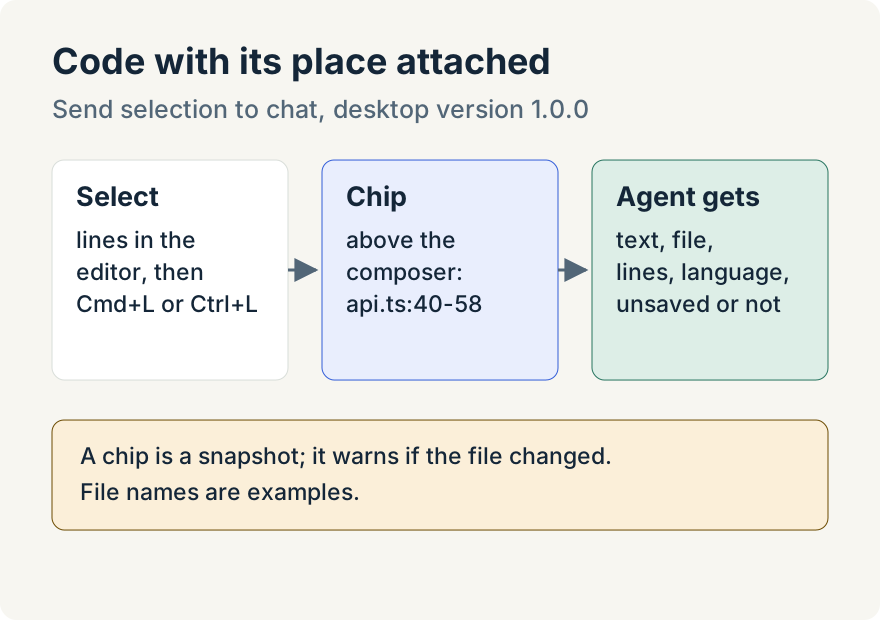
The selection doesn't land in your message as pasted text. It appears as a chip above the composer, labelled with the file name and line range, such as api.ts:40-58. You can add several selections, from one file or many, and the same range isn't added twice. Then write your question and send.
What the agent receives
Each chip is added to your message as a block that carries the selected text with its file path, line range and language, and notes whether it came from unsaved edits. The agent knows exactly which lines you mean without you describing them.
Keeping track of chips
- Find the code again. Focusing a chip highlights its lines in any editor showing that file. Clicking it opens the file and flashes the range.
- Remove one. Click its close button, or focus it and press Delete or Backspace.
- Changed files. A chip compares its range with the file as it is now. If the file changed since you captured it, the chip's tooltip says so, and it says when the file is no longer available. A chip taken from unsaved edits shows unsaved, and checking while the app compares.
The chip goes to the chat you're working in. If the editor is covering the composer, it goes to the chat you used most recently, and it works for chats that run Claude Code in the terminal too.
Where it stops
This works in the desktop editor. A chip is a snapshot of the lines when you sent them: if you keep editing, the tooltip warns that the file changed, and you can remove the chip and send the range again.
Ryan Le built selection-to-chat.
Try it
Sending a selection to chat is in version 1.0.0 of the Unstoppable desktop app. Download it, open a file, select a few lines and press Cmd+L or Ctrl+L.