

Watching an agent work means looking at several things at once: the chat where it reports, the files it changes, the terminal where its commands run and the activity that shows what changed. Version 0.28.0 of the Unstoppable desktop app, released on July 14, 2026 for macOS and Windows, replaced each worktree's fixed layout with panels you can split, move, collapse and save. It also let you reorder the left sidebar.
Panels and groups
A worktree's screen is a grid of groups, and each group holds one or more panels as tabs. There are seven kinds of panel:
- Chat, one per chat tab.
- Files, one per open file.
- Terminal, Activity, Browser and File Explorer, at most one of each per worktree.
- Activity card, which holds one section of the Activity panel on its own.
Each group's tab bar has an Add panel button. It lists the one-per-worktree panels that aren't open yet, the worktree's chats and files that don't have a panel, and Activity sections that don't have a card.
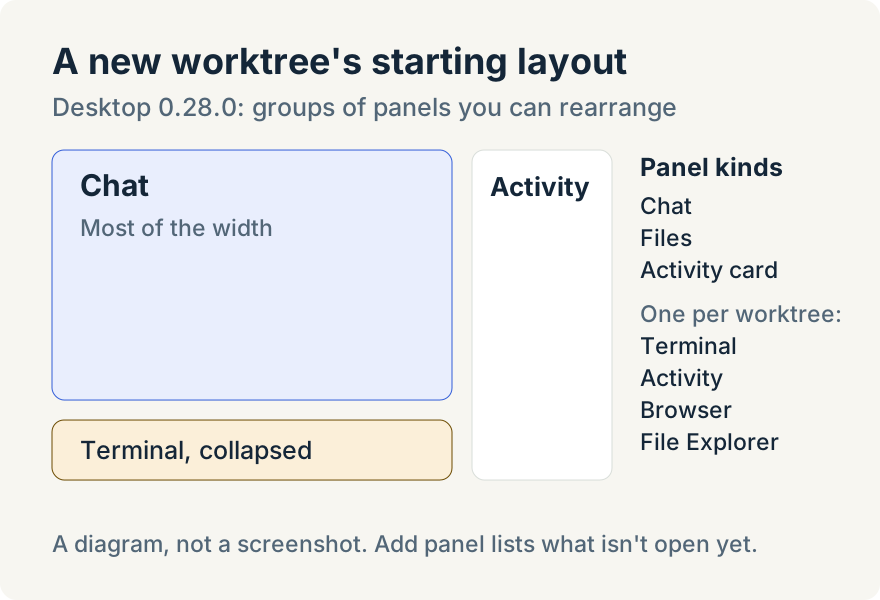
A new worktree starts with the chat on the left, taking most of the width, Activity on the right, and the Terminal below the chat, collapsed until you need it.
Three ways to split and move
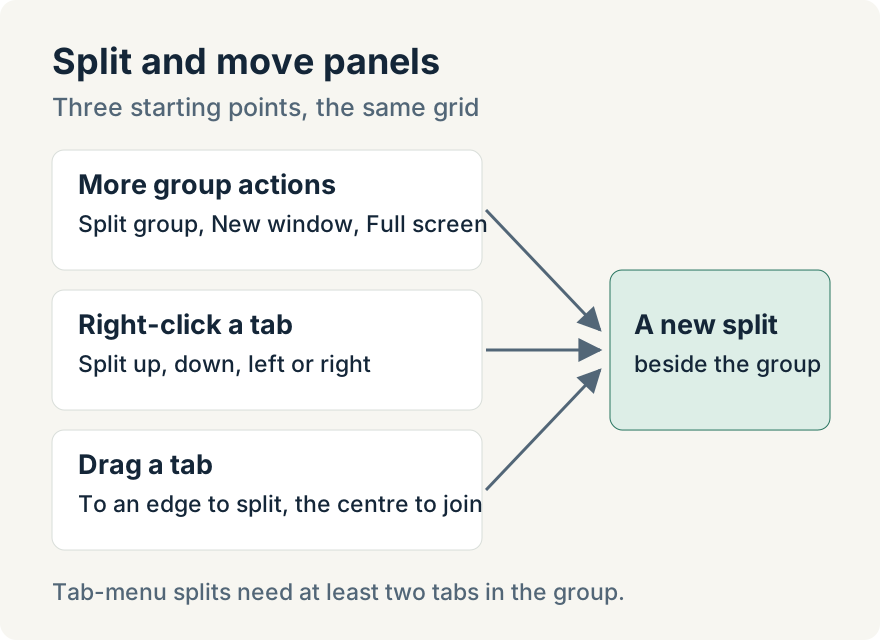
From a group's menu. Each group has a More group actions menu. Split group offers Split up, Split down, Split left and Split right; when the group has more than one tab, the active tab moves into the new split. The same menu has New window, which moves the whole group into its own window, Full screen and Close all.
From a tab. Right-click a tab for Split up, Split down, Split left and Split right, which move that tab into a new split beside its group. They are disabled when the group holds only one tab, since there would be nothing left behind. The menu also has Pin Tab, the close actions (Close, Close Others, Close to the Right, Close to the Left, Close All) and, on chat tabs, Share session.
By dragging. Drag a tab onto the top, bottom, left, right or centre of a group. Dropping on an edge splits the group; dropping in the centre adds the tab to it. You can also reorder tabs within a tab bar and drop on the outer edges of the whole grid.
Keyboard shortcuts use Cmd on macOS and Ctrl on Windows. Cmd+\ splits right and Cmd+Shift+D splits down. Cmd with the closing or opening square bracket key moves focus to the next or previous group, and Cmd+Alt with an arrow key moves focus in that direction. Cmd+Shift+M moves the panel to the next group, Cmd+Shift+F toggles full screen, Cmd+Shift+W closes the group and Cmd+Shift+E evens out the sizes.
Keep the terminal and browser in view without the space
A group can collapse to a narrow icon bar along the edge of the window with its Collapse button, and Expand brings it back. At least one panel in each row or column has to stay expanded, so the button explains when you need to expand another panel first.
Collapsing works well for the terminal and the browser. While a collapsed Terminal is running a command or a collapsed Browser is loading, its icon turns blue and pulses, so you can see that something is happening without giving it room.
When you send a command that starts with ! from the chat box, the app makes sure the Terminal panel is showing. It expands and focuses the existing one, or docks a new Terminal below.
Read the files your agent names
Agents mention the files they read and change. Clicking a file path in a chat message, or a file in a turn's diff summary, opens the file beside that chat instead of replacing it. The app reuses the group that most recently held files next to the chat, or splits a new group to the right if there isn't one. You can read the change and the agent's explanation together.
Save a layout for new worktrees
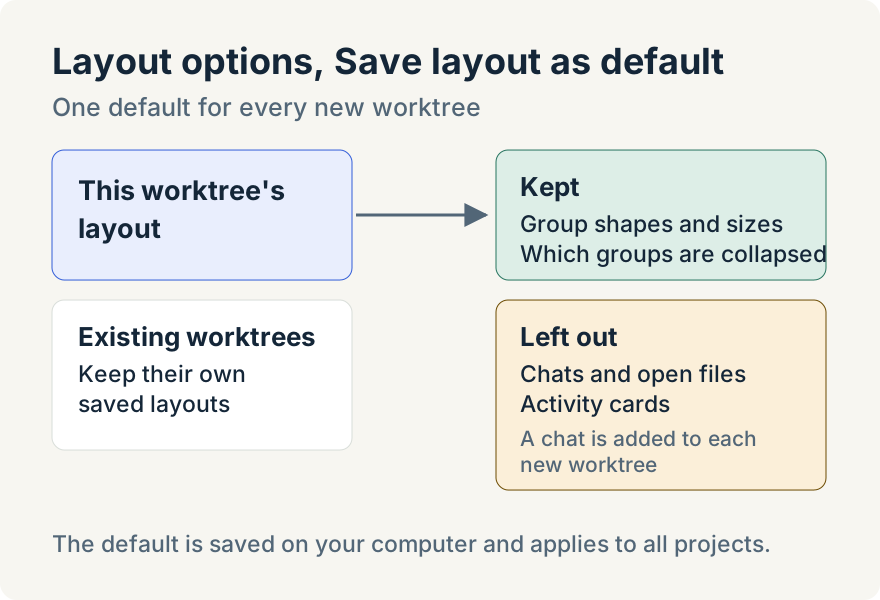
Once a layout suits the way you work, open Layout options in the worktree's top bar and choose Save layout as default. The app confirms with "Saved current layout as the default for new worktrees".
The saved default applies to worktrees you create from then on. Existing worktrees keep their own layouts, because each worktree saves its layout separately as you change it. The default keeps the shape of the grid, the sizes and which groups are collapsed. It leaves out chats, open files and Activity cards, since those belong to a particular worktree, and puts a chat in place for each new one. There is one default for all projects.
Put your most-used pages first
The left sidebar can be reordered too. Open More at the bottom of the sidebar and choose Customize sidebar. The dialog says "Drag to reorder. Items below “More” appear in the More menu." Drag pages such as Automations, Pipelines, Plugins or Statistics above the More divider to keep them in the sidebar, or below it to tuck them into the menu. Reset to default restores the original order, and nothing changes until you choose Save. Pages that depend on a feature you don't have, such as Remote Control, appear only when they are available.
Tommy Irish built the panel system, the saved default layout and the sidebar customization.
Where it stops
- In this release only whole groups can move to a new window, not single tabs, and the Browser panel can't move to a window at all.
- The Terminal, Activity, Browser and File Explorer panels are limited to one each per worktree.
- Save layout as default is the only item in Layout options; the saved default affects new worktrees, not the ones you already have.
- The layout belongs to the desktop app. It is saved on your computer with each worktree.
Try it
Panels and sidebar customization are in version 0.28.0 of the Unstoppable desktop app for macOS and Windows. Download it, open a worktree and right-click a tab to start splitting.