
The Unstoppable desktop app sends a few kinds of usage data to help improve it. Before version 1.20.0, you couldn't turn them off in the app. Now each one has its own switch, and an organization can turn most of them off for its members.
Where to find it
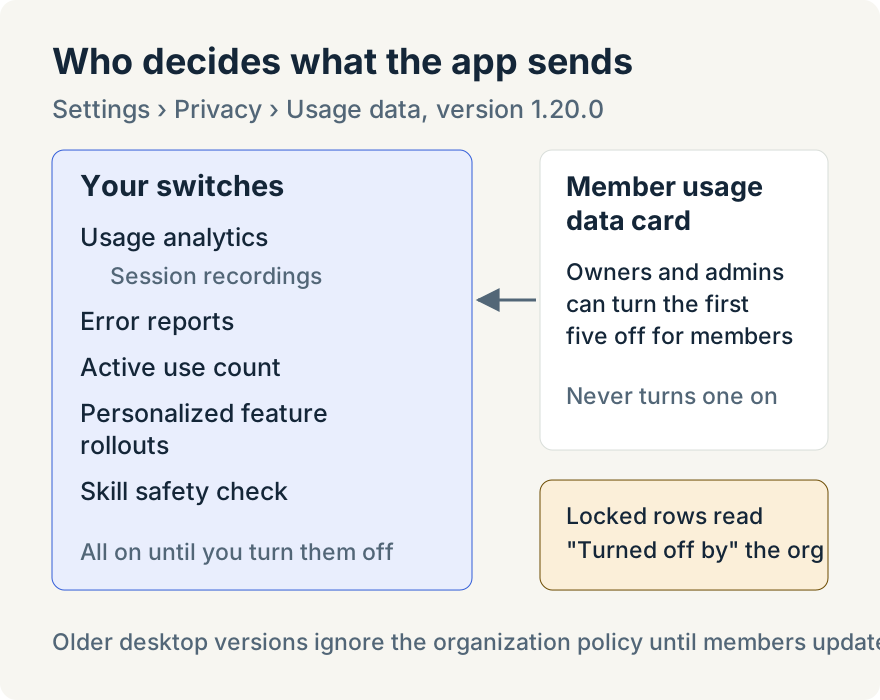
Open Settings, choose Privacy and find Usage data. Its description reads "Choose what Unstoppable sends to help improve the app." Each row has a switch, and every switch starts on, as before:
- Usage analytics: which features you use and how the app performs.
- Session recordings: replays of how you move through the app, with your content hidden. This row sits under Usage analytics and only applies while Usage analytics is on.
- Error reports: details of crashes and errors so they can be fixed. This one is independent of Usage analytics, so you can keep sending error reports with analytics off, or the other way round.
- Active use count: a count of the messages you send, never their content.
- Personalized feature rollouts: whether your account decides which new features you get. When it's off, only your app version and organizations are used.
- Skill safety check: looks up installed skills with a safety service to show their risk. Turn it off and that lookup stops.
Each switch saves your own choice. Separately, the Updates settings now include Check for updates automatically. With it off, the app stops checking on a timer; checking by hand still works.
Setting a policy for an organization
Organization owners and admins get a Member usage data card in the organization's settings, in the desktop app and on the web. It can turn off Usage analytics, Session recordings, Error reports, Active use count and Personalized feature rollouts for everyone working in that organization. Before the change saves, a confirmation explains that members will stop sending that data and can't turn it back on.
A prohibition only turns a flow off; it never turns one on. It applies while a member works in that organization, and the member's own row shows it locked off with "Turned off by" and the organization's name. Their saved choice isn't rewritten: switch to a personal context or leave the organization and their own setting applies again. Skill safety check and automatic update checks stay each person's choice.
If the app can't yet read your account to see whether an organization has turned something off, those five flows stay off until it can. The row says "Turned off until your account can be checked."
Where it stops
Everything is on until you change it. Desktop versions released before 1.20.0 ignore an organization's prohibitions until members update, and the mobile app isn't covered by the organization card. The web app has no member switches, and these controls don't cover the web app's own browser monitoring.
Aaron Quirk built these controls.
Try it
Usage data controls are in version 1.20.0 of the Unstoppable desktop app. Download it, then open Settings and choose Privacy.