

A coding agent does its work through tool calls: it runs shell commands, writes files, calls MCP tools and reaches network hosts. How often it should stop and ask first depends on the task and on how closely you want to follow it. Version 1.5.0 of the Unstoppable desktop app puts one approval layer in front of those tool calls for Claude and Codex chats. You choose a mode, answer requests as they come, and save answers as rules so the same question doesn't come back.
Three modes
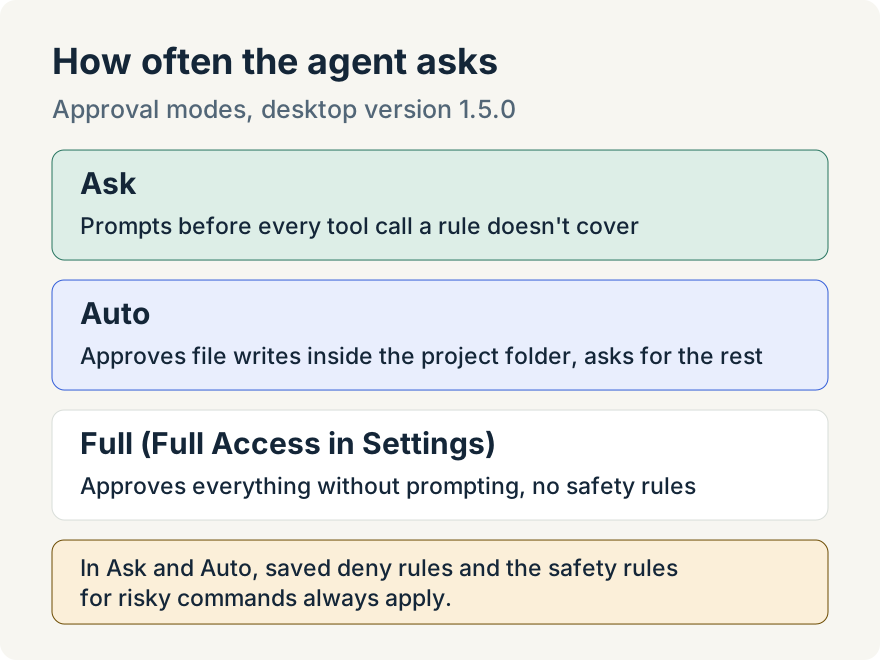
Each chat runs in one of three modes. The composer's approval control, with the tooltip Approvals, shows the current one.
- Ask: "Prompt before every tool call". The agent asks before any tool call that a saved rule doesn't already answer.
- Auto: "Approve safe edits, prompt for the rest". File writes whose real path is inside the project folder go ahead; everything else asks. A path that leaves the folder through
..or a symbolic link doesn't count as inside. - Full: "Approve everything without prompting". Settings calls it Full Access. It skips the approval layer entirely, including the built-in safety rules described below.
Set the mode for a chat or as a default
Change the mode for one chat from its composer, or from the Home composer before you start a task. A chat keeps its own mode after that.
Defaults live in Settings under Approvals, in the Agents group. The page describes itself as a place to "Control the default tool-approval mode per surface and manage rules that always allow or deny specific tools, commands, files, or hosts." Its Default mode section has one setting each for Worktree chats, Cowork chats and App Advisor, with the choices Ask Approval, Auto and Full Access.
New profiles start in Ask. Profiles that existed before the update were set to Full Access on all three, so their agents kept working as before. A notice says so: "Approval defaults for existing profiles were set to Full Access. Review them in Settings → Approvals." Its Open Settings button goes straight to the page.
Answer a request
When the mode calls for approval, the agent pauses and a card appears in a dock above the composer. The card says what the agent wants to do: the command and the folder it runs in, the file it wants to write, the MCP server and tool with its parameters, the network host, or the tool name. Requests from a subagent carry a Subagent request badge. When several requests are waiting, the dock steps through them one at a time. A request waits until you answer it.
- Allow once lets this call run. The menu beside it can save the answer instead: Allow for this chat, Always in this project or Always everywhere.
- Deny blocks this call. Its menu offers Never in this project, Never everywhere and Deny and stop, which also ends the agent's turn.
- Add a reason opens a field whose text goes back to the agent with your answer, so it can change course instead of trying the same thing again.
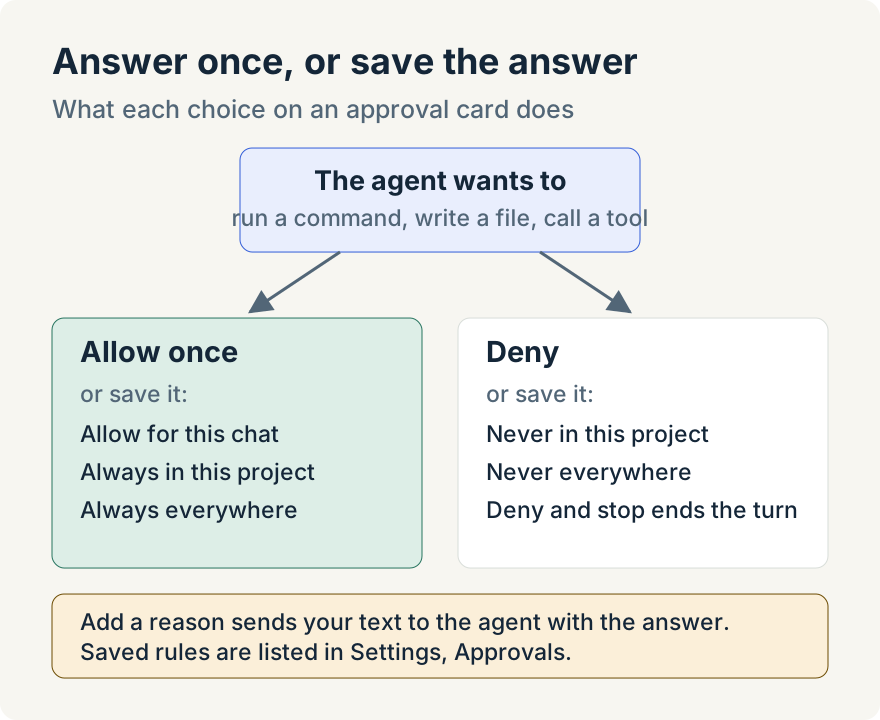
Saving an answer is what makes a stricter mode practical. If you work in Ask, the first time an agent runs your test command you can choose Always in this project, and the next run in that project goes ahead without a card.
Manage saved rules
The Approvals settings page lists what you saved. Global rules are "Applied across every project, regardless of the surface default." Project rules are "Applied only within the selected project." You can also write a rule by hand with Add rule: choose Allow or Deny, then the kind, Command, File write, MCP tool, Network host or Tool, and the target. Rules saved for one chat stay with that chat.
A repository can ship its own approval settings in its project configuration file. They can only add deny rules or make the repository's chats start in a stricter mode; they can't grant anything. Those rules show as Repo-managed, without a Remove button.
What always applies
Outside Full Access, a short list of commands is blocked no matter what rules say, including rm -rf /, rm -rf ~, mkfs, dd onto a device and a force-push to main or master. An agent's attempt to change the approval rule files themselves always asks. If the app can't show a request, the call is denied rather than allowed.
The same layer covers Claude and Codex in worktree, cowork and App Advisor chats, the subagents those chats start, which follow their parent chat's mode, and Claude running in the terminal. Automations carry their own mode, set in the automation editor.
Where it stops
- Full Access means no prompts and no safety rules. Use it only where that is acceptable.
- Saved rules can't be edited in place. Remove one and add it again.
- A request that is waiting when the app quits doesn't survive the restart.
- In 1.5.0 the approval layer covers Claude and Codex, the two agent providers the app ran then.
Tommy Irish built the approval layer and its cards, modes and settings.
Update (2026-10-06): Version 1.7.1 made Full Access the default mode, and version 1.8.0 renamed Auto to Accept edits and Full to Full access. See Choose an approval mode for the current controls.
Update (2026-11-13): Saved deny rules also apply in Full access, browser uploads still ask unless a saved rule allows them, and Accept edits includes reading project files. The support article Choose an approval mode describes the modes as they work now.
Try it
Approval modes are in version 1.5.0 of the Unstoppable desktop app. Download it, start a chat, and pick a mode from the composer's approval control.