
An approval mode decides how often an agent stops to ask before it acts. Pick the mode that matches how closely you want to follow the work.
The three modes
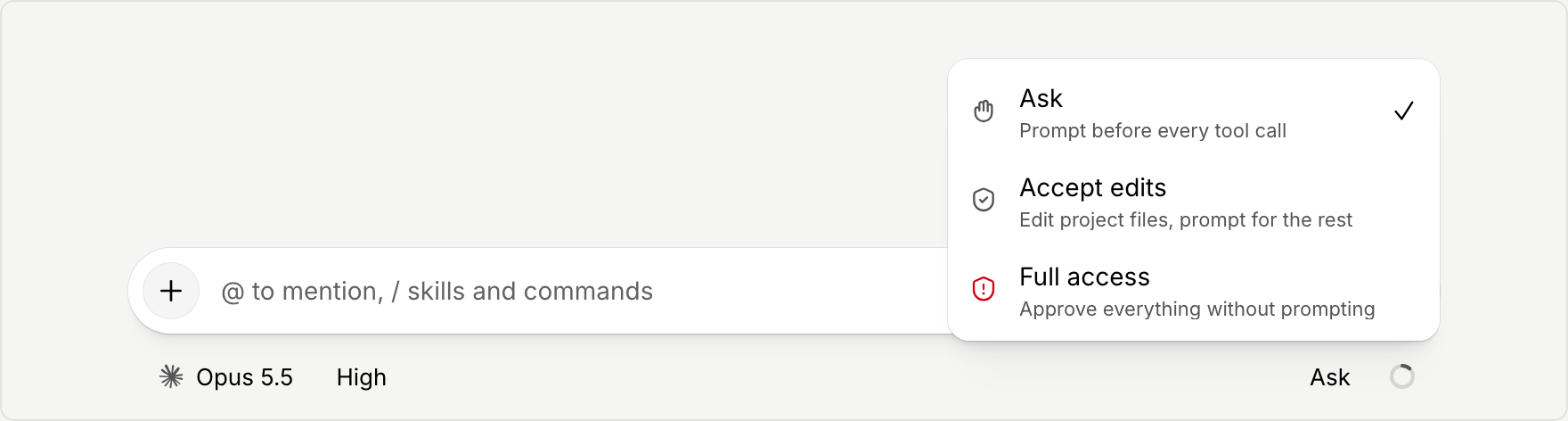
- Ask prompts you before every tool call. Choose it when you want to review each step.
- Accept edits lets the agent edit project files, and prompts you for everything else.
- Full access approves everything without prompting. Choose it only when you are comfortable with the agent acting on its own.
Change the mode for a chat
The composer shows the current mode by name. Select it to change permissions, then choose a mode. You can do this from the composer on the home page before you start, or in a chat that is already open.
Set your default
- Open Settings and go to Approvals.
- In the Default mode section, choose the mode for each kind of chat listed.
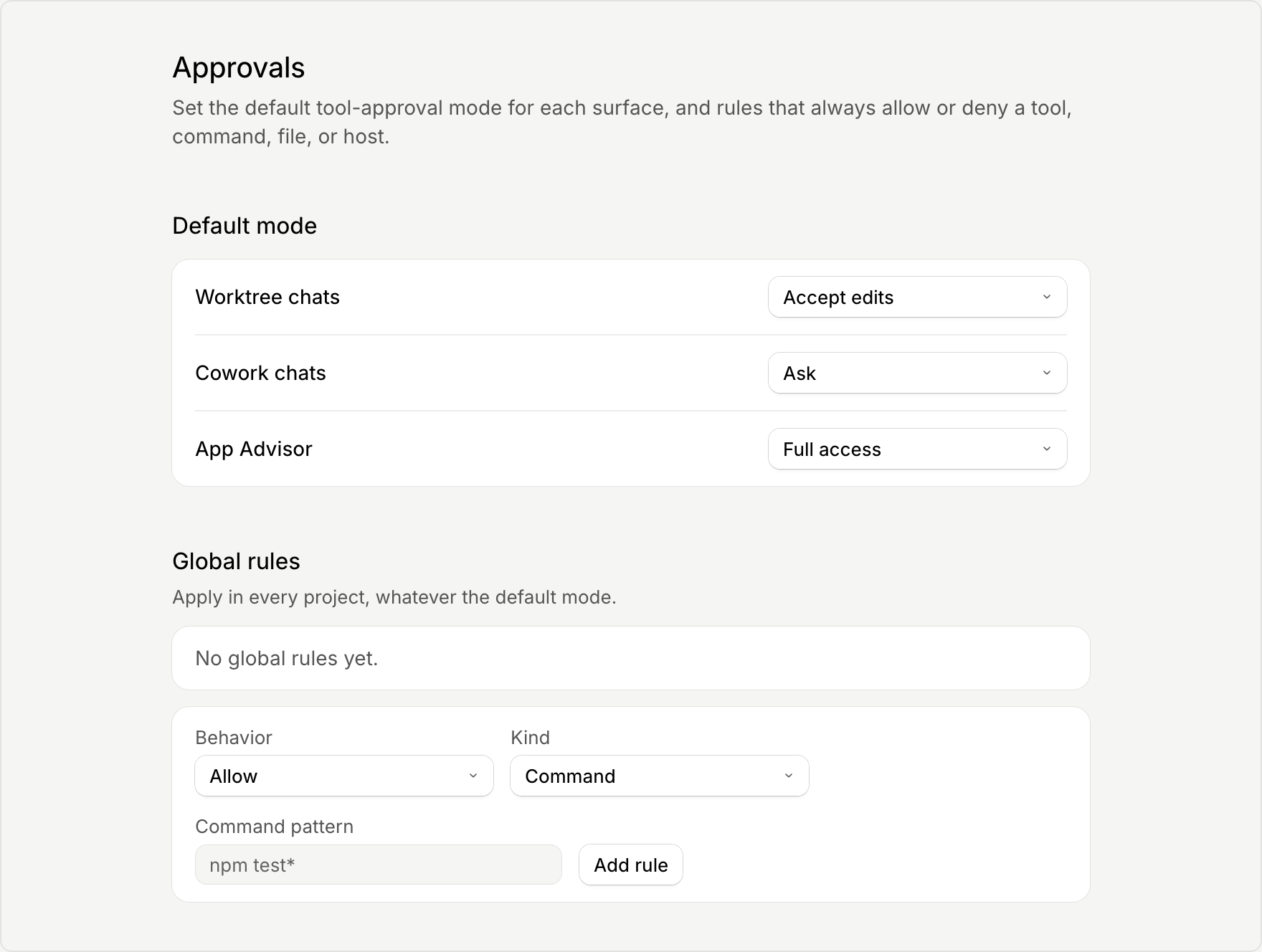
New chats start in the default you set. You can still change the mode in any single chat.
When an agent asks
When a mode calls for approval, the agent pauses and waits for your answer before it continues. With Remote Control and the mobile app, you can answer when you are away from your computer.