
Agents in the Unstoppable desktop app keep working after you leave your desk. The work that piles up while you are away is usually small: a question only you can answer, a turn heading the wrong way, a finished run waiting for its next instruction. Remote Control lets you handle those from your phone, so a long task doesn't sit idle until you get back.
There are two ways in. The Unstoppable mobile app for iPhone and Android connects to your computers and gives you their projects, worktrees and chats in a phone layout. Remote Control in the phone's browser opens the Unstoppable web app when you scan a quick response (QR) code on your computer, with nothing to install. Both steer the same thing: the desktop app on your computer. The phone never runs an agent itself.
This post explains how the pieces fit: what has to be true on the computer, how each route pairs, what you can do once connected, and where the limits are. Two earlier posts cover the pieces in detail: the mobile app launch and pairing a phone by QR code. Some of their details have since changed; this post describes the current apps.
What the computer needs
Everything you do from the phone happens on a computer running the desktop app, so three things have to be true there:
- The desktop app is open, online and signed in. If the computer sleeps or the app closes, the phone shows it as Offline and has nothing to steer. Paired computers reconnect on their own once the app is running again.
- Remote Control is on. In the desktop app it lives in two places: Remote Control in the sidebar's account menu, and the Remote Control page in Settings, where the switch reads Allow your other devices to control this computer. It is on by default.
- Both devices use the same account. A phone only finds, and only pairs with, computers signed in to the account it uses.
The desktop states the stakes plainly before you pair: "A paired device can see and change everything on this computer, including running commands." Pair only phones you control.
Two ways to connect
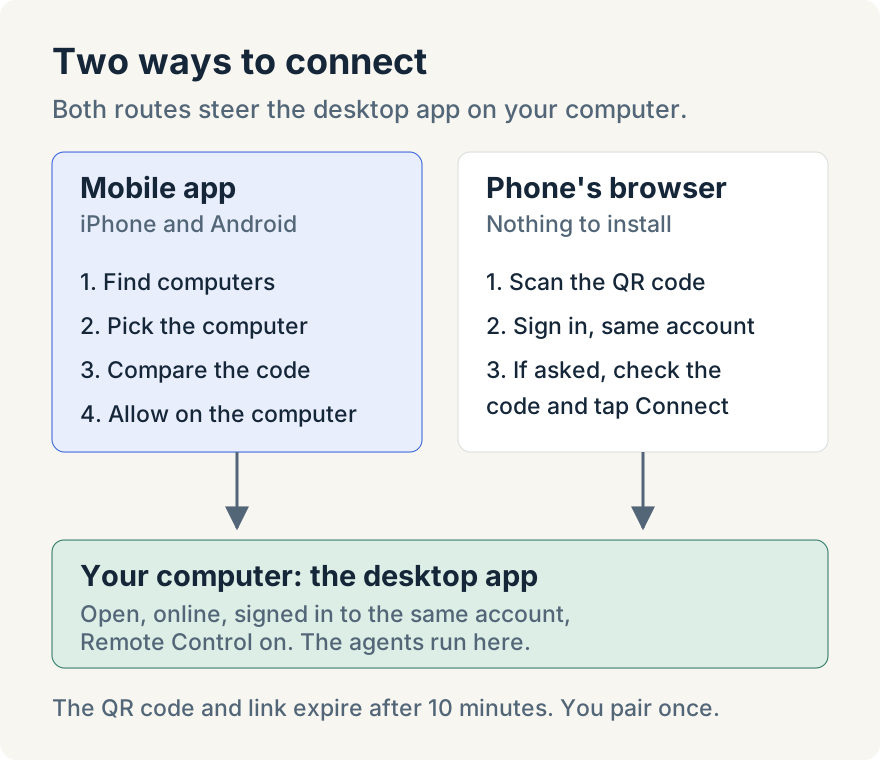
From the mobile app
The app is in the App Store and on Google Play, where it is listed as Unstoppable AI. Sign in with the account you use on the desktop, then connect a computer:
- Choose Find computers. The list shows online computers on your account with Remote Control turned on.
- Pick the computer. The phone shows a code.
- Check that the computer shows the same code, and allow the pairing on the computer. The phone says: "Approve on your computer only if both codes match. You only need to do this once."
After that, the computer stays paired. You can pair several, and switch between connected computers from the top of the screen; each shows its state, such as Connected, Waiting for approval, Reconnecting or Offline. If no computers are found, the app explains how to turn on Remote Control on the desktop and links to the download.
The launch version of the app paired by typing a six-digit code from the desktop, and connected one computer at a time. Ryan Le built that first Remote Control tab and took the app through its App Store release; Stanislav Havrosh built the computer list and the computer-first home screen that replaced it in version 1.1.11.
From the phone's browser
This route needs no app. On the computer, open Remote Control from the account menu, choosing Enable Remote Control if it is off. The dialog shows a QR code and a Copy link button: "Scan with your phone's camera, or copy the link to open on any device."
- Point the phone's camera at the QR code. It opens Remote Control in the Unstoppable web app, in the phone's browser.
- If the browser isn't signed in, sign in with the same account. Pairing carries on afterwards, with nothing to type.
- If the browser asks, check that its code matches the computer's, and tap Connect.
The QR code and link expire after 10 minutes. The dialog counts down, and when time runs out it offers Get a new code; devices already paired keep working. If scanning isn't possible, Enter a code instead in the browser still works. Sergii Iurevych built QR pairing, which reached the desktop app in version 1.10.0.
Which route to use
The mobile app suits regular use. It remembers your computers, reconnects to them in the background, lists chats from all of them in one side menu and can start new work on any of them. While a computer is paired, a Remote Control row also appears in the app's side menu; otherwise you find Remote Control under Settings. The browser route suits a phone without the app, a borrowed device or a one-off check, because it needs nothing beyond the camera and a signed-in browser. Both reach the same chats on the same computer, so you can use either without losing your place.
What you can do once connected
The useful things are mostly small, and they fall into four jobs.
See what needs you
The mobile app's side menu lists recent chats from every connected computer, and a chat waiting on you is marked Needs your answer. Inside a chat, a drawer above the composer collects what needs you, what's queued, what's running, pull requests and watchers. Push notifications take you straight to the relevant chat, so you don't have to keep checking.
Answer and steer
Answer an agent's question, send a follow-up or queue the next message, and stop a turn that has gone the wrong way. The composer follows the desktop's: a + menu for attachments, plugins and plan mode, / and $ command suggestions, and the same model picker with an effort setting. Model and effort changes apply as soon as you tap them. Unsent drafts are kept if you lose the connection or switch chats, and a message that fails to send stays in the chat with Retry and Discard. Below each finished response, Copy and Fork buttons sit next to how long the response took, so you can take an answer elsewhere or branch a new chat from it.
You can also reach Orchestrator (formerly App Advisor), the app-wide agent on your computer, from the phone.
Start new work
The home screen is a composer: choose a project, a new or existing worktree, a base branch, a model and effort, and type. The chat runs on the computer you chose. You can also add a project by cloning a Git uniform resource locator (URL); the computer does the cloning. A long press archives a worktree.
Check results and move them along
Open files from a worktree in their formatted view, and read changed files and their diffs. Markdown reports show their images inline, including inside tables, and an image opens full screen with pinch to zoom. The chat's activity also lists the worktree's configured scripts, so you can see what has run. Create a pull request from the phone and follow its progress; each pull request lists its continuous integration (CI) checks and shows GitHub merge queue status.
Workflows run from the phone too. Browse and start them, follow a run's jobs and steps with live logs, and follow up on a run in chat from its details screen. The desktop now calls these workflows; parts of the mobile app still label them pipelines. Real review is still easier on a bigger screen, but you can tell whether something worked.
For organization accounts, the app's Settings also holds Activity, Usage and Members: your organization's recent agent activity, its usage over a time range, and the people in it.
Where the limits are
- The computer does the work. The phone steers sessions on a running, online desktop app. Agent chats started from the mobile app's home screen run on the computer you pick.
- One account. The phone, the browser and the computer must be signed in to the same account.
- Pairings last until you remove them. Turning Remote Control off on the computer disconnects paired devices without deleting their pairings; they can't reconnect until it's back on. To end a pairing for good, remove the device from the Remote Control page in the desktop's Settings, or choose Forget computer in the mobile app.
- The browser route and the app are separate. Scanning the QR code opens the web app in the phone's browser, not the mobile app.
- Versions matter. Remote Control in the mobile app needs a recent version of the desktop app. If something described here is missing, update both.
Try it
Version 1.1.11 of the mobile app, in the App Store since November 12, 2026, has the computer list and home screen described here. Version 1.21.0 of the desktop app has the Remote Control dialog with its QR code and the Remote Control settings page. Download the desktop app, check that Remote Control is on, then connect your phone from the mobile app or by scanning the QR code.