
Some follow-ups shouldn't go out yet. You may want the agent to run the full test suite after the build server is free, or to pick a chat back up first thing tomorrow. Version 0.26.4 of the Unstoppable desktop app lets you write that message now and schedule it into the same chat for later.
Scheduling a message
In a worktree chat, the composer has a clock button to the left of Send, Schedule message. It opens Schedule Message with a Date and a Time, set five minutes ahead to start with. Choose when, then Set Schedule.
A pill above the input now reads Scheduled send with the time you picked. Click it to change the time, or clear it to go back to sending normally. Write your message as usual, with attachments or file references if you need them, and press Send. Instead of going out, the message is saved for the time you chose.
What happens at that time
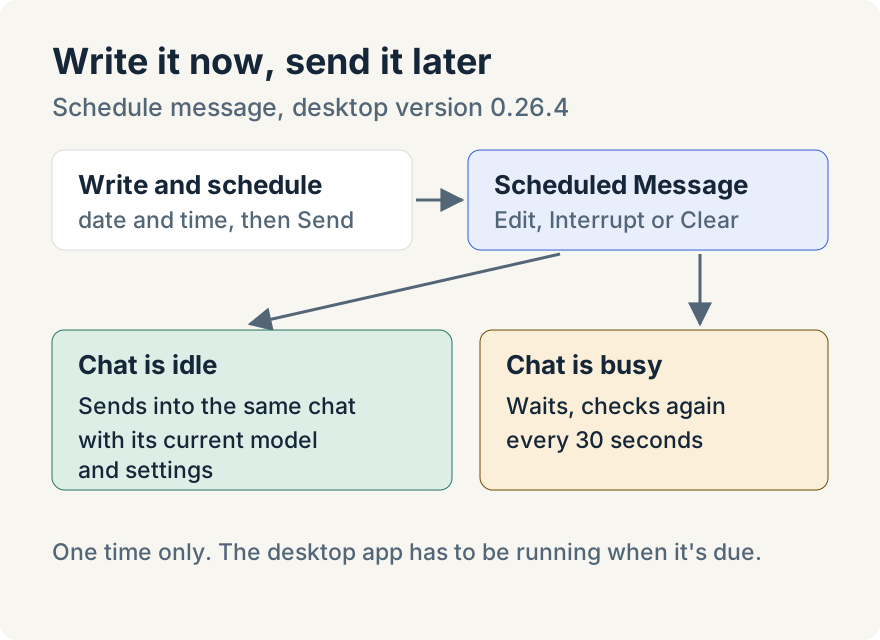
The scheduled message goes into the same conversation, so the agent has the whole chat as context. It uses the chat's settings as they are when it sends: the model, thinking level, plugins, plan mode and repository.
If the chat is busy at that moment, because a turn is running, other messages are queued or background tasks are active, the message waits. The app checks again every 30 seconds and whenever the chat's activity changes, and sends as soon as the chat is idle. A scheduled message never interrupts the agent mid-turn.
Seeing and changing what's scheduled
A scheduled message shows in the chat as a bubble headed Scheduled Message, with "Scheduled for" and the time. Its actions let you:
- Edit the text, attachments or time;
- Interrupt, which sends it right away;
- Clear, which stops it from sending.
Scheduled messages also appear on the Automations page, as a "Worktree Session prompt" with Open Chat to jump back to the conversation. From version 0.26.5, a worktree with scheduled messages shows a clock badge in the sidebar, and hovering it lists each one with its time.
When a Claude usage limit stops a chat
The same release adds a related shortcut. When a Claude chat hits its usage limit, a banner above the composer reads "Claude usage limit reached. You can keep chatting, or schedule this session to resume when usage resets." Schedule Resume schedules a "Continue" message into that chat for the time the limit resets.
Where it stops
- One time only. The composer schedules a single send; repeating schedules are for automations.
- Worktree chats only. Standalone chats and chats running Claude Code in its terminal mode don't have the button.
- The desktop app has to be running. Scheduling happens on your computer, not in the cloud.
Tommy Irish built scheduled messages and the usage-limit resume.
Update (2026-10-29): picking up chats stopped by a usage limit or by the app closing now has its own resume flow, with Resume at reset for chats still waiting on a limit. See How I pick up agent work after the app closes or hits a limit.
Try it
Scheduled messages are in version 0.26.4 of the Unstoppable desktop app. Download Unstoppable, open a worktree chat and use the clock button next to Send.