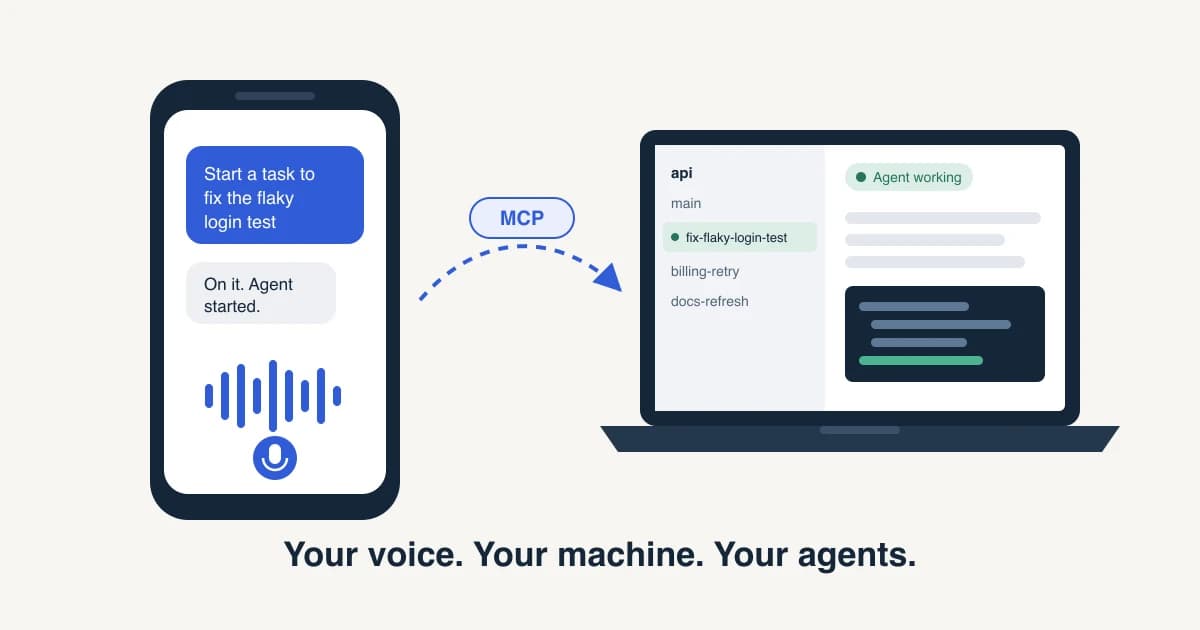

My phone stays in the cupholder and my eyes stay on the road. I call my ChatGPT dot, say what I want, and it tells Unstoppable Code on my laptop at home to start a task and put an agent on it. By the time I park, there's a pull request waiting for me, already reviewed and approved by Claude Opus and DeepSeek V4 Pro.
My best ideas never show up at my desk. They show up around mile three of my commute, in line for coffee, or halfway through walking the dog. I used to make a note and hope I'd remember the context later. Now I just call my dot and have a quick conversation. By the time we hang up, the work has started on my own machine, in my real repo, with my real tools.
The setup takes about two minutes. Here's what you get, and how to turn it on.
What you can do by voice
A dot is ChatGPT's always-on agent. You can call it or message it from your phone, and it keeps working while you're busy. Connect your dot to Unstoppable Code over MCP, and your coding agents become something you can talk to from anywhere. You talk to your dot like you'd talk to a teammate, and it does the clicking for you.
- Start new work. "Start a task in the api project to fix the flaky login test." Unstoppable Code sets up the task on your computer and puts an agent on it.
- Check in. "What are my agents working on?" or "Is the billing retry done yet?" You get a quick summary without opening a laptop.
- Follow up. "Tell the login test agent to use the existing mock instead of a new one." Your message lands in that chat, queued for the agent's next turn.
- Unblock. When an agent stops to ask an ordinary question, you can answer it out loud and it keeps going.
- Stop. "Stop that last turn, it's going the wrong way."
- Catch up once you're parked. Ask for the diff, the pull request status, a file, a plan or a pipeline run, and read through it on your phone.
All of it runs on your computer. Your code stays where it is, with your Git setup, your branches and your agents exactly as you left them. Your dot is just a new way to talk to them.
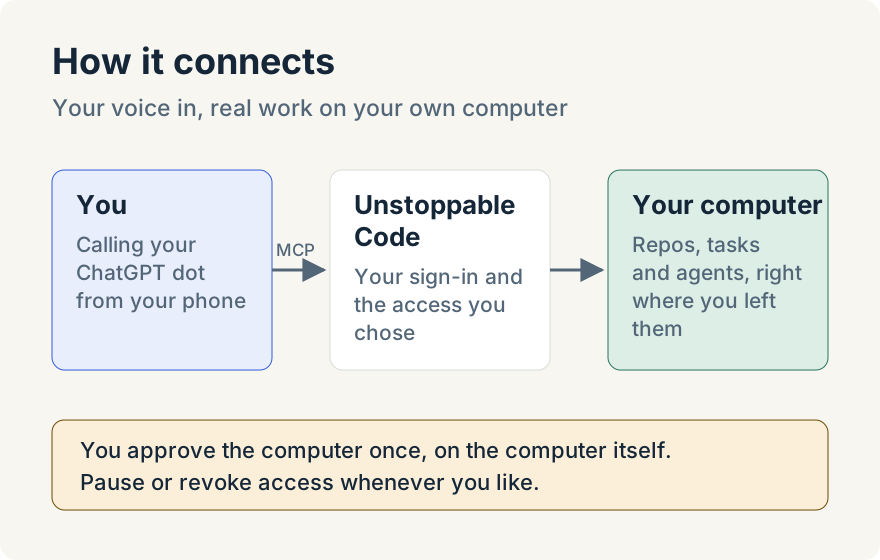
Talk to one agent, build with your own
Persistent agents are built to keep you in one place. Your dot lives in ChatGPT, Grok Bot lives in Grok, and the company behind each one would like your work to stay on its stack.
Pairing your favorite voice agent with Unstoppable Code splits that apart. The voice agent is just how you talk. The coding happens on your machine, with the same agents and models you'd use if you were sitting at your desk, running on your own subscriptions and provider connections.
- No lock-in. Use the voice agent you like today and switch tomorrow. Your repos, tasks, chats and history stay right where they are.
- Your models, your accounts. The work runs on the Claude, Codex and other connections you've already set up, not on a new bill from your voice agent.
- Your setup, not a copy of it. Your skills, MCP servers, Git config and branches are all there, because nothing moves into someone else's cloud.
Set it up in about two minutes
You need the Unstoppable Code desktop app on your computer and a ChatGPT dot.
1. Turn on Remote Control
In the desktop app, turn on Remote Control. This is what lets your computer accept work when you're away from it.
2. Copy the Tasks address
Open your account menu and choose External agents (MCP). Under Connect an agent, open Other MCP agent and select Copy next to Tasks. The address is:
https://app.unstoppable.ai/api/v1/mcp/tasks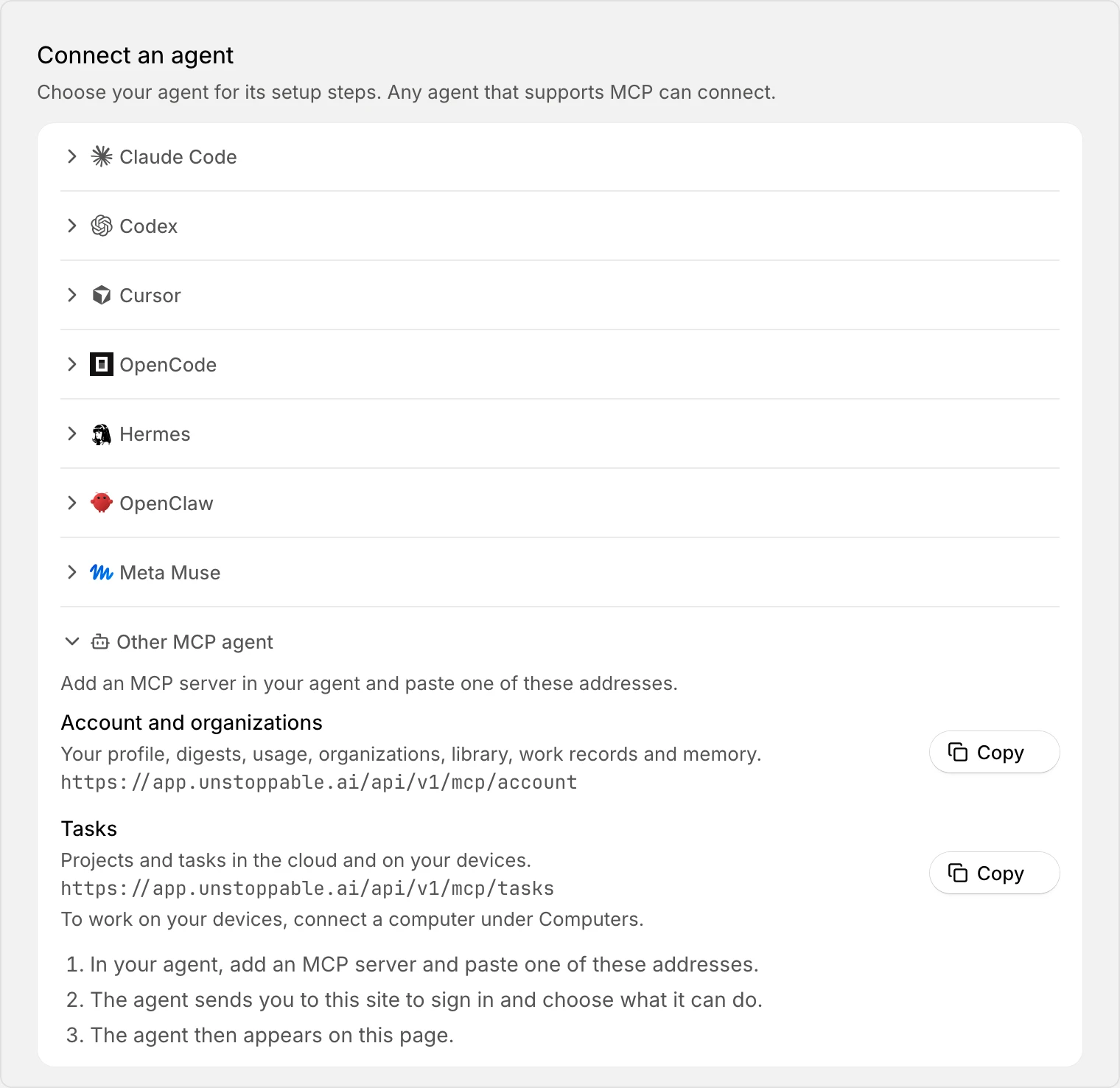
3. Add it to your dot
In ChatGPT, add Unstoppable Code as a custom connector with the Tasks address, and let your dot use it. ChatGPT sends you to Unstoppable Code to sign in. There you choose what your dot can do: read only, or read and write, and which of your computers it can reach. Once you approve, ChatGPT shows up on the External agents page.
4. Connect your computer
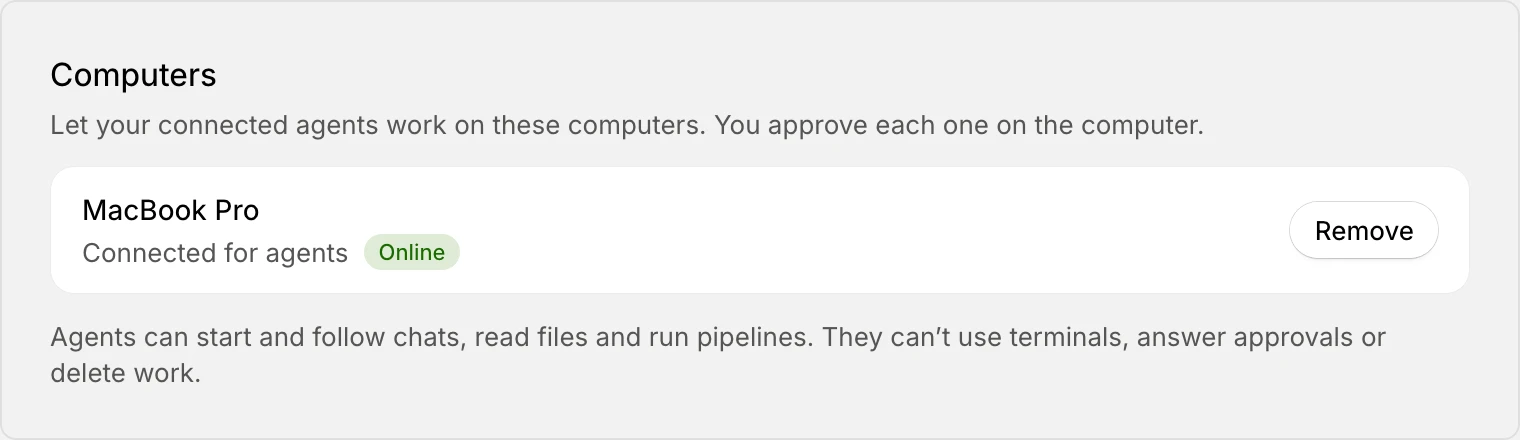
Back on the External agents page, find your computer under Computers and select Connect. It needs to be online, with the app open.
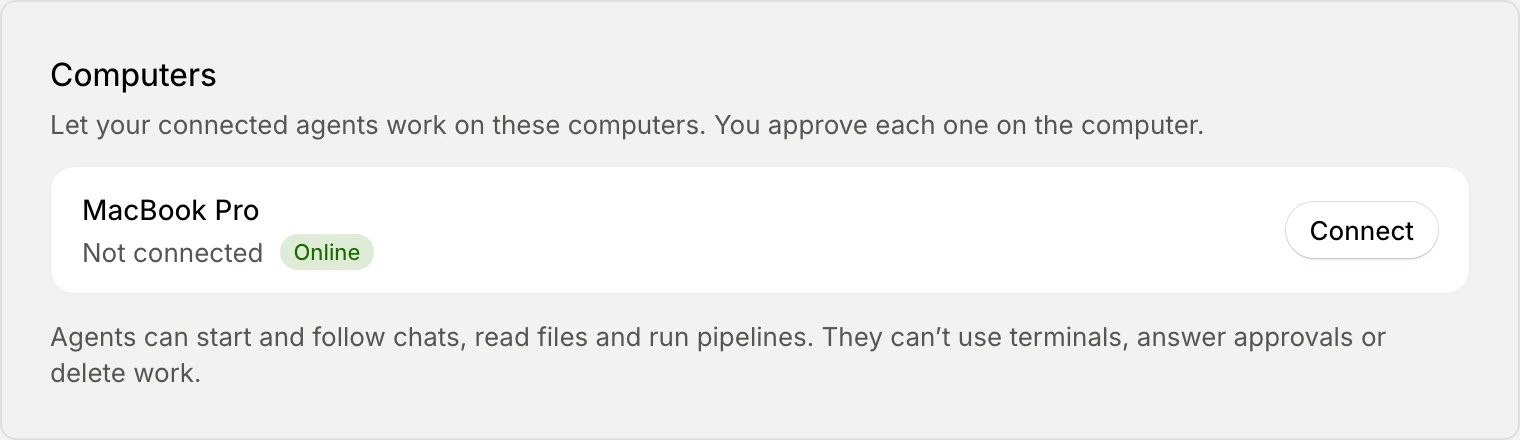
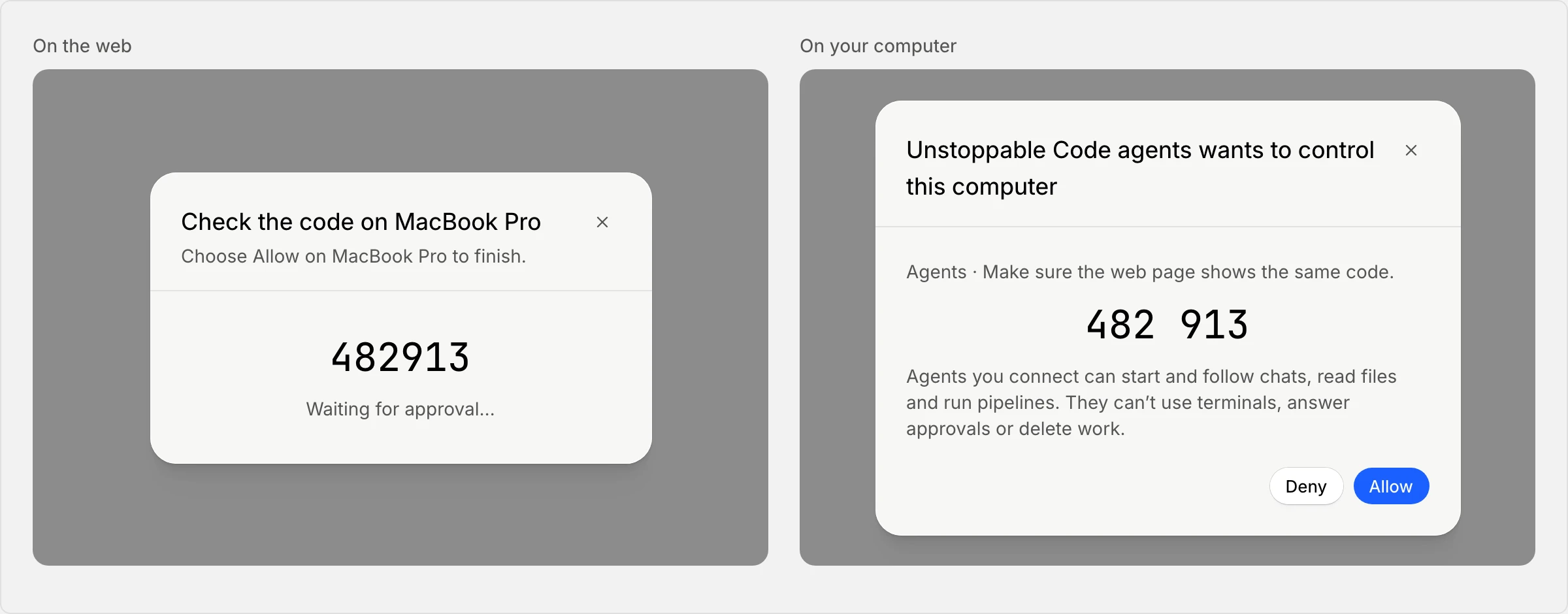
5. Match the code and choose Allow
The web page and your computer both show the same six-digit code. Check that they match, then choose Allow on the computer. That's the only time you need to be at your desk.
The row now reads Connected for agents, and you're done.
Things to tell your dot
With Unstoppable Code connected, your dot can reach the work that lives on your own computer.
- "Start a task in my work repo to fix the flaky login test." That's your company's private code, on your machine, worked on by your own agents with your own accounts.
- "Pick up the billing branch where I left off and finish the retry logic." Your uncommitted work is on your laptop, and so is the agent that can finish it.
- "Have the login test agent run the suite against my local database and tell me what failed." Your local services, env files and test data never leave your machine.
- "What did the agent I left running before lunch get done?" It follows up on work you started at your desk, not just work you started by voice.
- "Read me the plan the agent wrote for the docs refresh, then tell it to skip the API section." The plan lives in your project, and your follow-up goes straight to the agent that wrote it.
- "Did last night's release pipeline pass?" Your pipelines run on your machine, with your keys and your config, and your dot can check how they went.
- "Is the pull request for billing retry ready for review?" It checks the pull request in your private repo, with your own GitHub access.
You stay in control
Talking to your computer from anywhere sounds powerful, so the guardrails matter.
- You approve each computer on the computer. Every computer has to be approved on the computer itself, by choosing Allow.
- You choose what your dot can do. Read only or read and write, and which computers it can reach. Change it any time on the External agents page.
- Some things stay off limits. Connected agents can't use terminals, answer tool approvals, answer questions that ask for a secret, or delete work. Those still need you at your desk.
- Your device names stay private. Your dot sees a short code for each computer, not its name, unless you turn names on.
- Your data stays yours. Your dot's requests pass through Unstoppable Code on the way to your computer, and what it reads goes to ChatGPT, like any chat with it would. Everything else stays on your machine. How Unstoppable Code is private by design has the full picture.
- Pause or revoke whenever you like. Do it from the External agents page, and your dot's very next request is refused.
And to be clear about the driving part: keep it voice only. Call your dot, start work and ask for updates by ear, and save reading diffs for when you're parked.
Frequently Asked Questions
Does my code leave my computer? Only what you ask for. If you ask for a diff, a file or a summary, that content is sent to your dot in ChatGPT. Your repositories, tasks and agents keep running on your own computer.
Do I need to leave my laptop on? Yes. Your computer needs to be awake and online, with the Unstoppable Code app open, for your dot to reach it.
Does Unstoppable Code cost anything? No. Unstoppable Code is free and open source.
Can I use another assistant instead of a ChatGPT dot? Yes. Any assistant that supports MCP connectors can use the same address. The External agents page has setup steps for Claude Code, Codex, Cursor and others.
Can my dot delete my work or run commands in a terminal? No. Connected agents can start and follow chats, read files and run pipelines, but they can't use terminals, answer tool approvals, answer questions that ask for a secret, or delete work.
Keep going
New to MCP? Start with What Is an MCP and Why Do Coding Agents Need It?. If you'd rather check on your agents yourself, see How I check on my agents from my phone. Don't have the desktop app yet? Download it here.