
The Changed files card shows what an agent changed in a worktree, so you can check the work before you commit or open a pull request. From it you can read each diff, send feedback to the agent, undo a file, and see a diagram of the whole change.
Before you start
- Code projects only. Changed files belong to a worktree, a separate copy of your repository on its own branch.
Open Changed files
In the Activity panel on the right of a worktree, find the Changed files card. Its header shows how many files changed, or No local changes.
Files are grouped under Uncommitted and Committed. A long list ends with a row such as Show 20 more files. To hide some kinds of files, use the label filter in the card's header.
Read a diff
Select a file to open its diff in a panel. To find text in it, press ⌘F (Ctrl+F on Windows).
Comment on lines
Comments tell the agent exactly which lines need work.
- In the diff, select the text you want to comment on, then select Comment.
- Type your comment, then select Add comment.
- Add as many as you need. They wait in the comments drawer, marked Not sent.
- Select Submit N comments, such as Submit 2 comments, to send them all to the worktree's chat. The agent picks them up from there.
If the agent marked a line, an Agent highlight shows beside it. Select Comment on the highlight to reply to it.
Send a file to the chat
Open a file's context menu in the list and choose Send to chat to mention it in the chat. The same menu can open the file in another app or Copy relative path.
Discard changes to a file
You can undo the uncommitted changes to one file. Committed changes can't be discarded here.
- Hold the pointer over an uncommitted file. Its line counts turn into a discard button.
- Select the button. The app asks you to confirm and explains that the file's uncommitted changes are removed and this can't be undone.
- Optional: select Show changes to see what you're about to lose.
- Select Discard changes.
For a file with merge conflicts, discarding removes the conflict markers and restores the version from your last commit.
See a Change diagram
A Change diagram draws your branch's changes as a diagram, so you can follow a large change before you read every file.
- In the Changed files card header, select the diagram icon (View diagram). The Change diagram panel opens.
- The first time, the panel offers Review this branch. Select Start review to generate notes and diagrams for the branch's changes.
- Read the diagram. It opens in Diff, which marks what was added, removed, and changed. Select Before or After to see one side on its own. When the branch changes a data model, Logic and Data model tabs appear above the diagram.
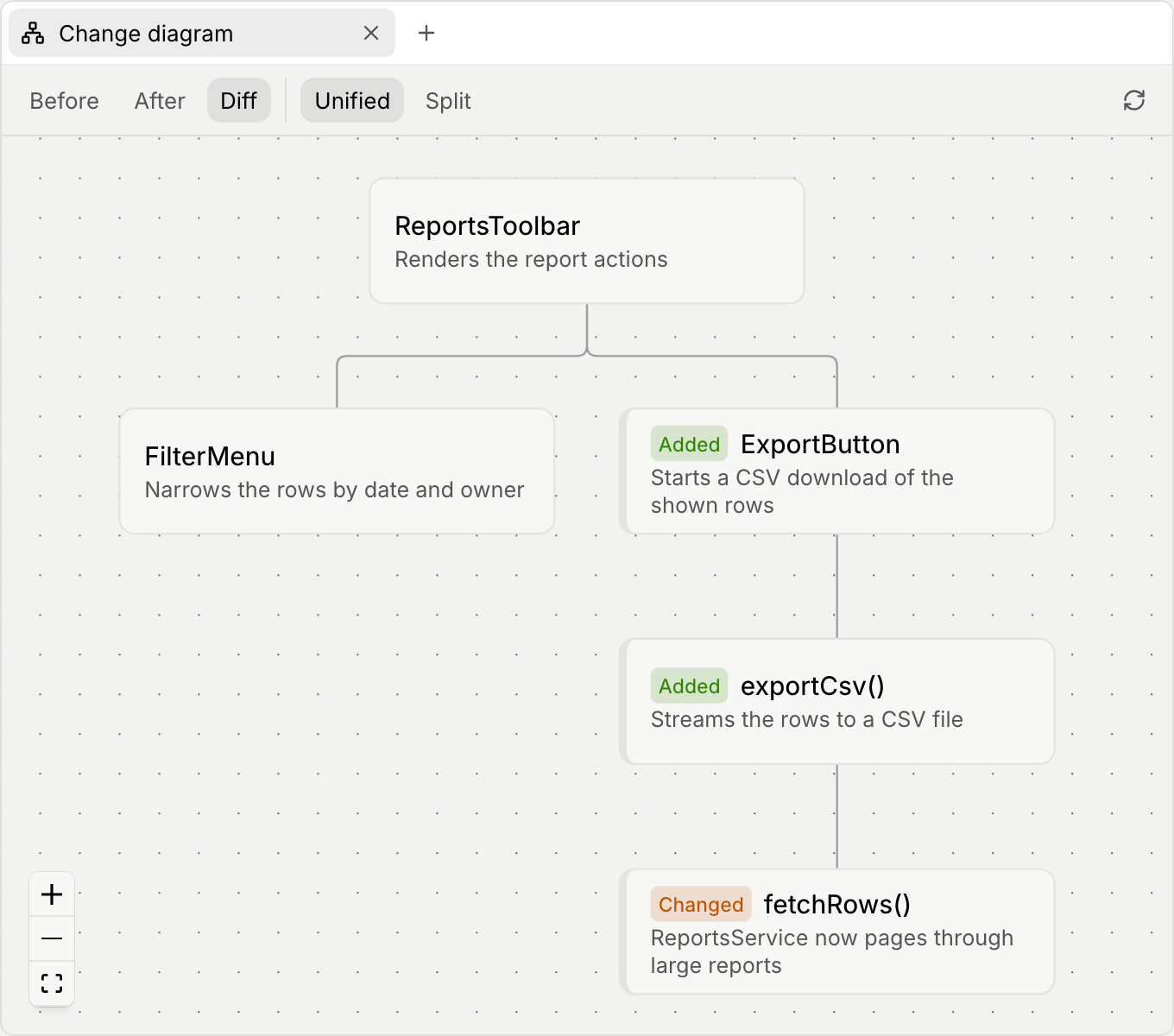
To comment on part of the diagram, select a node, then + Add comment, and select Save comment. Submit diagram comments the same way as line comments.
After more changes, select the refresh icon (Refresh diagram). If nothing changed, the panel says "Review is up to date." Press ⌘F (Ctrl+F on Windows) to find text in the diagram.