A task is a piece of work you hand to an agent, such as a bug fix or a new feature. In a Code project, each task runs in its own worktree: a separate copy of your repository on its own branch, so its changes stay apart from your other work. You can start another task while the first one runs.
Before you start
- Code projects only. In Work in Unstoppable Code, a task runs as a chat without a worktree.
- Install the desktop app. See Install the desktop app.
- Add a Code project. See Start your first project.
Describe the task
Select New task at the top of the sidebar, or press ⌘N (Ctrl N on Windows).
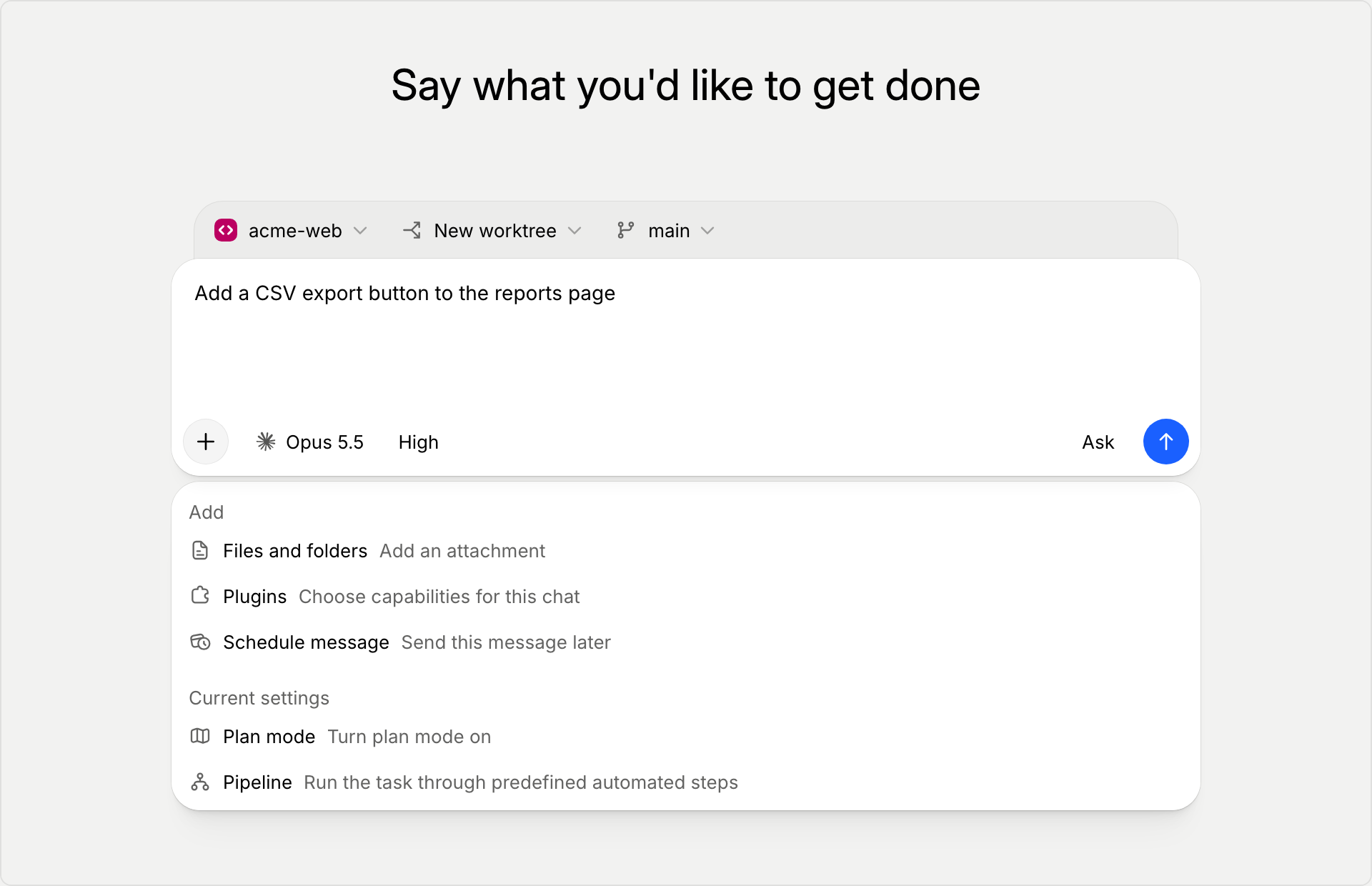
Choose your project in the project picker above the message box. New worktree beside it means the task gets a fresh worktree.
Describe what you want done in plain words, such as "Add a CSV export button to the reports page."
Optional: the task starts as a chat with the agent. To change how it runs, select + and choose an option:
- Plan mode has the agent write a plan first. Read it, then select Yes, implement this plan before the agent changes any code.
- Pipeline runs the task through a pipeline, a saved series of steps, instead of a chat. When you send, choose the pipeline to run.
Select Send.
Follow the work
The app creates the worktree and names its branch from your description, so you don't have to. The worktree appears under your project in the sidebar. The agent works in the chat, and you can follow each step there.
To change how branch names are made, open Settings, go to Git, and find the Branch naming section.
Review and follow up
- In the Activity panel on the right, Changed Files lists each file the agent changed. Select a file to see its diff.
- To ask for more changes, send a follow-up message in the same chat.
Open a pull request
When you're happy with the changes, select Create PR at the top of the worktree. If the changes are not committed or pushed yet, the app does that first.
Archive or delete the worktree
When you're done, open the worktree's menu in the sidebar and choose one:
- Archive removes the worktree from disk and keeps its chats until you delete the archive.
- Delete removes the worktree and its chat from the sidebar. When the app can save a copy, you can restore it for 7 days by default.
Archive asks you to confirm first. Delete asks too when the worktree still has changes.
To bring a worktree back, select Archived and deleted under your project in the sidebar, open the worktree, and select Restore.
Next steps
To control what the agent may do without asking, see Choose an approval mode. For the terms used here, see the Glossary.