
When an agent changes a web app, someone still has to open it and look. Before version 0.26.0 of the Unstoppable desktop app, that meant switching to a separate browser, finding the right port and then describing what you saw back in the chat. Version 0.26.0 adds a browser inside the app, next to the terminal, for the app you're running locally. You can point at what's wrong and hand it to the agent, and the agent can open the page and check its own work.
Opening your app
Each worktree's bottom drawer now has two tabs, Terminal and Browser. In the Browser tab, New browser opens a page and Split browser puts another one beside it, up to five side by side. The address bar works like any browser, with Back, Forward and Refresh, and Open in external browser when you want the page in your usual browser instead.
If your project's launch script starts a dev server, the activity panel shows an Open button once the server prints its address. By default it opens that address in the Browser tab. A project can set its dev server to open externally instead.
Each worktree's browsers keep their own storage, so the session you sign into your local app with in one worktree stays in that worktree.
Split view is useful when one change touches two pages. Put the page you're editing next to the one that links to it, or the same route in light and dark theme, and refresh both after the agent's next turn.
Sending what you see to the chat
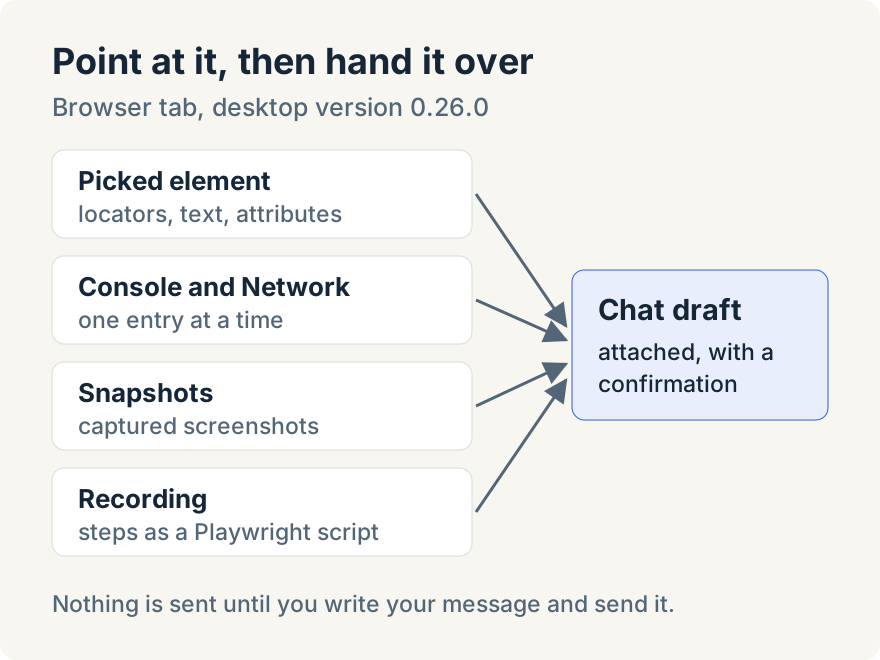
The point of having the browser in the app is that what you find can go straight to the agent. Every route ends the same way: the item is added to the draft of the chat you're working in, with a short confirmation such as "UI selection attached to chat draft." Nothing is sent until you write your message and send it.
- Pick an element. The Chat button in the browser bar turns on pick mode. Click the button, heading or field you mean, and the draft gets a description of it: the page address, locators that identify the element, its role, text, size and position and its attributes, with an image of the element when one can be captured. "The heading is misaligned" becomes something the agent can find in the code.
- Console and network. Show browser details opens a panel with Console and Network tabs; when the page has logged errors, the button carries a red count. Filter the console to Errors or the network list to Failed, and each entry has its own Chat button. The panel keeps the most recent 500 console messages and 1,000 network requests, and Clear console and Clear network empty the lists before you reproduce a problem.
- Screenshots. Capture screenshot saves the page under Snapshots, where Chat attaches it.
- Recordings. Record browser actions records what you do on the page. When you stop, the Recording tab shows the steps as a Playwright test script, and Chat attaches it. That gives the agent the exact steps to reproduce a bug, and a starting point for a test. A recording keeps up to 1,000 steps, and Delete recording discards one you don't need. The app doesn't run the script itself; it's text for the agent or your own test suite.
Use light theme and Use dark theme switch the page's color scheme without changing your system setting, which helps when a change has to look right in both.
Letting the agent use it
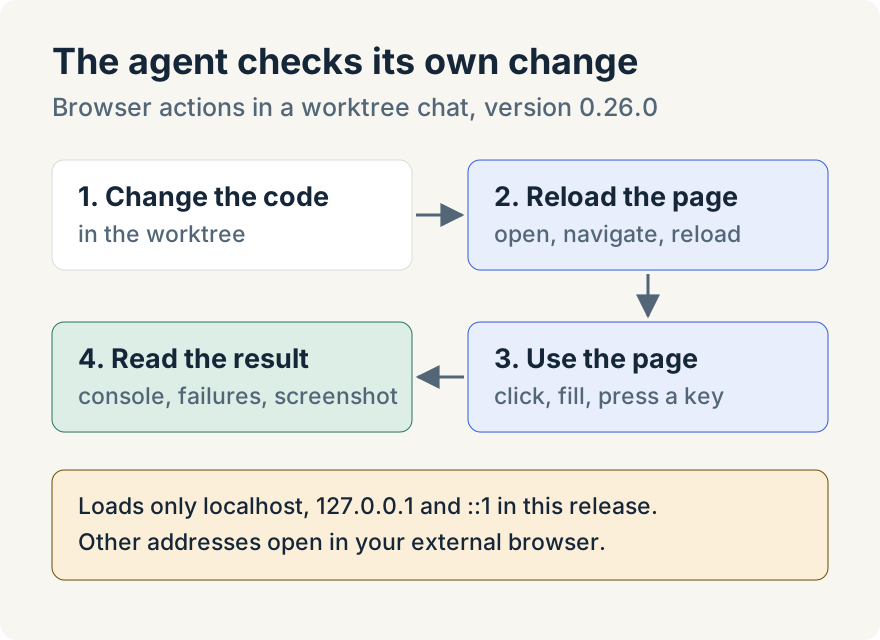
The agent in a worktree chat can use the same browser through the app's actions. In version 0.26.0 it can:
- list the open browsers, open one, go to an address, go back or forward, reload or stop loading;
- click an element, by locator or by position, fill in a field and press a key;
- take a screenshot, which is saved with the chat's attachments;
- read console messages, filtered by level, and network requests, filtered to failures, a status code or part of an address;
- start and stop a recording, and open a page in your external browser.
When the agent asks for an address that isn't local, the app opens it in your system browser rather than loading it in the app. The agent can also open a page in your external browser directly.
That turns "fix the form and check it works" into one request. The agent can change the code, reload the page, fill in the form, read the console for errors and look at a screenshot, then report what it saw. You can watch the same page in the Browser tab while it works.
Where it stops
- Local addresses only. In this release the in-app browser loads pages only from
localhost,127.0.0.1and::1. Any other address, whether you type it or the agent asks for it, opens in your system browser instead. It's for checking the app you're building, not for browsing the web. - Simple interactions. The agent can click, fill fields and press keys. Richer form controls, file uploads and downloads aren't part of this release.
- The dev server button was rough at first. Version 0.26.2, a day later, fixed the Open flow from the activity panel so the page loads reliably and shows a Stop button while it loads.
- Desktop only. The browser is part of the desktop app.
Tommy Irish built the in-app browser and the agent's browser actions.
Update (2026-10-06): Version 1.8.0 also lets the browser open local HTML files. Preview local HTML files in the built-in browser covers that addition.
Update (2026-10-23): the built-in browser now also works on external websites, with downloads, uploads you approve and handing sign-ins to you. See How I let my agent work through websites.
Try it
The in-app browser is in version 0.26.0 of the Unstoppable desktop app. Download Unstoppable, start your dev server in a worktree and open the Browser tab next to the terminal.