
Running coding agents on your own Claude or Codex account raises three practical questions. What did a piece of work cost, and how was it paid? What does the app send back about how you use it? And what do the agents remember, and where can that memory turn up again?
The Unstoppable desktop app answers each question in a different place. The Cost panel adds up what the agents in a worktree did. Settings, Privacy, Usage data has a switch for each kind of usage data the app sends, and organizations can turn most of them off for members. Private memory keeps a project's memory inside that project. This post explains how the three fit together, what each one covers and where each one stops. Each section links to the post that covers its feature in detail.
What the work cost
Agent work rarely happens in one place. A chat starts subagents, hands tasks to other agents, runs workflow steps that retry, and calls a model in the background to write chat titles, branch names, commit messages and pull request text. Provider usage pages show the total for your account, not which task it belonged to.
The Cost panel shows the observed cost of the work in one entry: a worktree, a Cowork entry or an Orchestrator entry. Tommy Irish built it with the Session breakdown that sits under each chat. The total includes:
- Chat turns, the normal back-and-forth in each chat.
- Subagents and Delegations that a chat handed work to.
- Workflow steps, counting every attempt, so a step that retried three times appears three times.
- Background work, such as chat titles, branch names, commit messages and pull request descriptions.
Archived chats stay in the total, and an entry keeps its cost after it's archived. Open it with Open Cost panel from the command palette, or from the Cost section of the Activity rail.
Finding where the cost went
Sort the panel's chat list by Highest cost and open the top chat. Its Session breakdown has three tabs:
- Cost starts with Where it went: chat turns, subagents, delegations and background work. A chat that looks short in its transcript can still cost a lot if it started several subagents that each read many files.
- Context shows how full the context window got at its peak and how many times it was compacted, turn by turn.
- Activity shows the number of turns and tool calls, the slowest turns, the most used tools and the models that did the work.
The panel doesn't recommend anything, but it shows what to compare. If file reads and searches dominate the top tools, the agent was rediscovering context that a narrower brief could have supplied. If a chat compacted repeatedly, the work may fit better in smaller chats. If routine subagent work carries most of the cost, the same kind of task can be tried on a smaller model and the next run compared.
Workflow runs are listed separately under Workflow runs. A run's details include a Cost item with what each step cost, retries included. That figure is useful before a review workflow runs on every pull request, where a few agent steps repeat dozens of times a week.
Each subagent panel has its own Cost section, labeled "Part of the cost of the chat turn that started it." For Claude subagents the app splits the turn's cost by tokens and model, so the split is an estimate. Codex subagents started by a chat or workflow step are recorded with their own tokens and priced from published prices, as an addition to the turn that started them. When a worktree is archived, its Cost tab comes first in the archived view and shows the final total.
How I keep an eye on what my agents cost walks through these views in more detail.
How it was paid, and how exact the figure is
Bringing the plan you already have means work is paid in several ways at once. The panel's By billing view, next to By source, splits the total by how each piece of work was paid, such as your own subscription, an application programming interface (API) key, an Organization gateway or a Local model. The precision differs by kind:
- Claude on an API key: the amount Claude reports with each turn.
- Codex: an estimate from published prices. The panel says "Codex cost is an estimate."
- A subscription: the same work valued at API prices. The panel labels these amounts as estimates at API prices, not charges. This figure doesn't appear on any bill, but it shows roughly how much work a subscription is covering.
- Organization gateway and local models: tokens only, shown as Not priced rather than as zero.
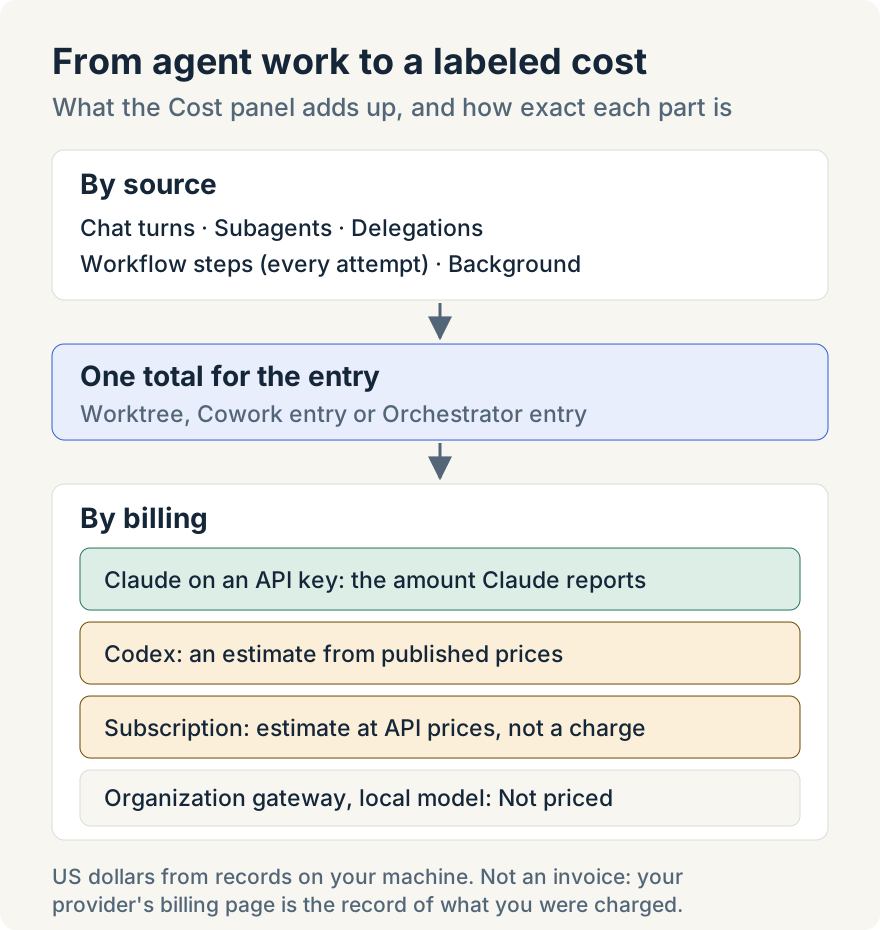
The figures are in United States dollars and come from the app's own records on your machine. They are not an invoice: your provider's billing page remains the record of what you were charged.
How far back the panel reaches depends on Retention days in the Agent observability section of Settings, General. It defaults to seven days and goes up to 90. Raise it before a long project, because it doesn't recover anything already removed. A new install shows "Building cost history" until the first replies are recorded.
The cost records stay on your machine
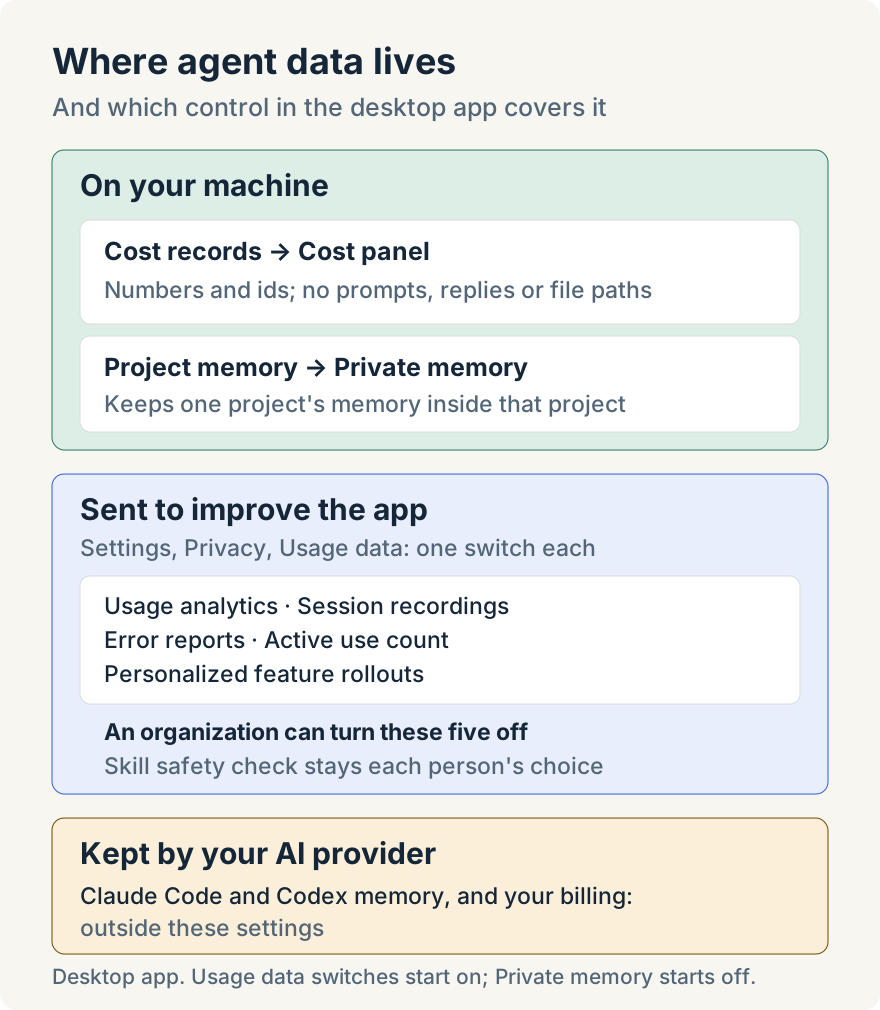
Cost data and privacy meet in the records themselves. The cost store keeps ids, numbers, times and labels the app generated, such as model names and step names. It doesn't keep prompts, replies, tool input or output, or file paths, and a Claude subagent is labeled by its type, never by its prompt. The cost files sit in the app's data directory, outside your checkout, and have no upload or sync path.
Chat names in the cost views are masked from Session recordings, the replays described in the next section, because a chat's name is something you wrote. A permanent delete of an entry removes its cost files with it.
What the app sends, and who decides
The desktop app sends a few kinds of usage data to help improve it. Aaron Quirk built the controls for them. Open Settings, choose Privacy and find Usage data, described as "Choose what Unstoppable sends to help improve the app." Each row has its own switch, and every switch starts on:
- Usage analytics: which features you use and how the app performs.
- Session recordings: replays of how you move through the app, with your content hidden. This row sits under Usage analytics and applies only while Usage analytics is on.
- Error reports: details of crashes and errors so they can be fixed. It is independent of Usage analytics.
- Active use count: a count of the messages you send, never their content.
- Personalized feature rollouts: whether your account decides which new features you get. When it's off, only your app version and organizations are used.
- Skill safety check: looks up installed skills with a safety service to show their risk.
Separately, Check for updates automatically in the Updates settings stops the timed update check when it's off; checking by hand still works.
Setting a policy for an organization
Organization owners and admins get a Member usage data card in the organization's settings, in the desktop app and on the web. It can turn off the first five flows above for everyone working in that organization. Before the change saves, a confirmation says members will stop sending that data and can't turn it back on.
A prohibition only turns a flow off; it never turns one on. It applies while a member works in that organization, and the member's row shows it locked off with "Turned off by" and the organization's name. The member's own saved choice isn't rewritten, so it applies again in a personal context or after leaving the organization. The skill safety check and automatic update checks stay each person's choice.
The policy fails closed. If the app can't yet read your account to check for an organization's prohibitions, those five flows stay off and the rows say "Turned off until your account can be checked." If it can't read your saved settings, they say "Turned off until your settings can be read."
Choose what usage data Unstoppable sends covers each switch and the organization card.
What agents remember, and where it can appear
Memory in Unstoppable is shared by default. A chat can draw on what was saved for its project and on what was saved for you across projects, and what it learns can feed a profile built from all your chats. That suits most work. It's a poor fit for a client project, or any work whose notes shouldn't show up anywhere else.
Private memory, which Aaron Quirk also built, is described in the app as "Agents won't use memory from other projects or your organization. New memories stay here." With it on:
- The project's chats get context only from the project's own memory, and memory searches look only there.
- Agents can't read or save memory in your personal scope from the project, so a note made there stays with the project.
- Notes imported from Claude into the project stay in the project, even if they ask to be saved more widely.
- The profile built from your chat history skips the project, and organization memory doesn't draw on it.
The setting is read each time memory is used, so changing it affects chats that are already open. For an existing project, it's on the General tab of project settings for code, multi-repo and Cowork projects. When you add a project, Add project shows a Private memory switch, off by default, and saves the choice before the project opens. In a project your organization manages, the switch shows the organization's choice, is disabled and reads Managed by with the organization's name.
Keep a project's memory private explains what stays separate. For how memory works in general, see Nick Shatilo's How I use memory with agents.
Setting up a sensitive project
The three controls work independently, so a project that needs care uses all three:
- Before the first chat: turn on Private memory in Add project, so nothing the agents learn there is shared from the start.
- For the team: an organization owner or admin decides in the Member usage data card which flows members stop sending while they work in the organization.
- For yourself: review the Usage data switches, including the two that stay personal, the skill safety check and automatic update checks.
- For cost: raise Retention days if the project will run longer than a week, then check the Cost panel by chat and by billing as the work goes on.
Where it stops
- Desktop only. The cost views, the Usage data switches and the Private memory setting described here are in the desktop app. The web app, cloud chats and the mobile app have no cost views, the web app has no member switches, and these controls don't cover the web app's own browser monitoring. The mobile app isn't covered by the organization card.
- Not an invoice. Codex amounts and anything on a subscription are estimates at API prices, and organization gateway and local model work has no price.
- Retention limits cost history. Nothing older than the Retention days setting is available.
- Older apps ignore organization prohibitions. Desktop versions before 1.20.0 don't apply them until members update.
- Provider memory is separate. Claude Code and Codex keep their own memory stores, which Private memory doesn't control.
- Nothing moves backward. Turning on Private memory doesn't move or delete memory that was already shared.
- Defaults stay as they were. Usage data switches start on and Private memory starts off until you change them.
Try it
Every feature described here is in version 1.20.0 and later of the Unstoppable desktop app. Download the app, open a worktree you've used this week and run Open Cost panel from the command palette, then open Settings, Privacy to review Usage data.