
When an agent writes a plan in Unstoppable, you can share it with a team or your whole organization so teammates read it and comment before any code is written. They open it in a browser, so they don't need the desktop app. Desktop version 1.21.0 adds the other half of sharing: you can now see who can read a plan you shared, copy its link again, and stop sharing it.
Share a plan
Sharing needs a signed-in account and an organization. In Personal, a plan you haven't shared yet has no Share button.
- Use the context switcher at the top of the sidebar to choose your organization.
- Open the plan in its panel or on the Plans card and select Share. In the panel, view the latest revision first.
- Under Sharing scope, choose Team or Organization, then pick which one, and select Share.
- Select Copy link and send the link to your teammates.
The button then follows the shared copy: Sharing… right after you select it, Syncing… while new revisions and comments are on their way, and Shared once teammates see the latest version. You don't share again after the plan changes.
What teammates can do
Teammates in the team or organization you chose open the link while signed in. They can read the plan and add, reply to and resolve comment threads, even while your desktop app is closed. Their comments come back to your plan with their names and wait as pending comments, so the agent gets them with yours the next time you submit comments.
See who can read it
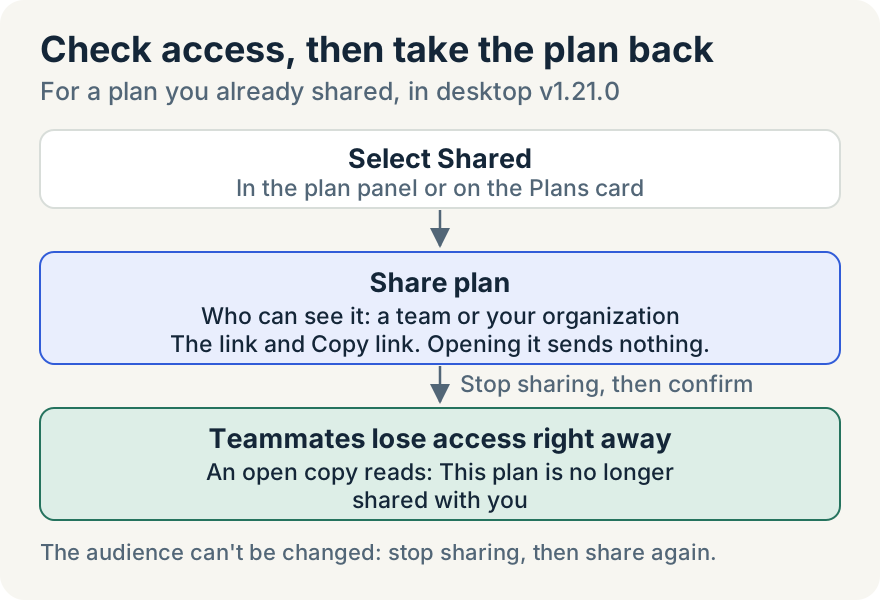
Select Shared, in the plan panel or on the Plans card. The Share plan dialog opens on the existing share. Under Who can see it, it names the team or organization and notes Can read and comment · Live. The plan's link is there with Copy link. Opening the dialog sends nothing, so you can check access without changing anything.
Stop sharing
- Select Shared to open Share plan.
- Select Stop sharing. The app asks Stop sharing this plan?
- Confirm with Stop sharing.
The app removes the shared copy, and teammates lose access right away. A teammate who has the plan open sees This plan is no longer shared with you, with a note to ask the owner to share it again. The comments on the shared copy are deleted, but your plan and the comments already in your desktop app stay. Sharing the plan again creates a new link, so send the new one.
Stopping needs a connection to your account. If it fails, the plan stays shared and the dialog shows the error, so you can try again.
When an update doesn't reach teammates
If the last update to the shared copy failed, the button reads Try sharing again. The dialog explains that the last update didn't reach the cloud and, when it knows, which revision teammates still see. Select Try sharing again to send the latest version to the same audience.
Where it stops
- The audience is fixed once shared. The dialog says Stop sharing to choose a different audience. To move a plan from one team to another, stop sharing it, then share it again.
- Sharing and stopping happen in the desktop app. Teammates read and comment in the browser, but the share controls are on desktop.
- An organization is required. Plans can be shared with a team or an organization, not with people outside one.
Aaron Quirk built the access view and Stop sharing. For more on reviewing a plan before it runs, read Aaron's guide, How I review my agent's plan and follow it through to done. The support article Share a plan with your team covers the same steps.
Plan access and Stop sharing are in desktop version 1.21.0 and later. Download Unstoppable to try them.