
Share a plan so your teammates can review it before any code is written. Agreeing on the steps and the data model at the plan stage catches a wrong direction while it's still cheap to change. Teammates open the plan in a browser, so they don't need the desktop app.
Before you start
- Sign-in required. Shared plans are stored with your Unstoppable Code account. See Sign in to your account.
- You need an organization to share with. To start one and invite people, see Invite your team.
- Have a tracked plan. See Plan a change with Plan mode.
Share the plan
At the top of the sidebar, use the context switcher to choose your organization. In Personal, a plan you haven't shared yet has no Share button.
Open the plan from the Plans card, or in its panel, and select Share. In the panel, view the Latest revision first, because older revisions can't be shared.
In the Share plan dialog, under Sharing scope, choose Team or Organization, then choose which team or organization.
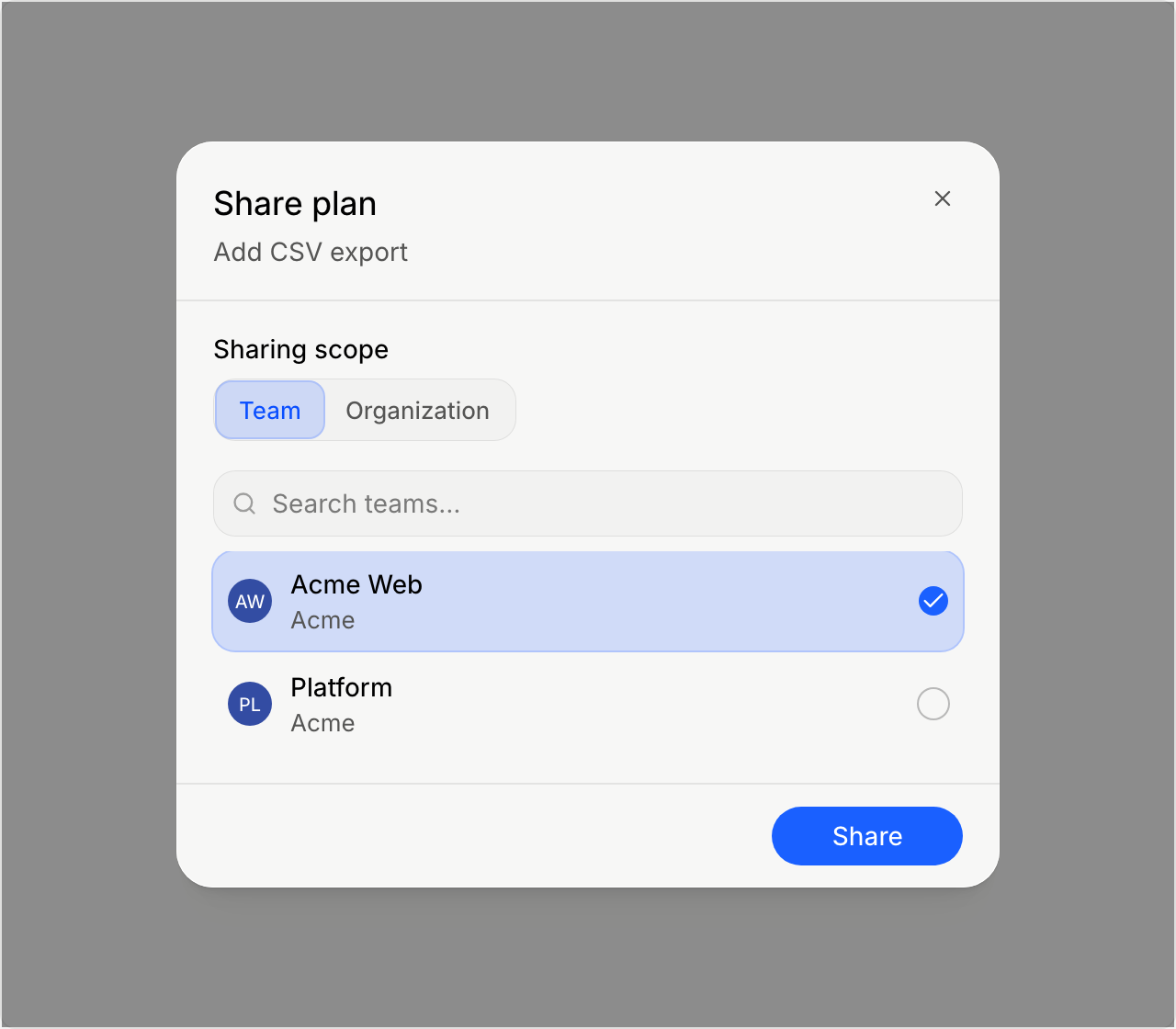
Select Share.
The dialog shows that the plan was shared, with its link. Select Copy link, send the link to your teammates, then select Done.
What teammates can do
Teammates in the team or organization you chose open the link in a browser while signed in. They can read the plan and add, reply to, and resolve comment threads, even while your desktop app is closed.
Their comments come back to your plan in the desktop app with their names. They count as pending comments, so the next time you select Submit N comments, the agent gets theirs with yours. See Comment on a plan.
Keep the shared plan up to date
You don't need to share again after the plan changes. The app sends new revisions and comments to the shared copy, and the button shows where that stands:
- Sharing… right after you select the button.
- Syncing… while the latest changes are on their way.
- Shared when the shared copy is up to date.
- Try sharing again if the last update failed. Select it to share again.
Selecting Shared sends the latest version again and shows a Plan shared. notice. From the Plans card, the notice includes the link.