Activity sharing decides which of your agent activity the desktop app uploads to your Unstoppable Code account, and who can see it there. Shared activity lets you revisit and search past runs from anywhere, pick up work on another computer, and share runs with your team. Nothing is shared until you choose to.
Open the Privacy settings
- Open Settings with the gear beside your name at the bottom of the sidebar.
- Go to Privacy.
The page has two sections:
- Cloud sync shows the Unstoppable Code Cloud account the app is connected to. Use it to sign in, change account, or disconnect.
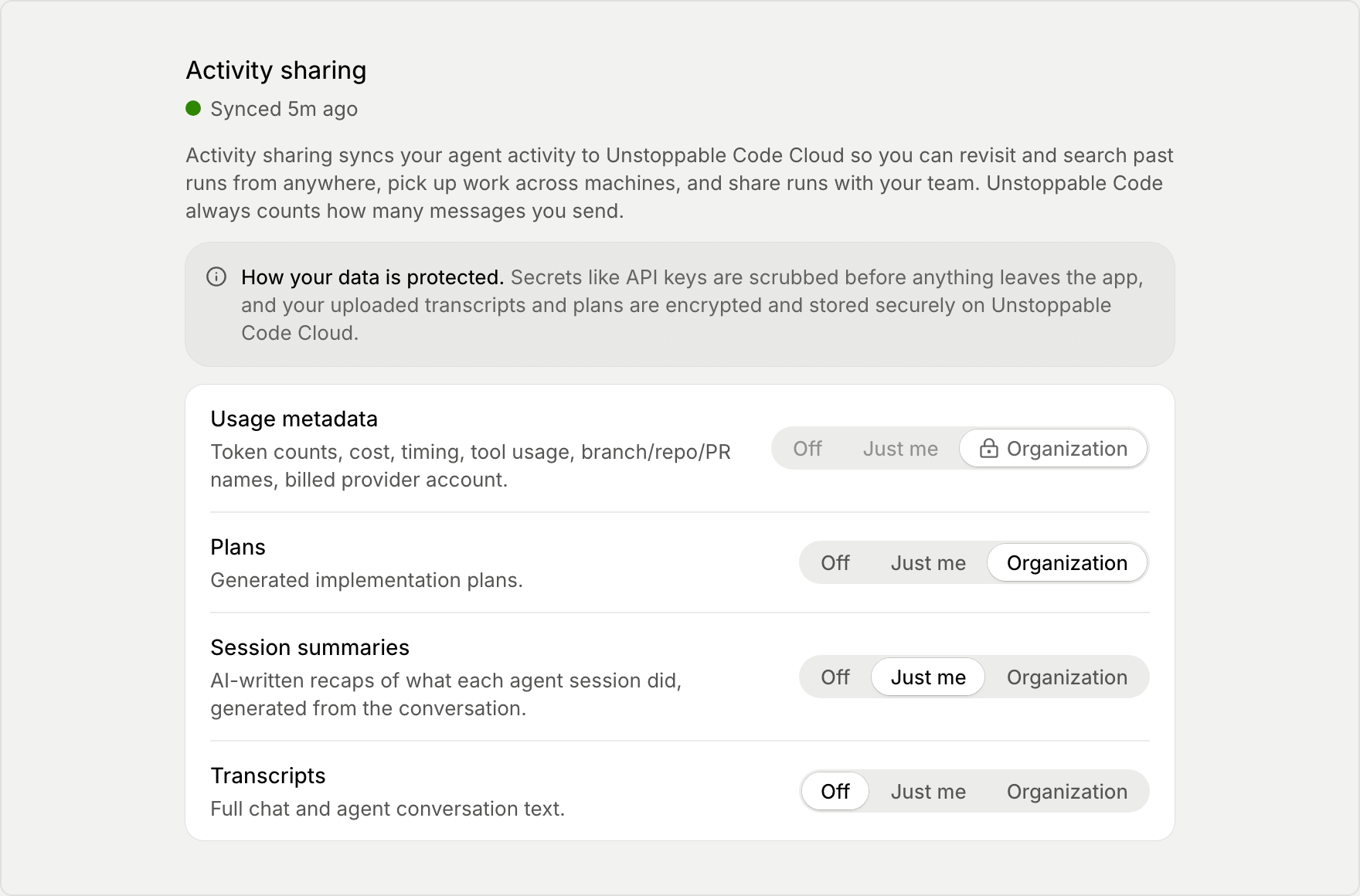
- Activity sharing explains what sharing is for and how your data is protected, then lists one row for each kind of data.
Unstoppable Code always counts how many messages you send, whatever you choose below. That count is not activity sharing.
Choose what to share
Each kind of data has its own row:
- Usage metadata covers token counts, cost, timing, tool usage, branch, repository and pull request names, and the provider account that was billed.
- Plans covers the implementation plans agents write.
- Session summaries covers short recaps of what each agent session did, written by AI from the conversation.
- Transcripts covers the full text of your chats with agents.
For each row, choose who can see it:
- Off keeps the data on your computer. This is where every row starts.
- Just me uploads it, and only you can see it.
- Organization uploads it, and everyone in your organization can see it. It appears only when you belong to an organization, and it applies only to work you do in that organization. Your Personal work stays private.
To give every row the same answer, use Set all to and choose Off, Just me, or Organization.
Your organization sees your plans, summaries, and transcripts only when Usage metadata is also shared with it. If it isn't, the row tells you it also needs Usage metadata.
Secrets such as API keys are removed before anything leaves the app, and uploaded transcripts and plans are encrypted.
When your organization sets a choice for you
An organization can require or block some kinds of data for work done in it. While that organization is selected in the sidebar's context switcher, those rows are locked:
- A required row is set to Organization. Its note names the organization that manages it and asks you to contact an admin to change it.
- A blocked row is set to Off. Its note says that organization's work stays on your computer.
While any row is locked, Set all to is hidden, so change the other rows one at a time. Your own choices still apply to your Personal work.
Check that sharing works
The line under Activity sharing shows the sync status:
- Privacy enabled means nothing is shared.
- Synced with a time means the last upload worked.
- Sign in to sync means you need to sign in before anything uploads. See Sign in to your account.
- Sync failed means the last upload didn't go through.
- Sync paused means shared activity hasn't reached your account in over 6 hours. It stays saved on your computer and uploads when the connection works again. The same status appears in the account menu. If it lasts, check your internet connection.
Next steps
- Invite your team to start sharing work with others.
- Settings worth reviewing once for the other settings to check early.