
A team is one shared place to work with other people. Teammates see the projects you include and use the same settings. You can create a team from your Personal context and invite people as you go, or invite more people to an organization you already manage.
Before you start
- Sign-in required. You invite people from the context switcher at the top of the sidebar, which appears once you sign in. See Sign in to your account.
- To invite people to an existing organization, you need to be one of its owners or admins.
Create a team from Personal
- At the top of the sidebar, select the context switcher. It shows Personal when Personal is selected.
- Below the divider, select Invite your team. The Create a team dialog opens.
- Under Team name, enter a name for the team.
- Under Projects to include, choose the Personal projects to bring into the team. A multi-repo project moves after its repositories are in the team. To skip this, include none. You can add projects later from the desktop app.
- Optional: under Invite by email (optional), enter a teammate's email address.
- Select Create team. If you entered an email address, the button reads Create team and invite.
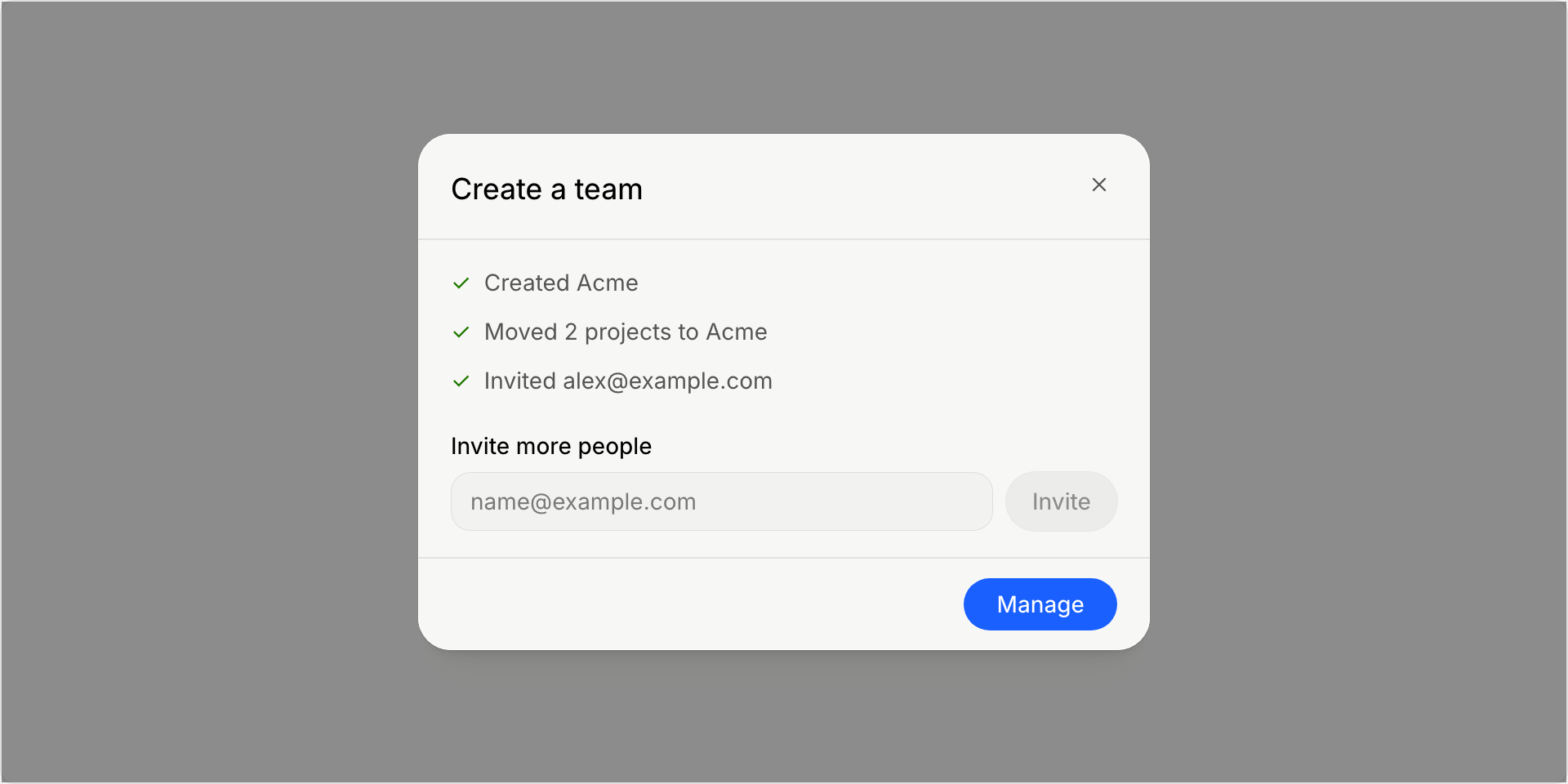
The dialog becomes a checklist with one row for the team, one for the projects, and one for each invitation. Each row shows a check when its step is done:
- If some projects didn't move, select Retry projects. The team stays as it is.
- If an invitation didn't go out, select Retry invite to send it again.
- If the app isn't sure whether a step finished, select Check again. It looks again without sending another email.
To invite someone else, enter their address under Invite more people and select Invite.
When you're done, select Manage to open the team's settings on the web, or close the dialog. Your new team appears in the context switcher, so you can switch to it there.
Invite people to an organization
- Select the context switcher at the top of the sidebar, and choose the organization.
- Open the context switcher again. Below the divider, select Invite your team. The Invite your team dialog opens.
- Under Invite by email, enter an email address and select Invite.
- Add more people under Invite more people.
- Select Manage to open the organization's settings on the web, or close the dialog.
If you don't see Invite your team for an organization, you're not one of its owners or admins. Ask one of them to invite people.
How your teammates join
Each person you invite gets an email with an Accept invitation button. If they already have an Unstoppable Code account, they can also answer on the website. The context switcher at the top of the sidebar lists the organization under Invitations, with Accept and Decline. After they accept, the organization appears in their context switcher.
Manage members on the web
Manage opens the organization's settings on the web. There, the organization's Members and Teams pages are where you manage who belongs to it.
No organization yet?
To set up an organization without starting from Personal, open the context switcher and select Create an organization, under your organizations. It opens the Organizations page on the web with a dialog to create one.
Next steps
- Choose what activity you share with your organization.
- Find your way around the app for the rest of the context switcher.