
The Unstoppable Code desktop app is one window with a sidebar on the left. This article walks down the sidebar from top to bottom, then lists the keyboard shortcuts worth learning first.
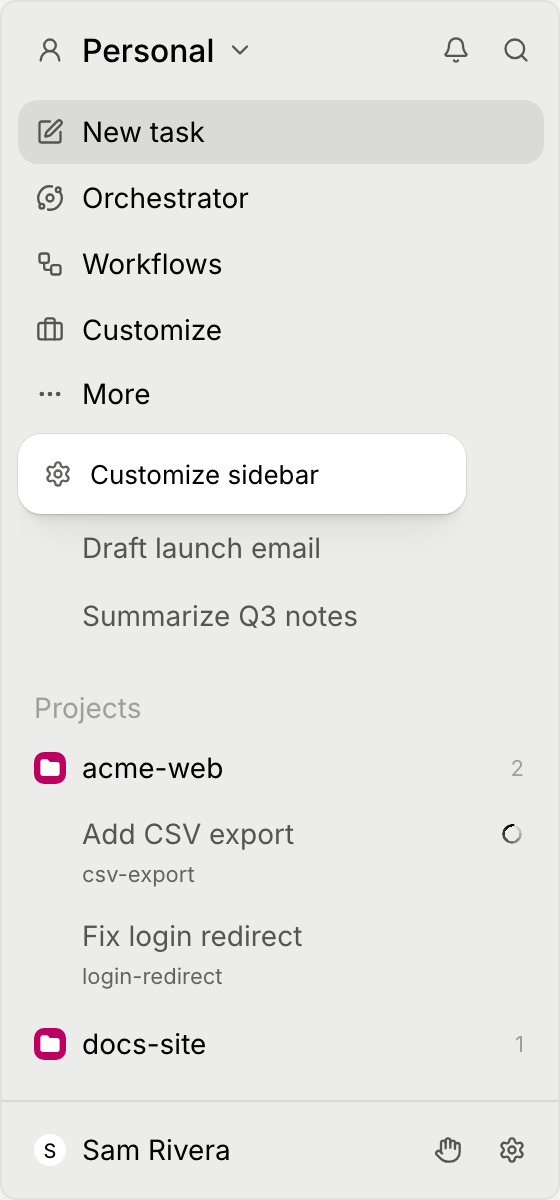
The top of the sidebar
When you're signed in, the top row shows the context you're working in: Personal, or the name of an organization. Select it to open the context switcher. It lists Personal and your organizations, then Create an organization, which opens the Organizations page on the web so you can set one up. Choosing a context changes the projects and actions you see. A dot on the switcher, or next to a context in its list, means something changed in that context, such as a finished task or work someone shared with you.
Below a divider, the switcher lists actions for the selected context:
- Timeline shows recent activity in that context.
- Statistics shows usage statistics. In an organization, only owners and admins see it.
- Invite your team creates a team from Personal, or invites people to an organization where you're an owner or admin. See Invite your team.
- AI Credits opens the organization's AI credits, with its balance beside the label. Only organization owners and admins see it.
- Organization settings opens the settings of the selected organization.
Two buttons sit beside the switcher:
- Activity (the bell) switches the sidebar to a list of your unread, draft, and unreplied chats. Select it again to go back.
- Search (the magnifying glass) opens the command palette, where you can find past chats and run commands. See Find past chats and files.
If you're not signed in, there is no context switcher. Search is a row under New task, and the Activity bell sits in the bar above the sidebar.
New task and the main items
- New task starts a new piece of work for an agent. See Start your first task.
- Orchestrator is a built-in assistant that operates the app for you. Ask in plain words, and it changes settings, sets up workflows, opens projects, and more.
- Workflows holds the workflows that run for you, on a schedule, on demand, or when something happens. It has three tabs: Runs, Schedule, and Library.
- Customize is where you browse and add plugins, MCP servers, skills, workflows, and more. See Add skills and plugins.
- More holds Customize sidebar, where you drag items to reorder them or to move them into the More menu.
Some extra pages are off until you turn them on in Settings under Labs. Once you turn one on, its sidebar row ends with a small flask icon.
Your chats and projects
- Chats lists chats that don't belong to a project.
- Projects lists your projects. Expand one to see its worktrees or tasks. A worktree is a separate copy of a repository where one task's changes stay apart from another's. To add a project, select Add project, the plus button next to Projects. See Start your first project.
- Shared with you lists worktrees, and tasks from Work in Unstoppable Code, that other people shared with you.
The account row
The bottom row shows your name. Beside it are two buttons: Send feedback (the raised hand) and Settings (the gear).
Select your name to open the account menu. Your email address is at the top, then your AI credits balance, Usage for your subscription limits, Remote Control, and Sign out. If the app can't upload the activity you share, the menu also shows Sync paused. If you're not signed in, the account row is where you sign in. See Sign in to your account.
Settings
Open Settings with the gear beside your name, or press ⌘, (Ctrl+, on Windows). Its pages are grouped under Personal, Agents, Integrations, Workflow, and Advanced. For the settings worth a look on day one, see Settings worth reviewing once.
Shortcuts worth learning
- ⌘K (Ctrl+K on Windows): Open command palette.
- ⌘N (Ctrl+N on Windows): New task.
- ⌘P (Ctrl+P on Windows): Find file, to open a file in the current worktree or Work project.
- ⌘B (Ctrl+B on Windows): Toggle sidebar.
- ⌘L (Ctrl+L on Windows): Open Orchestrator.
- ⌘8 (Ctrl+8 on Windows): Open Workflows. ⌘4 (Ctrl+4 on Windows) opens its Library tab.
- ⌘5 (Ctrl+5 on Windows): Open Customize.
- ⌘7 (Ctrl+7 on Windows): Open Usage.
To see every shortcut, open Settings and go to Shortcuts.
Next steps
- Start your first task
- Settings worth reviewing once
- The Glossary defines the terms used in the app.