Skills and plugins give your agents abilities they don't have out of the box. You find, add, and manage them in Customize.
- A skill is a set of instructions an agent follows for one kind of task.
- A plugin bundles skills, commands, and often MCP servers that connect to an outside tool.
- A collection is a set of skills and plugins that install together.
Find and install something
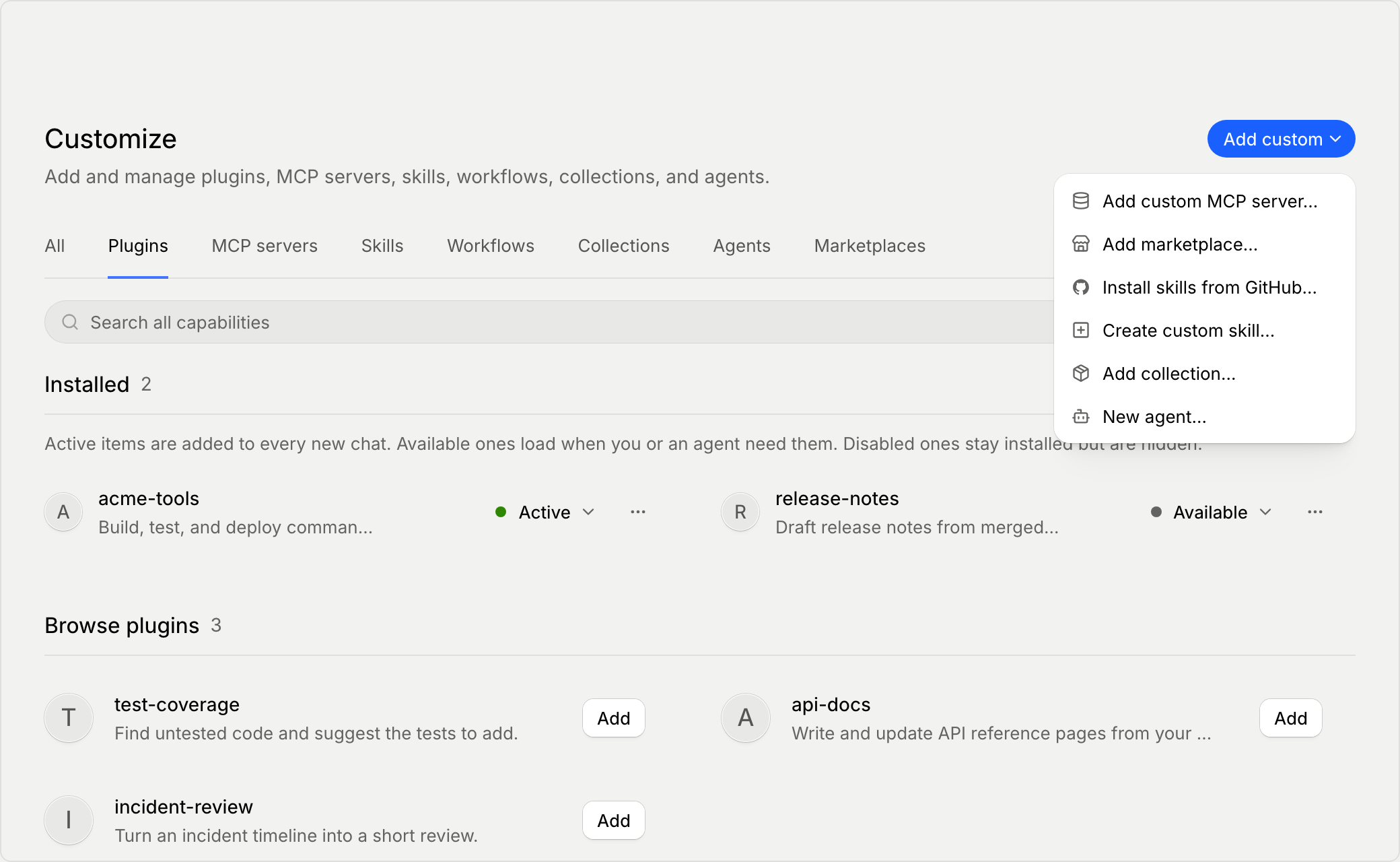
- Select Customize in the sidebar.
- Choose a tab, such as Plugins, Skills, or Collections, or type in Search all capabilities. The Installed section shows what you already have. The browse section below it, such as Browse plugins, shows what you can add.
- Select an item to open its details. A skill's Risk level comes from an outside analysis service, so treat it as a guide and review the skill before you rely on it.
- Select Install. For an item someone shared, a short review first shows what it is and who published it, and once it installs the button changes to open it, such as Open plugin.
To test a plugin, skill, or MCP server you've installed, select Try it on its details. The app opens a new chat with the item turned on and sends an example prompt.
Add your own
Select Add custom at the top of Customize and choose:
- Add custom MCP server… connects a server that isn't listed. See Connect an MCP server.
- Add marketplace… adds a Claude or Codex plugin marketplace from its repository. Open it from the Marketplaces tab to browse and install its plugins.
- Install skills from GitHub… imports skills from a GitHub repository.
- Create custom skill… writes a new skill. To change it later, open it and select Edit, or Edit with AI to have an agent help in a new chat.
- Add collection… groups items you want to install together.
- New agent… saves a model with your own instructions and plugins. See Create and share custom agents.
Choose what loads in every chat
Each installed skill, plugin, collection, and MCP server has a status. Change it on the item's row, or under Status on its details:
- Active items are added to every new chat.
- Available items load only when you need them. For a skill, type / and the skill name. For a plugin, type / and the plugin name to use its skills. Other items load when you or an agent need them.
- Disabled items stay installed but are turned off.
To see one group at a time, use the status filter beside the search: Any status, Active, Available, or Disabled. In Settings, the Plugins page counts your active items, and Open Customize lists them.
A chat can still turn items on or off from Plugins in the composer's + menu (see Use the composer). A project can pick the plugins its new chats start with, in Project settings under Plugins.
Update or remove an item
When an installed skill has an update, an Updates section appears at the top of the tab. Use the update button on a row, or select Update all.
To remove an item, open the ••• menu on its row and choose the last item: Uninstall… for plugins and installed skills, Remove… for MCP servers, or Delete… for something you made. A skill that came with a plugin, marked "From the acme-tools plugin" for example, stays or goes with that plugin.
Stop sharing an item
Items you've shared are listed under Shared by me on each tab, except MCP servers. Open one to see Shared by you, which lists everyone it's shared with. Select Unshare beside a row to stop sharing with them.
Plugins with Claude, Codex, and Cursor
Plugins work with both Claude and Codex. Many are written for Claude, and the app converts them for Codex where it can. In Cursor chats, a plugin's skills, commands, and MCP servers load, but its hooks and agents don't.