An Agent is a saved model preset: a base model plus your own instructions and plugins. Once you save one, you can pick it in any chat like a model, and every chat that uses it starts with the same setup. For example, you could save a "Release notes writer" that runs on your favorite model and always follows your style guide.
You manage Agents in Customize, on the Agents tab.
Before you start
- Sign-in required. You need to be signed in to share an Agent or to install one someone shared. Creating and using your own Agents works without it.
Create an Agent
- Select Customize in the sidebar and go to Agents.
- Select Add custom, then New agent…. If you don't have any Agents yet, you can also select New agent on the empty tab.
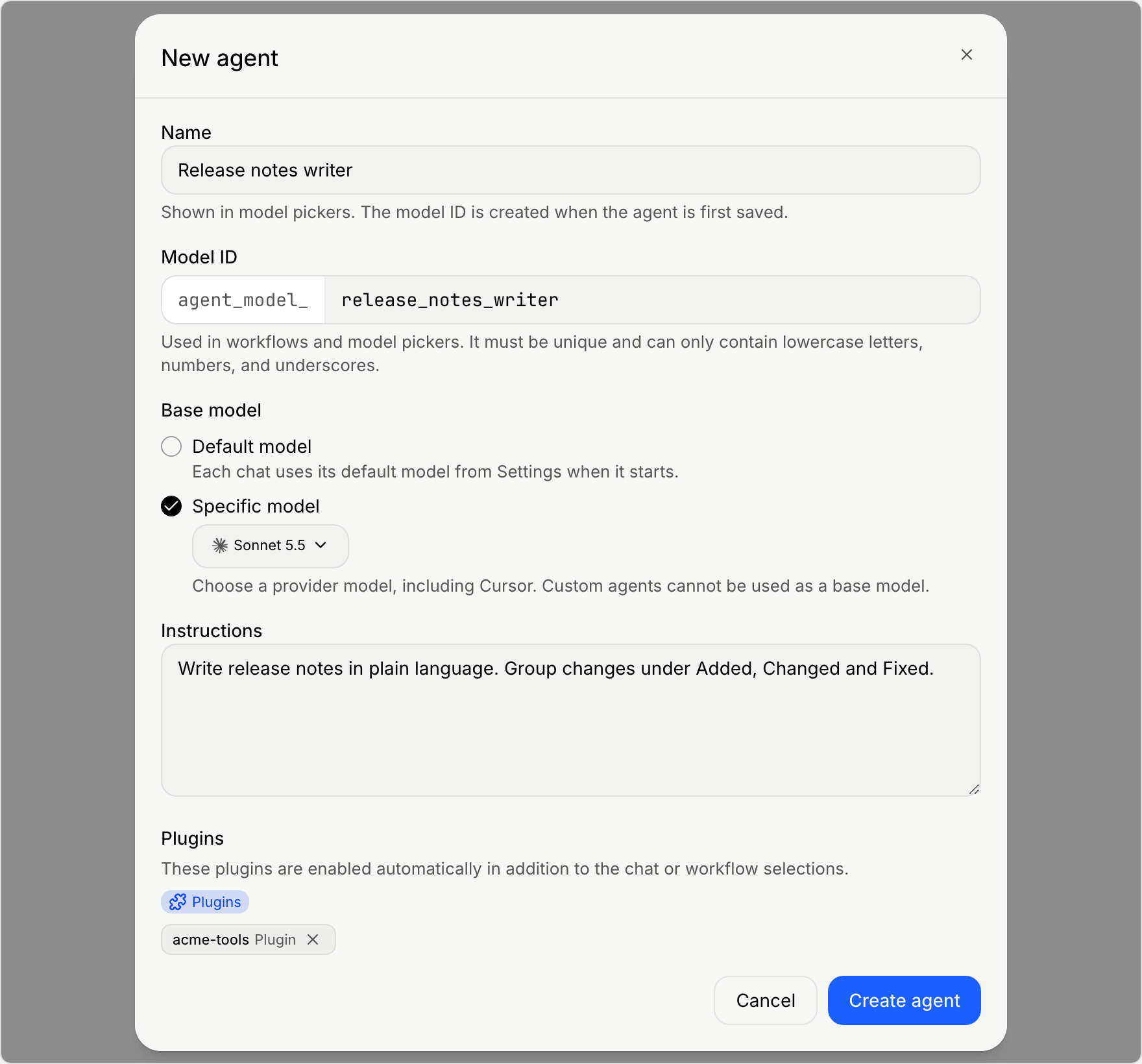
- In New agent, enter a Name. It's what you see in model pickers.
- Check the Model ID. It fills in from the name, and workflows use it to find the Agent. You can change it now, but not after the Agent is created.
- Under Base model, choose one:
- Default model uses the default model from Settings that each chat starts with. See Set default models.
- Specific model always uses the model you pick. You can choose any model you can run, including Cursor models, but not another Agent.
- In Instructions, write what the agent should always do. They're added to the system prompt whenever the Agent is used.
- Optional: under Plugins, add skills, plugins, or collections. They're turned on for every chat that uses the Agent, on top of the chat's own choices.
- Select Create agent.
Use an Agent
- In a chat: open the model picker and choose the Agent from the Agents group. See Choose a model and effort level.
- In a workflow: refer to the Agent by its Model ID wherever the workflow asks for a model.
If an Agent shows Unavailable, its base model isn't set up on this computer. Connect the provider or pick another base model.
Edit or delete an Agent
Your Agents are listed under Your agents on the Agents tab. Open one to see its base model, model ID, instructions, and plugins.
- Select Edit to change it in Edit agent, then select Save changes.
- Select Delete to remove it. You can also choose Delete… from the ••• menu on its row.
Share an Agent
- Open the Agent and select Share, or choose Share… from the ••• menu on its row.
- Choose who to share it with, then select Share.
Agents you've shared are listed under Shared by me on the Agents tab. To stop sharing, open the Agent and find Shared by you, which lists everyone it's shared with. Select Unshare beside a row.
Install an Agent someone shared
Agents shared with you appear under Shared with you on the Agents tab.
- Select the Agent to see what it is and who shared it.
- Select Install.
- Select Open agent to see it.
It then appears in your model pickers like your own Agents. To remove it, choose Uninstall… from the ••• menu on its row.
Next steps
- Give agents standing instructions that apply to every chat, not only one Agent.
- Add skills and plugins