Each chat runs on the model you pick, and you can change it at any time. Match the model to the job: use your most capable model for hard work such as planning or tricky debugging, and a faster one for routine edits and summaries. The model list changes often, so it pays to know your way around the picker rather than a list of names.
Pick a model
- In the composer, select the model name, or press ⌥M (Alt+M on Windows).
- Choose a tab on the left side of the picker. Favorites shows the models you starred. All models lists everything you can use. The tabs after them, such as Claude and Codex, show the models each harness runs.
- To find a model by name, type in Search models.
- Select the model.
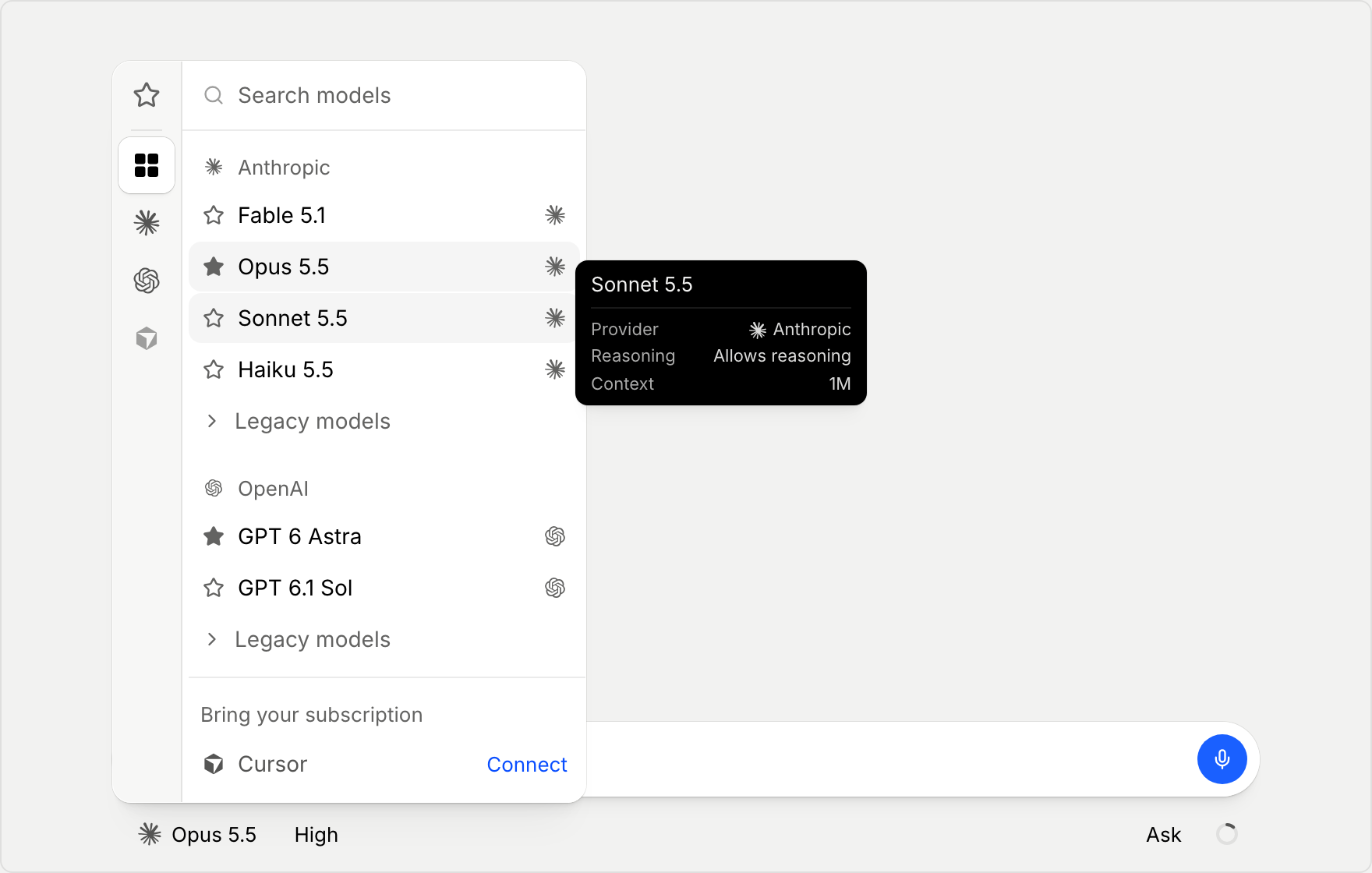
A few things in the list help you choose:
- Select the star on a row to add that model to Favorites.
- Hover over a row to see the model's details: Provider, Reasoning (whether it can think before it answers), Context (how much it can read at once), and, when they apply, Harness and Billing.
- AI Credits on a row, or Free AI Credits before you first buy credits, means the model runs on AI credits from your Unstoppable Code account. Besides Claude and Codex models, All models includes hosted models from other providers that run on credits. Which ones are offered changes over time. See AI credits and usage limits.
- Legacy models collects older versions. Open it to use one.
- Bring your subscription, at the end of All models, has a row for each subscription you haven't connected yet. See Connect your AI models.
- Agents lists Agents you've saved: a base model with your own instructions and plugins. See Create and share custom agents.
Each model runs on a harness, such as Claude, Codex, or Cursor. To change which harness runs a model, or to switch a chat that has already started, see Choose which harness runs a model.
Let Auto choose
Auto ("Picks the best model for you") chooses a model for each message. It runs on AI credits, so it shows "Add AI Credits to use this" until you have some. It isn't available on every harness.
Set the effort level
The effort level sets how much the model thinks before it answers. Turn it up for a hard problem you want worked through, and keep it lower for simple tasks to save time and usage.
- In the composer, select the effort level beside the model name.
- Move the slider to the level you want: lower is faster, higher is smarter. Depending on the model, the levels run from None or Low through Medium, High, Extra High, and Max to Ultra.
To step through the levels without opening the panel, press ⌥T (Alt+T on Windows). Models that don't reason have no effort level.
Use Fast mode with Codex
For Codex models, the effort panel also has Fast mode ("Faster replies, 2x usage"). Where the model offers it, select it again for Ultra fast mode ("Fastest replies, more usage"). A speed change applies from the next turn, so it never interrupts the agent mid-turn.
Next steps
- Set default models so new chats and background helpers start on the models you want.
- Use the composer