Agents in Unstoppable Code run on the model you choose. You can use your own Claude or Codex account, or run local models with Ollama.
Sign in to Claude or Codex
- Open Settings and go to Accounts.
- In the LLM provider section, find the Claude or Codex row.
- Select Sign in.
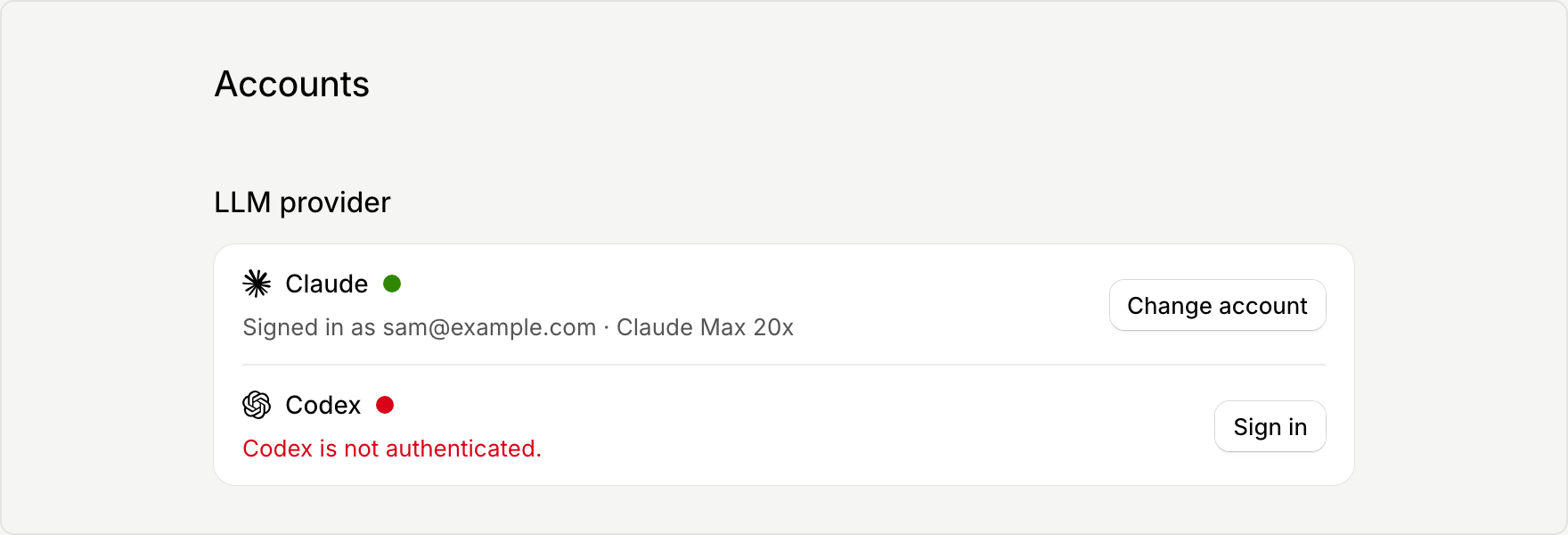
For Claude, the app opens a Sign in to Claude dialog. Complete the sign-in flow in the terminal it shows.
For Codex, the app opens a Sign in to Codex dialog. Select Pause work and sign in, then finish in your browser. If the browser does not open, select Open browser. To sign in with a code instead, turn on Use a device code.
When you are signed in, the row shows your account and plan. To switch accounts, select Change account.
Set up Ollama for local models
Local models run on your own computer through Ollama. Open Settings and go to Ollama.
First, choose a mode:
- Managed by Unstoppable Code starts Ollama when a local model is needed, and stops only the server process the app started.
- Manual server leaves Ollama to you. The app connects to your local server and never starts or stops it.
If the app reports that Ollama isn't installed, select Install Ollama to install it automatically, or Download Ollama to install it yourself. Then select Detect again.
Under Server, select Test connection to confirm the app can reach Ollama.
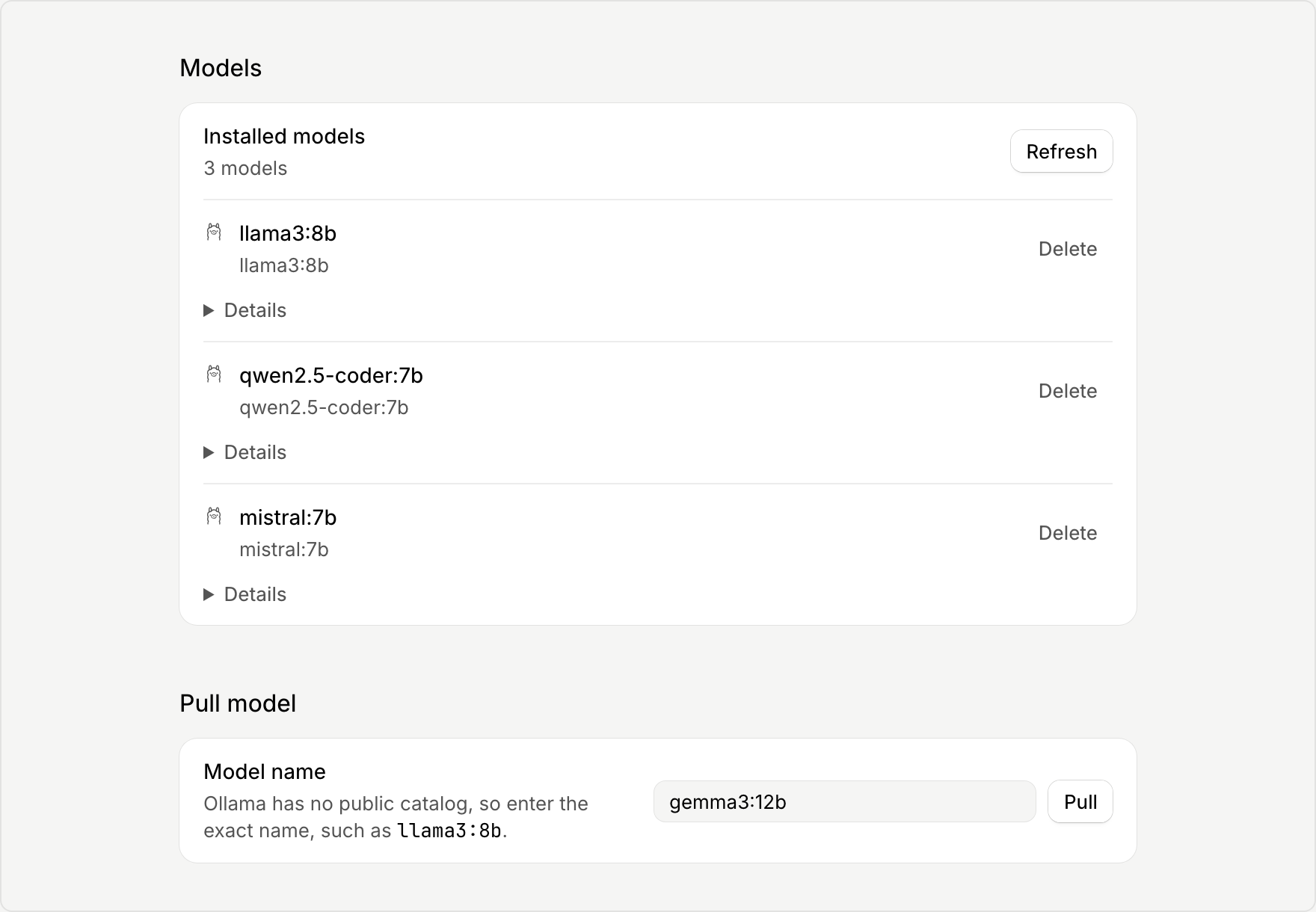
Under Models, Installed models lists what you already have. To add one, go to the Pull model section, enter the exact model name, for example llama3:8b, and select Pull.
Related
- AI credits and usage limits explains what happens when a provider limit runs out.
- Choose an approval mode controls what agents can do without asking.