The Unstoppable Code desktop app runs on macOS, Windows, and Linux. A mobile app for iOS and Android lets you steer your agents when you are away from your computer.
Choose a build
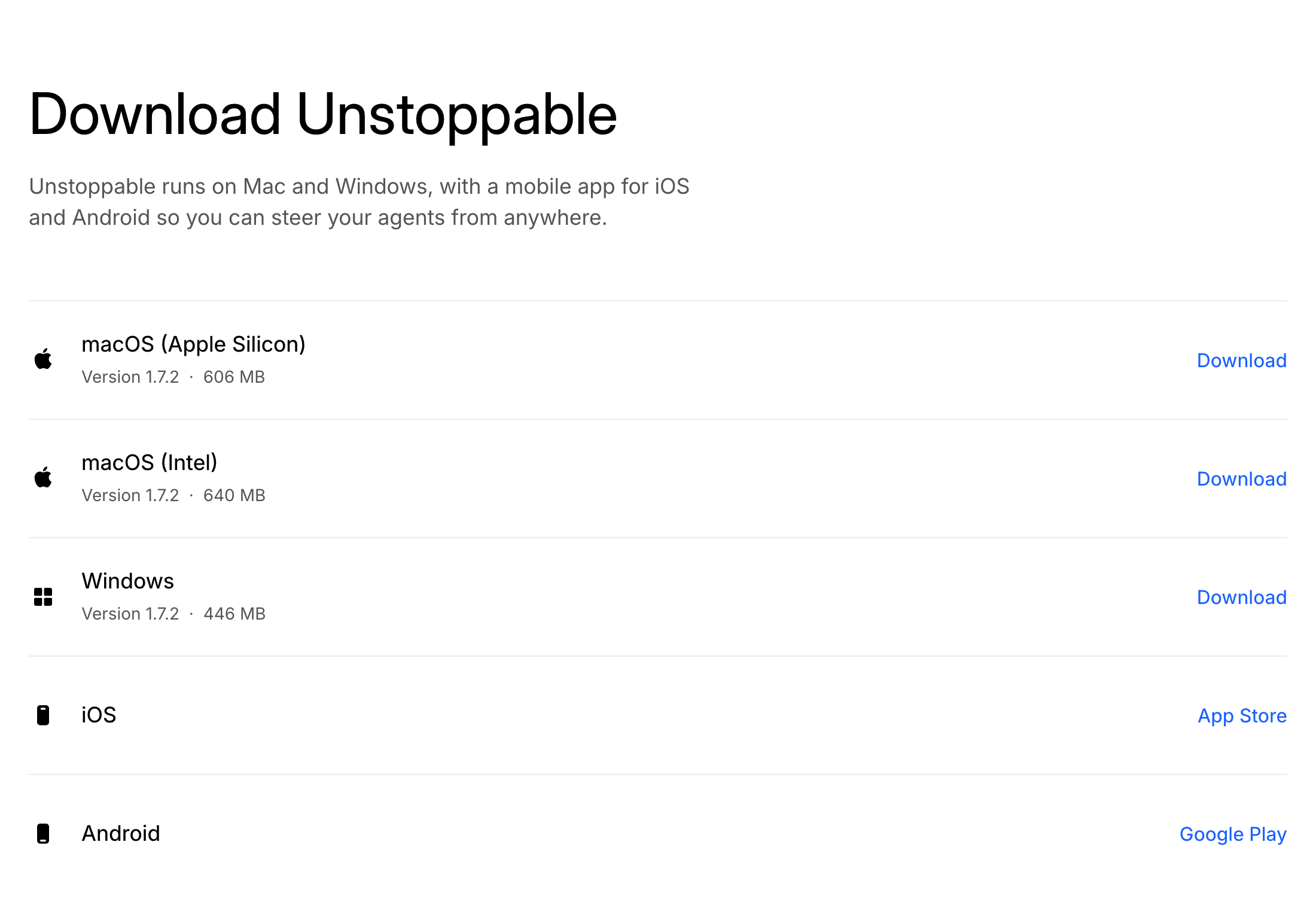
Open the download page. Its Desktop section names the current version and lists each desktop build with its size:
- macOS (Apple Silicon) for Macs with an Apple chip.
- macOS (Intel) for Macs with an Intel processor.
- Windows for Windows computers.
- Linux (x64) and Linux (arm64) for Ubuntu 24.04 LTS or newer. See Install and troubleshoot the app on Ubuntu to pick and verify the right package.
- On Arch Linux, follow Install on Arch Linux instead. The app installs from a signed pacman repository.
Not sure which Mac you have? Open the Apple menu and choose About This Mac. The chip or processor line tells you which build to pick.
Select the download button next to your build, then open the downloaded file to install the desktop app.
A build marked Coming soon is not available yet. If the page says desktop downloads could not be loaded, refresh it and try again.
Install with Homebrew
On a Mac with Homebrew, you can install the app from Terminal instead of the download page:
brew install --cask unstoppableweb/tap/unstoppable-codeHomebrew picks the Apple Silicon or Intel build for your Mac. Type the full name shown above: Homebrew installs an app from another publisher's collection, here the Unstoppable Code Homebrew tap, only when you name it in full.
If you already installed the app from the download page, Homebrew won't replace it. Keep using that copy, or move it to the Trash before you install with Homebrew.
The app keeps itself up to date either way; see Update the app. To remove a Homebrew install, run brew uninstall --cask unstoppableweb/tap/unstoppable-code. Your projects and settings stay on your computer.
Install with one command on Ubuntu
On Ubuntu 24.04 or 26.04 LTS on x64 or arm64, you can install the app from a terminal instead of the download page:
curl -fsSL https://unstoppable.ai/install.sh | shThe script adds the signed Unstoppable Code APT repository, then installs the app with APT. Updates then arrive with your other system updates. On other Ubuntu versions and other Linux distributions, the script changes nothing.
To read the script before you run it, use wget instead of curl, or fix an error, see Install with one command in the Ubuntu guide.
Open the desktop app for the first time
- Open Unstoppable Code. The Welcome to Unstoppable Code screen asks you to review the terms.
- Select the box next to "I agree to the Terms of Service and Privacy Policy".
- Select Agree & continue.
You don't need an account to start. You can sign in later.
The app also checks for Git, which it needs to work with your projects. If Git is missing, a Git installation is required screen opens. Follow the section for your computer below.
Set up Git on macOS
On a Mac, the app can get Git from Apple's Command Line Tools. The Git installation is required screen has three options:
- Install Command Line Tools opens Apple's installer. In Apple's dialog, choose Install and accept the license. The app continues by itself when Git is ready.
- Browse for Git points the app at a Git installation you already have.
- Recheck looks for Git again, for example after you installed it yourself.
When Recheck or Browse for Git finds Git, the screen shows Git is ready. Select Continue to open the app.
Set up Git on Windows
On Windows, the Git installation is required screen gives you three ways forward:
- Install sets up Git for you. This option requires winget. The app continues by itself when the install finishes.
- Manual opens the Git for Windows download page so you can install it yourself.
- Browse points the app at a Git installation you already have.
If you installed Git yourself, select Recheck. When Recheck or Browse finds Git, the screen shows Git is ready. Select Continue to open the app.
Import your work
The first time the app opens with no projects, it shows Let's get started:
- Connect Claude or Codex: select Connect on its row, or leave it for later. Without either, agents can run on AI credits that you buy. See AI credits and usage limits.
- If the page found recent Claude or Codex projects on this computer, check the ones you want and select the Import button, such as Import 3 projects. Your source folders stay where they are. To import nothing, select Skip for now.
- If it found none, select Choose a folder to add a project, or select Continue without a project.
Get the mobile app
The download page also links to the iOS app on the App Store and the Android app on Google Play. To see what you can do from your phone, read about the mobile app and Remote Control.