Have the agent write a plan first, so you can agree on the approach before it changes any code. You review the plan in its own panel, ask for changes, and act on it when it's right.
Before you start
- Code projects only. Plans belong to a worktree, so Plan mode is not in Work projects.
Ask for a plan
- In a chat in a Code project, select + and choose Plan mode. You can also type
/plan. A Plan chip appears beside + while Plan mode is on. - Describe the change you want, then send.
If you type a long, multi-step request first, the composer may show Plan first? Select Plan first to turn on Plan mode and keep your draft.
The agent works out the approach and writes a plan. When the plan is ready, the composer asks Implement this plan?
Review the plan
- Select Open to read the plan in a panel beside the chat. Copy, beside it, copies the plan's Markdown.
- Decide what to do:
- To ask for changes, type what to change in the row that reads "No, explain what to do differently", then send. The agent revises the plan and asks Implement the revised plan?
- When the plan is right, choose Yes, implement this plan or Run it as a workflow. See Implement a plan.
If you close the prompt, the plan keeps waiting. Select the Plan ready chip beside + to bring the prompt back.
Read the plan panel
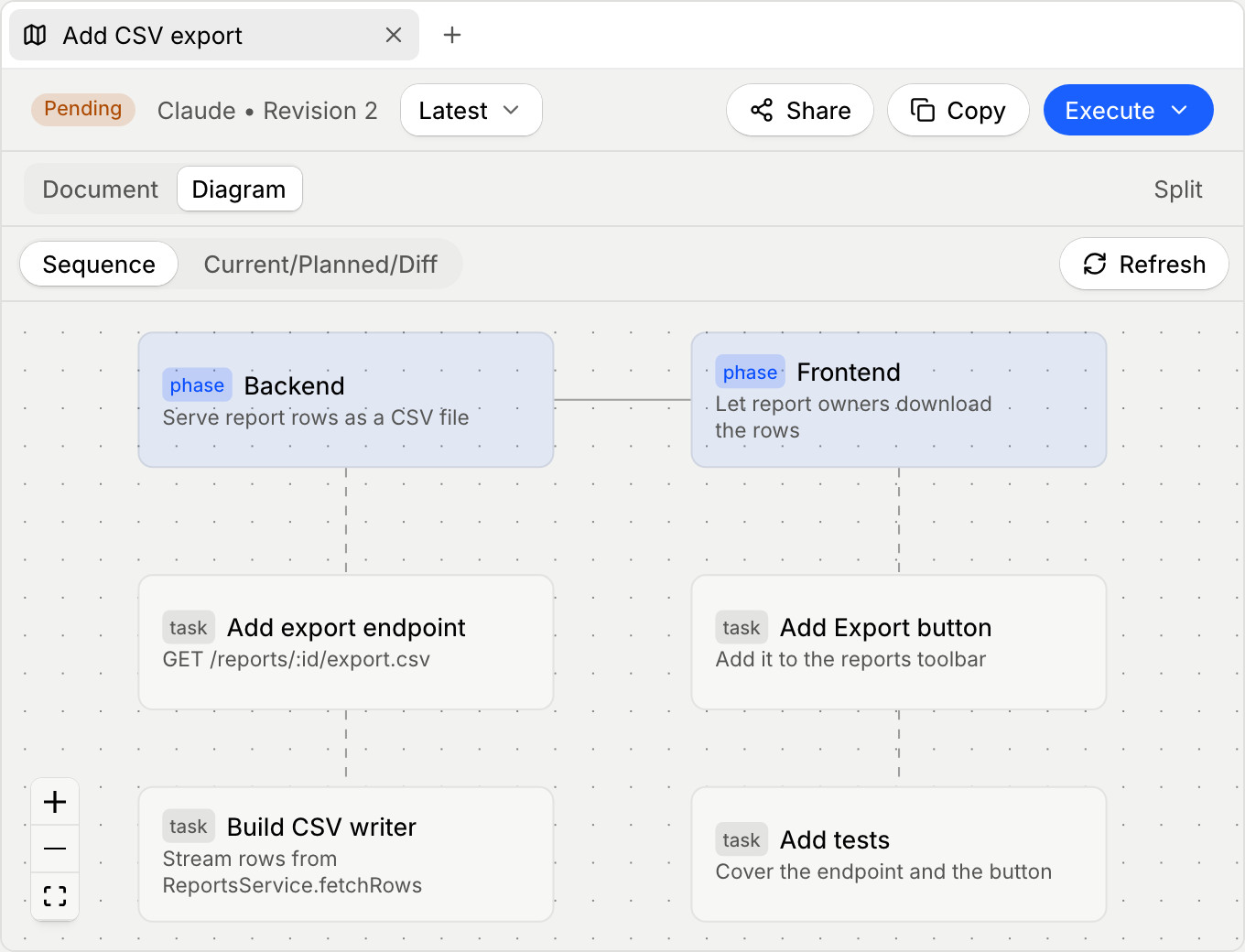
- Document shows the plan text.
- Diagram draws the plan as Sequence (its steps) and Current/Planned/Diff (the code before and after). A Data model view appears when the plan changes a data model. If the plan has no diagrams yet, select Generate diagrams. Use Refresh to redraw them.
- Split opens the diagram in its own panel, so you can read the document and the diagram side by side.
- Press ⌘F (Ctrl+F on Windows) to find text in the plan or in the diagram.
Each change to the plan is saved as a new revision. To look back, choose a revision in the picker that shows Latest. Older revisions are read-only.
Every plan in the worktree is listed in the Plans card in the Activity panel, with its revision number and status. Select a plan to open it again.
Import a plan you already have
You can track a plan written elsewhere, such as a Markdown file in your repository.
- In the Plans card, select Import plan. Once the card lists plans, it's the + in the card's header.
- In the Import plan dialog, find the file. Plans the agent wrote in your chats are under From your chats, and other files are under All files. You can search, or select Browse… to pick any file.
- Select a file to preview the title the plan will get.
- Select Import plan. If the file is already tracked, the button reads Open plan instead.
Importing saves a copy, so later edits to the file don't update the plan.
When an agent writes a plan file in a chat, a notice above the composer may offer to track it. Select Track plan to import it.