
We've retired the AI Site Builder on unstoppabledomains.com. If you built a site with it, nothing breaks today: your published site stays online and its hosting is now free. What goes away is the editor.
The place to keep editing is Unstoppable Code, our desktop app for working with AI agents. You download your site once, open it as a project, and from then on you ask an agent for changes in plain words, check them on your computer, and publish when you're happy. This guide walks through the whole move, from the ZIP file to your first published update.
What you need
- The account you built the site with on unstoppabledomains.com.
- A Mac, Windows or Linux computer for the desktop app.
- A domain in that same account to publish to, such as
example.com. - A few AI credits on your Unstoppable Domains account. Every upload goes through a content check, and new content can use credits.
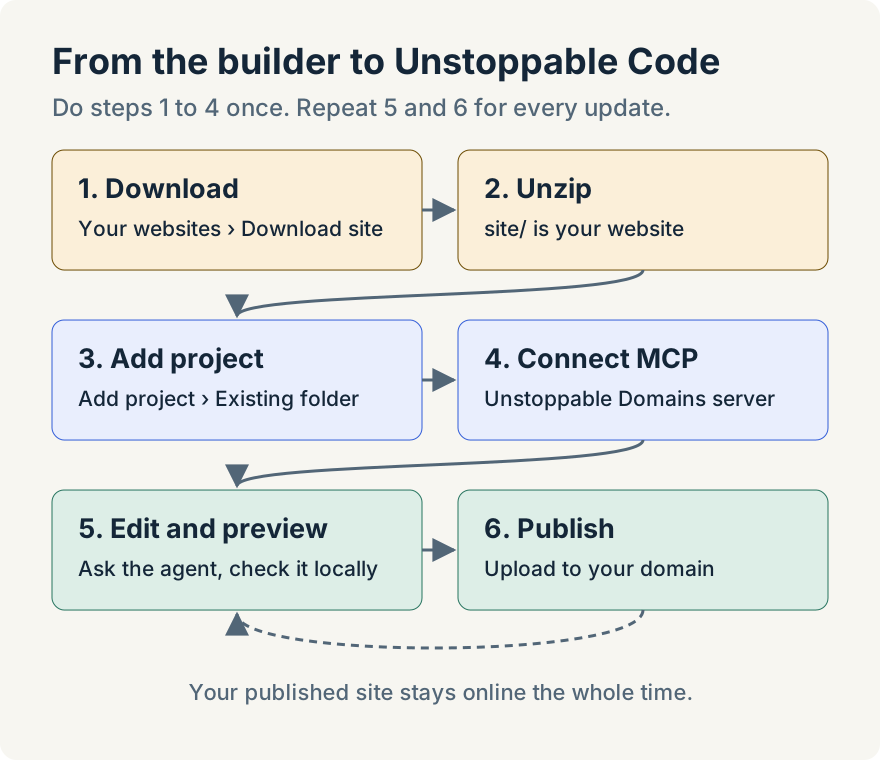
Step 1: Download your site
- Sign in on unstoppabledomains.com and open Your websites from the account menu, or go straight to unstoppabledomains.com/account/websites.
- Find the site and select Download site. You can also find Download site on the domain's management page.
- Save the ZIP file somewhere you'll find it, such as your Documents folder.
The download is your latest working copy. If you made edits in the builder that you never published, they're in the ZIP even though they aren't live. That's handy, but it means you should look the site over before you publish it again.
Step 2: Unzip it and look inside
Double-click the ZIP to unzip it. On Windows, right-click it and choose Extract All. You get a folder named after your site with these inside:
site/holds the website itself: your pages, images, styles and scripts. This is the part that gets published, andsite/index.htmlis your home page.README.txtis a short note about the export.site.jsonrecords details about the site, such as which domains it was published to.contact-submissions.csvis a copy of the messages people sent through your contact form, if you received any.
The builder's "made with" badge has been removed from the pages. Links and image addresses have been rewritten so the pages work from the folder. If anything couldn't be included, such as an image that was no longer available, README.txt lists it as a warning.
contact-submissions.csv holds your visitors' names, emails and messages. Move it somewhere private outside the folder before the next step, so the agent working on your site never reads it.
Step 3: Install Unstoppable Code and add your site
Download the desktop app, install it and sign in. If this is your first time, Install the desktop app covers setup, including connecting the AI model your agents use.
Next, add your site as a project. A project is the folder your agents work in.
- In the sidebar, select Add project (the plus button next to Projects).
- Select Existing folder.
- Drop the unzipped folder on the dialog, or select Choose folder and pick it. Pick the top folder, the one that contains
site/, notsite/itself.
Your folder stays where it is. Since it isn't a git repository, it becomes a Cowork project, which is what you want for a website you edit by asking. Start your first project has more on the dialog.
Step 4: Connect the Unstoppable Domains MCP server
An MCP server lets an agent use an outside service. The Unstoppable Domains MCP server is how an agent publishes your site and checks on it, using the account you sign in with.
- Select Customize in the sidebar and go to MCP servers.
- Select Add custom, then Add custom MCP server….
- In New MCP server, leave Server type on HTTP.
- For Name, enter
Unstoppable Domains. - For URL, enter
https://api.unstoppabledomains.com/mcp/v1/. Leave Scope at its default. - Select Save.
- Open the server's details and select Connect. Your browser opens on unstoppabledomains.com. Sign in with the account that owns your site. On the permissions page, keep Manage Portfolio checked, since publishing needs it. It also lets the agent change other settings on your domains, such as DNS. You can uncheck Manage Cart and Checkout, since publishing doesn't buy anything. You can disconnect the app any time from Account Settings on unstoppabledomains.com.
- Back in the app, select Test connection. You should see Connected.
If the test fails, Connect an MCP server explains each status and how to fix it.
Step 5: Make a change and preview it
Start a task in your project: hover over it in the sidebar and select + (New task). Then describe what you want. Some examples:
- "Change the headline on the home page to 'Fresh bread every morning' and make the button say 'See our menu'."
- "Add a page called Hours with our opening times, and link to it from the menu on every page."
- "Replace the photo in the first section with the image
storefront.jpgI just added to the project folder."
The agent edits the files in site/. To see the result, ask: "Open site/index.html in the browser." The page opens in the app's built-in browser. Click through every page and check that images and links work. Ask for more changes until you're happy. Nothing is published yet.
Step 6: Publish your update
When the site looks right, ask the agent to publish it, with your own domain in place of example.com:
Publish the site folder to example.com with the Unstoppable Domains MCP server.
Zip the contents of site/ so index.html is at the root, leave out hidden files
and folders such as .DS_Store and __MACOSX, and keep the ZIP outside site/.
The agent zips your site and sends it with the ud_domain_upload_lander tool, using the sign-in from Step 4. The upload checks your pages and images before anything goes live, then replaces the site on your domain and reports whether it worked. If the app asks you to approve the upload, check that the domain name is right first. Open your domain in a browser to see the update; it can take a minute or two to show up.
Publishing an update this way moves the domain off the old builder. If your site had a builder contact form, it stops accepting new messages at that point, so replace it or remove it before you publish (see the FAQ below).
From now on, the routine is short: open the project, ask for a change, preview it, then ask the agent to publish the site folder to your domain again.
Undo a publish
Each publish saves the previous site as a version, and your downloaded ZIP is a backup of the site as it was. If an update goes wrong, ask the agent:
- "Use the Unstoppable Domains MCP server to list the site versions for example.com."
- "Roll example.com back to the version from before my last publish."
Rolling back runs the same content check as an upload and counts toward the same hourly limit.
Limits and what to expect
- Size. The ZIP needs
index.htmlat its root and can hold up to 100 files, about 10 MB unzipped and about 3.75 MB zipped. The agent sends the whole ZIP in one request, so smaller is better: ask it to resize large photos before publishing. - File types. Pages, styles, scripts, fonts and still images (PNG, JPEG, GIF, WebP, SVG, ICO, BMP) are fine. Video, animated images and other files are rejected with
UNSUPPORTED_FILE_TYPE. If you see it, ask the agent which file caused it, fix or remove that file, and publish again. - Content check. Every upload is checked for content that breaks our policy. New content can use AI credits; republishing files that were already checked is free. If you're out of credits, you'll see
INSUFFICIENT_AI_CREDITS. If something is blocked, you'll seeCONTENT_REJECTED. - Pace. You can upload or roll back up to 30 times an hour. Past that, you'll see
RATE_LIMITED. - Hosting. If hosting is turned off for the domain, you'll see
HOSTING_DISABLED. - Outside services. Anything your site loads from elsewhere, such as embedded maps or widgets, keeps coming from there.
Frequently Asked Questions
Will my site go offline when the AI Site Builder is retired? No. Published sites stay online on their domains, and hosting them is now free. You only need to move a site if you want to keep editing it.
What happens to my contact form? It keeps working, with new messages arriving in the Contact inbox on Your websites, until you publish an update with these steps. Publishing moves the domain off the old builder, and the builder contact form stops accepting messages. The messages you already received stay in the inbox, and contact-submissions.csv in your download has a copy. To keep a contact form, ask the agent to replace it with a form service or an email link, or to remove it, before you publish.
Can I host my site somewhere else instead? Yes. Everything in site/ is a plain static website, so you can upload it to any static host. The builder contact form doesn't work on other hosts.
Do I need to know how to code? No. You describe changes in plain words and the agent edits the files. Publishing is one request to the agent, and it does the rest.
I don't see my site on Your websites. Where is it? Your websites lists the sites built while you were signed in to that account. If you built a site under a different account, sign in to that one instead.