The desktop app has two modes. Code mode is for building software. Work mode is for everything else, such as writing, research, and reports. Both modes run the same agents, so you can switch whenever your work changes.
Before you start
- Desktop app only. Install the desktop app first.
What each mode changes
- Code shows repositories, branches, and worktrees everywhere. When you add a project, the Remote option for cloning a repository is always on screen. See what Code is built for on the Code page.
- Work uses plain language and keeps developer controls one step away. When you add a project, cloning a repository sits behind Clone from GitHub or a URL. When you create a new Cowork project, you can also start from a template under Start from. See what Work is built for on the Work page.
Your starting mode
The role you choose when you first set up the app picks your starting mode. Software engineers and engineering leaders start in Code, and every other role starts in Work. If you skip the role step, the app starts in Code. Changing your role later does not change your mode.
Switch modes
- Open Settings.
- Select General.
- Next to Mode, select Code or Work.
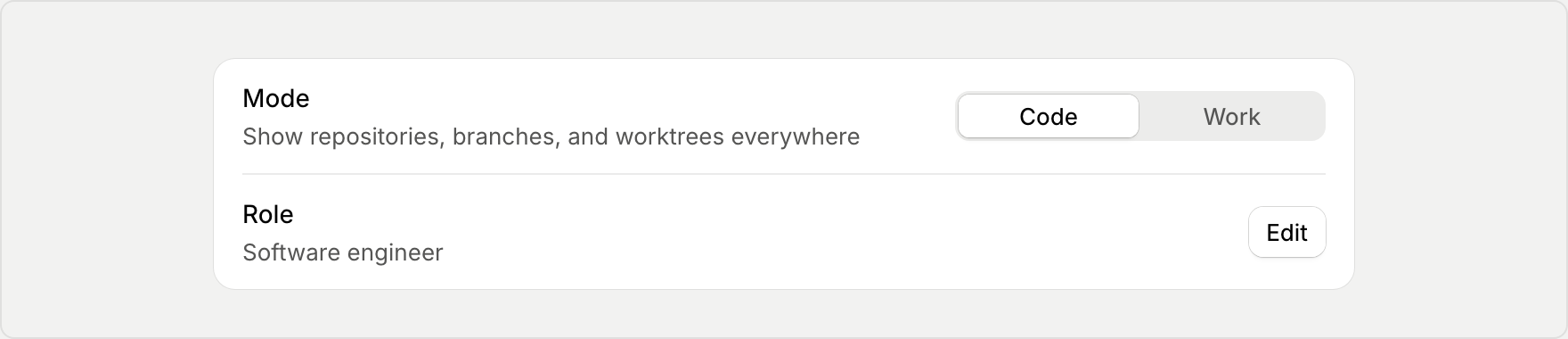
You can switch back at any time. Your projects, chats, and worktrees stay the same in both modes. Only what the app shows you changes.