
Some agent work comes back on a rhythm: a summary of new support tickets each morning, a review whenever a branch is ready, the same check run against several configurations. Doing it by hand means remembering to start it, waiting for it, and finding it again when it stops to ask a question. The Unstoppable Code desktop app handles this kind of work with workflows, kept together on the Workflows page in the sidebar.
This post explains how the parts fit: where a workflow comes from, how its steps get written, how it decides when to run, how one job runs across several variants, where every run shows up, and how to hand a working one to someone else. Each part has its own detailed post, linked from its section.
Two kinds of workflow
The app now calls everything on that page a workflow and tells the kinds apart by how they start. Earlier posts, and some labels in the app, still use the older names, so both are given here.
- Scheduled workflows, called automations in earlier posts and still in labels such as Create automation, pair one action with a timetable: a repeating schedule or a single run at a set time. The action is either a chat prompt or a run of a multi-step workflow; the editor's Type choice reads Chat or Workflow. Run starts one by hand at any time.
- On demand workflows, called pipelines in earlier posts, are multi-step jobs written in YAML Ain't Markup Language (YAML): jobs, steps, inputs and built-in actions. You can start one yourself, or let a scheduled workflow or a hook start it.
A third kind, Watcher, appears in run history next to the other two.
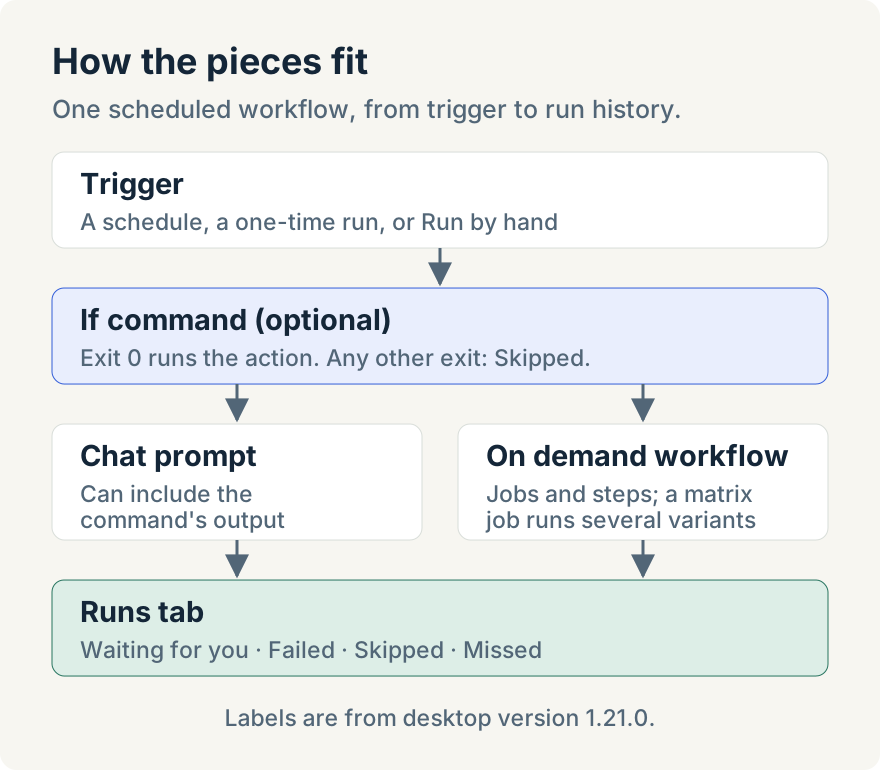
That split is what lets the pieces combine. A scheduled workflow decides when something runs; an on-demand workflow holds the steps. A scheduled workflow that runs an on-demand one puts a multi-step job on a timetable.
Start from work you already repeat
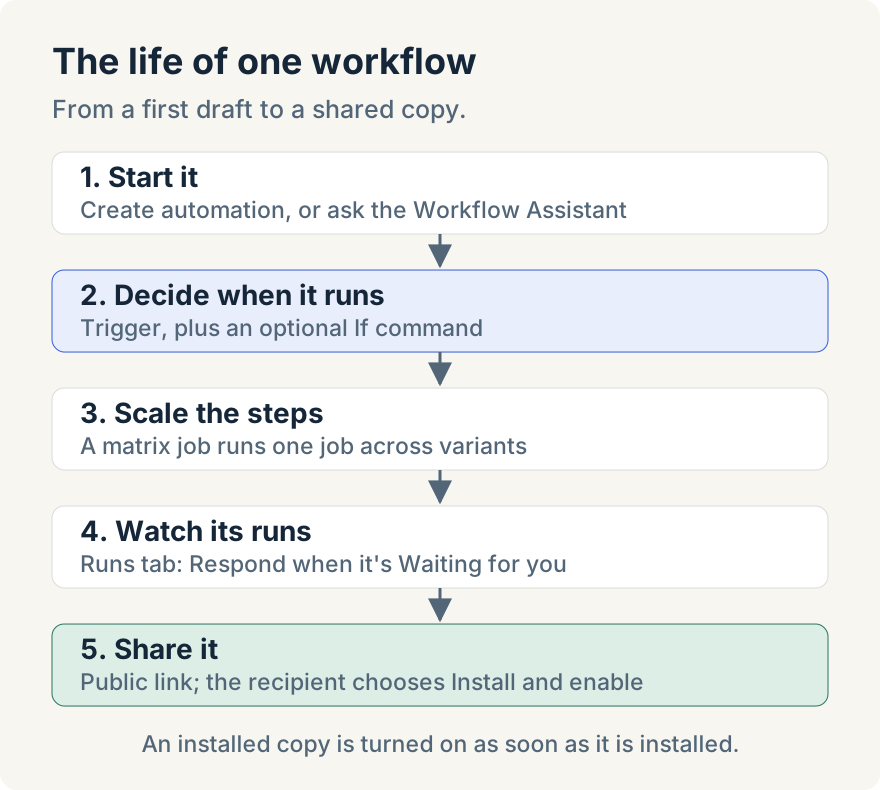
The easiest candidate is a task you have already sent twice. When you send a task from New task that is similar to one you sent earlier in the same project, a card asks "Turn this into an automation?" with Create automation, Not now and Don't show again. Create automation opens a draft in the editor with the name, prompt and project filled in. Nothing is saved or scheduled until you choose when it runs and save it.
Mike Sotnichek built this offer. Its idea of "similar" is word matching, not a model: it compares the words of plain-text New task prompts in the same project and ignores numbers, dates and common words. It keeps word signatures rather than prompt text, for at most 50 tasks over 30 days, on your computer. To stop every in-app suggestion, this one included, turn off Show suggestions in Settings › General. Aaron Quirk's post on keeping automations and pipelines in one place covers the offer and the rest of the page in detail.
Write the steps by describing them
A prompt is enough for a one-step job. When the work has several steps, it belongs in an on-demand workflow, and you don't have to write the YAML yourself. The Workflow Assistant, first released as the Pipeline Assistant, is a chat panel beside the workflow editor; Show workflow assistant and Hide workflow assistant in the header toggle it. Tommy Irish built it, and the post on building a pipeline by asking in chat explains it step by step.
Describe the workflow or the change you want. Before using one of the app's built-in actions, the assistant can read that action's definition, so the inputs it fills in match what the action expects. Every write is parsed and validated first. Invalid YAML leaves the editor unchanged and sends the errors back to the assistant; valid YAML appears in the editor and is saved straight away, with no separate approval step. Bundled, project and shared workflows are read-only, so a change to one of those becomes a new draft instead.
The assistant writes workflows; it doesn't run them. Read what it saved before the first run.
Decide when it runs, and whether it needs to
Every workflow opens in the same editor, with three sections: Definition for what it does, Trigger for what starts it and Runs for its history. The bar along the top has Run, Share and Save, and a new draft explains why it can't run yet: "Save it first to run it". A scheduled workflow's Trigger section holds its timetable, and it is also where you stop the workflow from running for nothing.
A schedule fires whether or not there is work waiting. The optional If command box in the Trigger section runs a short shell command first. Tommy Irish built this gate, and the post on running an automation only when a check passes shows it in detail:
- Exit code 0 runs the action.
- Any other exit code skips it, and the run is recorded as Skipped, not as a failure.
- A command that can't start, or runs longer than 60 seconds, records a failure.
What the command prints matters too. In a prompt action, {{UNSTOPPABLE_CODE_AUTOMATION_IF_CMD_OUTPUT}} is replaced with the command's standard output before the prompt is sent. A script can collect the new items, exit with a non-zero code when there are none, and leave the agent to work only on what it printed. Output is capped at 256 kibibytes (KiB), and error output is never added to the prompt. An action that runs an on-demand workflow is gated the same way, but the output isn't passed into it.
One addition since that post helps with work that shouldn't be done twice. If the command prints UNSTOPPABLE_CODE_IDEMPOTENCY_KEY=value on its own line, the run is skipped when a recent run used the same key. By default only this workflow's runs are compared; printing UNSTOPPABLE_CODE_IDEMPOTENCY_SCOPE=global compares against every automation. Those lines are removed from the output the prompt sees.
You don't have to write the command either. Generate if command opens a field, "Describe the gate in natural language"; choose Generate and a model writes a commented script into the box. If Command generation model in Settings › Models picks which model writes it. Read the script before you save it. It runs on your computer every time the workflow fires, and it runs in the app's own assistant directory, not in your project, so a script that needs a repository has to change to it first.
Before you restructure a project, the Schedule tab shows what will run against it: a calendar of scheduled workflows with Day, Week and Month views, a Schedule list and a Project filter. It shows scheduled workflows only; on-demand runs appear in Runs.
Run one job across several variants
Some steps need to run more than once with different values: the same check for several targets, or the same agent step with two providers. Matrix jobs, also built by Tommy Irish and covered in the post on running a pipeline job across variants, use the shape GitHub Actions uses. Put a strategy.matrix on a job, list the values for each axis, and the job runs once per combination:
strategy:
  matrix:
    os: [macos, windows]
    provider: [claude, codex]
  max_parallel: 2
  fail_fast: false
exclude removes combinations and include adds or extends them. max_parallel caps how many variants run at once, from 1 to 256, and a variant paused for input gives up its slot. fail_fast is on by default and cancels the group's unfinished variants when one fails. The values can also come from an earlier job's JavaScript Object Notation (JSON) output through parseJson, which suits work whose targets aren't known until the run starts. Expansion is all or nothing: bad input creates no variants, and the group shows Expansion failed.
A run can generate at most 256 variants across its matrix jobs. Axis values are data, so os: windows doesn't move a variant to a Windows machine. Variants share one checkout and output directory, so put a matrix value in any file path two variants might both write. The older foreach field is rejected with a message pointing to strategy.matrix.
Watch every run in one list
The Runs tab is one list of on-demand runs, scheduled runs and watchers. You can search it and filter it by Status, Kind and Started by. Aaron Quirk built the page around the questions people ask when they open it: what ran, what is waiting, what runs next and what could run.
The statuses tie the earlier sections together:
- Waiting for you marks a run that has stopped for a person, such as a workflow asking for input. Respond answers from the row. Several matrix variants or jobs can wait at once, and each can be answered on its own.
- Failed rows offer Try again, Rerun, Inspect, Go to chat when the run worked in a chat, and Open in Library when the problem is in the definition rather than the run.
- Skipped is what an If command's non-zero exit leaves, so a quiet day doesn't look like a broken workflow.
- Missed is a scheduled time that passed while the desktop app wasn't running.
Inside a matrix run, variants are grouped under their job, with Max parallel and Fail fast shown. Cancel variant stops one that is running. Try all variants again, Try failed variants again and Try variant again rerun only what you choose and keep the variants that succeeded.
Two details in the editor answer "why did this run?" For an on-demand workflow, the Trigger section's Starts from shows its own trigger and, below it, the Hooks and Automations that run it. Each of its runs also records Definition used: the definition that run executed, which may differ from today's.
The Library tab lists everything you can run. Filter it by Trigger, Status, Project and Source. Triggers include Schedule, One time, Manual, Plan approved and Task ready; sources are Yours, From project, Built-in and Shared.
Share one that works
Once a scheduled workflow does its job, other people can install their own copy. Aaron Quirk built packaged sharing and one-step install, and Sergii Iurevych built the public automation page and its link controls. The post on sharing an automation with a public link has the original walkthrough; parts of the flow have changed since, as described here.
Choose Share… on a Library row, or Share in the editor bar, to open Share automation. Under Sharing scope, Public means anyone can view the automation, and it may appear in public discovery and search. The dialog lists what stays behind under Kept private when sharing:. Secrets and input values are never included, and anything that only exists on your computer, such as a chat attachment, is named so you know what the recipient will have to supply. After sharing, Copy link gives you the link, Update republishes a changed version, and Remove public link takes it down.
Anyone can open a public link without signing in and read what the automation does and what it needs. Install hands off to the desktop app, where the recipient chooses the project it runs in. If it runs an on-demand workflow that exists only on the author's computer, the recipient picks one of their own. If the workflow travels with the share, it is saved as the recipient's own copy. Opening the link again for something already installed offers Apply update rather than a second copy.
One change matters before you install. The button now reads Install and enable: installing creates the copy and turns it on in one step. The sharing post describes an earlier version, in which installed copies started turned off. Read what the public page says the automation does and needs before you choose Install and enable, and check when it runs in Schedule afterwards.
Where it stops
- This describes the desktop app. It has to be running when a schedule fires; otherwise the run shows as Missed.
- The Workflow Assistant saves as it goes. Review what it wrote before you run it.
- The If command runs outside your project, with a 60-second limit and a 256 KiB output cap.
- Matrix variants share a checkout, and a run tops out at 256 variants.
- Installed shares start turned on. Check the schedule after installing.
- Definition used is for on-demand workflows. Scheduled runs don't record it.
Try it
The parts arrived separately: the If command in desktop version 0.26.11, the assistant in 0.26.12, matrix jobs in 1.1.0, installing from public links in 1.7.1 and the Workflows page in 1.12.0. The names and labels described here are in version 1.21.0 of the desktop app. Download the app and open Workflows in the sidebar.