
Most agent work that goes wrong goes wrong at one of two ends. At the start, the agent gets a thinner version of the task than the one already written in the issue tracker, or it starts editing before anyone has agreed on the approach. At the end, a plan reads Approved and nothing says whether the work was ever carried out. The Unstoppable Code desktop app has a piece for each step in between: bring the task in from where it's already written, have the agent plan before it touches code, review and revise that plan, then implement it and follow its status until the work is finished.
This guide puts those pieces in the order you use them and links to the post that covers each one in detail. The descriptions match desktop version 1.21.0, released on November 12, 2026. Several screens have changed since their own posts were written, so where the two differ, this guide gives the current behavior.
Start from the work that's already written down
If the task already lives in a Linear issue, the app can read it instead of having you retype it. Linear is connected with a personal Linear application programming interface (API) key. In Settings, the Linear row sits under Project management on the Accounts page; when the app shows your hosted account pages, the same row is under Integrations. Paste a key that starts with lin_api_. The row links to the Linear page where you create one, checks the key and shows Signed in as with your Linear name. The connection only reads from Linear. Starting work from an issue doesn't change its status, assign it or comment on it.
There are now three ways to start from an issue.
New task, on Home. New task at the top of the sidebar opens Home. Its branch picker has an Issues tab that searches your Linear issues. Picking one starts the new worktree on the branch name Linear suggests for that issue: the worktree checks that branch out if it already exists and creates it if not. Ryan Le built this create-from flow, and Start a worktree from a pull request, branch or Linear issue covers it, including the pull request and branch tabs beside it.
The Create task dialog. When the sidebar is hidden, the top bar shows a Create task button instead. The dialog it opens reads "Describe the task and choose how to start work". Pick the Project, then set Create from to Linear. The other choices are New, Branch and PR (pull request). Search with "Search Linear by id or title…" and pick the issue. Its identifier and title, followed by its description, fill the task description, where you can edit them before you start. Then choose how the work begins:
- Chat creates a new worktree on the issue's suggested branch and sends the task as the first message.
- Plan does the same with plan mode on, so the agent proposes a plan before it changes code.
- Workflow opens Run task workflow, which lists the workflows with a
task_readytrigger and passes them the task text.
Tommy Irish built the Linear connection and this dialog. Start agent work from a Linear issue describes the version that shipped in June; since then the dialog's Source switch has become Create from, and its Pipeline button is now Workflow.
Inside a chat. Once Linear is connected, the composer's + menu has a Linear item that attaches an issue to the message you're writing.
Workflows can read issues too. With a key saved, the app passes it to workflow runs, so a step can use the built-in read-linear-ticket action to fetch an issue's details. Like the rest of the connection, that action only reads.
Ask for a plan before any code changes
For anything larger than a small fix, ask for a plan first. A plan is cheap to change; edits spread across many files in the wrong direction are not. In a chat in a Code project, open + and choose Plan mode. A Plan chip sits beside + while it's on. If you write a long request with several steps without it, the composer may ask Plan first?, and Plan first turns plan mode on and keeps your draft.
The agent reads the code and writes a plan instead of editing. A turn that writes the plan file shows a wrote plan step, not an edit to your project. When the plan is ready, the composer becomes a prompt titled Implement this plan? with numbered answers: Yes, implement this plan, and Run it as a workflow where workflows can run. A text row, No, explain what to do differently, takes a quick redirect. Escape closes the prompt without deciding; the plan keeps waiting, and the Plan ready chip brings the prompt back.
Plan mode and implementation work with Claude, Codex, Ollama and OpenCode chats. A Cursor chat can write a plan, but its prompt reads Implementation unavailable, and Copilot chats get a read-only mode instead.
Bring in a plan written somewhere else
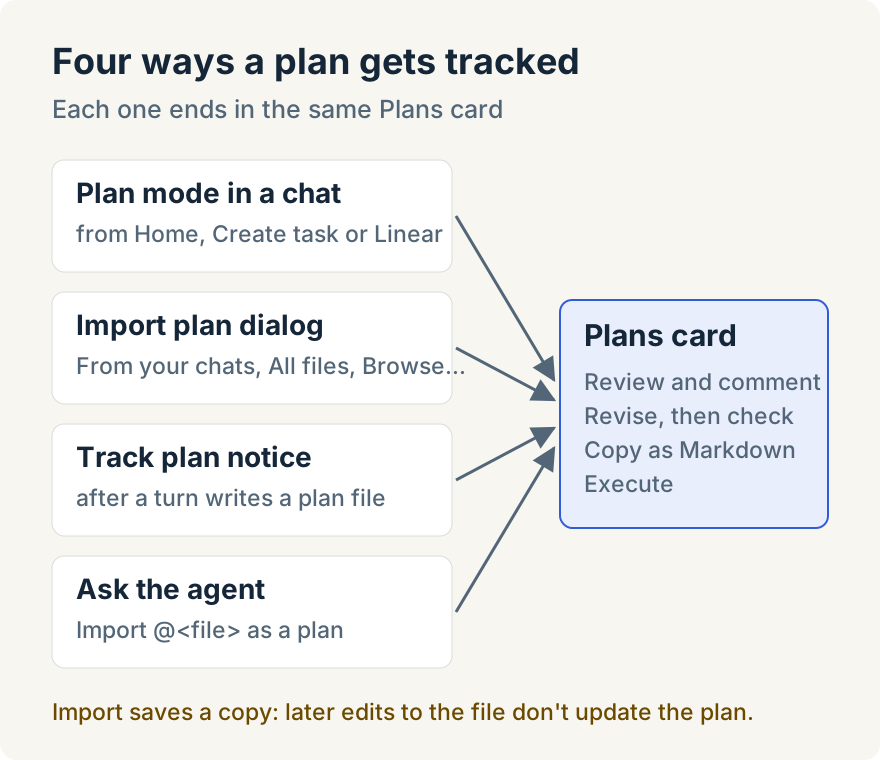
Plans don't only come from plan mode. An agent following a skill may write plan.md in the middle of an ordinary turn, and a teammate may hand over a plan they wrote. Any Markdown or plain-text file can become a tracked plan, with the same review and implementation controls as a plan from plan mode.
Import it yourself. In the Plans card of a worktree's Activity panel, Import plan opens a dialog of the same name. Once the card lists plans, it's the + in the card's header. One search box ("Search files (.md or .txt)…") covers two groups: From your chats, plan files the agent wrote or mentioned, each with the chat it came from, and All files in the worktree. Browse… picks a file anywhere on your computer. Selecting a file previews the title the plan will get, and Import plan adds it. A file that's already tracked shows Open plan instead. Importing saves a copy; as the dialog says, "Later edits to the file don't update the plan."
Track it from the chat. After each completed turn, the app checks the file paths in that turn: files the agent wrote or read and paths mentioned in its text. When one matches a plan rule, a notice above the composer asks Track plan.md as a plan? (with the file's name), and Track plan imports it in one click and opens it. With several matches, the notice counts them, as in "2 plan files found", and Review 2 files… opens the dialog to go through them. After a plan is tracked from a chat, the agent's next turn is told which file it came from.
Three rules are on by default: any file named plan.md, and Markdown specs under docs/superpowers/specs/ except files ending in -design.md. You can add include and exclude rules in Settings, Plan detection, set rules for one project, or commit shared rules to the repository's project configuration so everyone working in it gets them. An exclude rule always wins.
Ask the agent. The dialog's footer gives the phrasing: tell your agent "Import @<file> as a plan" and it imports the file itself.
Tommy Irish built plan detection and import, and Import a plan file as a tracked plan explains the detection rules. That post describes the first version, with Search, Browse… and Detected tabs and a "Detected a plan document in this conversation" banner. Hassan Ali replaced them in version 1.16.1 with the single picker and the one-click Track plan notice described here.
Review the plan: comment, revise, check the revision
A one-line redirect works for a small plan. For a plan with real steps, comment on the exact passage. The prompt's Open button opens the plan in a panel beside the chat, with Document and Diagram tabs. Select the text you want to talk about and add a comment, the way you would on a pull request; + Add comment adds a note about the whole plan. Comments you haven't sent yet carry a Not sent badge.
Before version 1.17.0, it was possible to stage comments in the panel, choose Implement in the chat and have the agent start without them. Now the prompt counts unsent comments and adds an answer for them, such as Address 2 comments first. It sits after the numbered answers with an icon instead of a number, so a stray number key can't pick it. Choosing it sends the comments and the agent revises the plan. The warning doesn't block you: Yes, implement this plan stays available, and Submit 2 comments in the panel's comment tray still sends them later. The warning appears only in the expanded prompt, not on the Plan ready chip or when you implement from the Plans card, so after commenting, approve from the prompt.
While the agent rewrites the plan, its Execute button is disabled with the tooltip The agent is revising this plan. That keeps the old version from being implemented halfway through a revision. When the revision arrives, the prompt asks Implement the revised plan? Each change is saved as a revision, and the picker that shows Latest goes back to the version you commented on, so you can check your points were taken before you approve.
Copy copies the plan's exact Markdown, headings, lists and code blocks included, for a ticket or for another chat's starting brief. It's in the prompt's header, at the foot of the plan turn, in the plan panel and on the plan's card. If only part of the plan has loaded, it says so ("Loading the plan…" or "Only part of the plan arrived here") instead of copying something incomplete.
Aaron Quirk built the comment warning, Copy, the revised-plan prompt and the implementation status below. How I review my agent's plan and follow it through to done walks through the same flow. His rubric for reviewing an agent's plan covers what to look for in one.
Implement it and follow it to done
When the plan is right, there are two ways to build it. Yes, implement this plan has the agent build it in the chat. Run it as a workflow opens Run workflow, which lists only workflows that can start from a plan. The built-in Implementation (Autopilot) refines the plan, implements it, tests the result and keeps going while it records issues that may need attention. It commits, pushes and opens pull requests only if you set its push_and_create_prs input, which is off by default. From the plan panel or the Plans card, Execute offers the same two choices as Implement and Workflow.
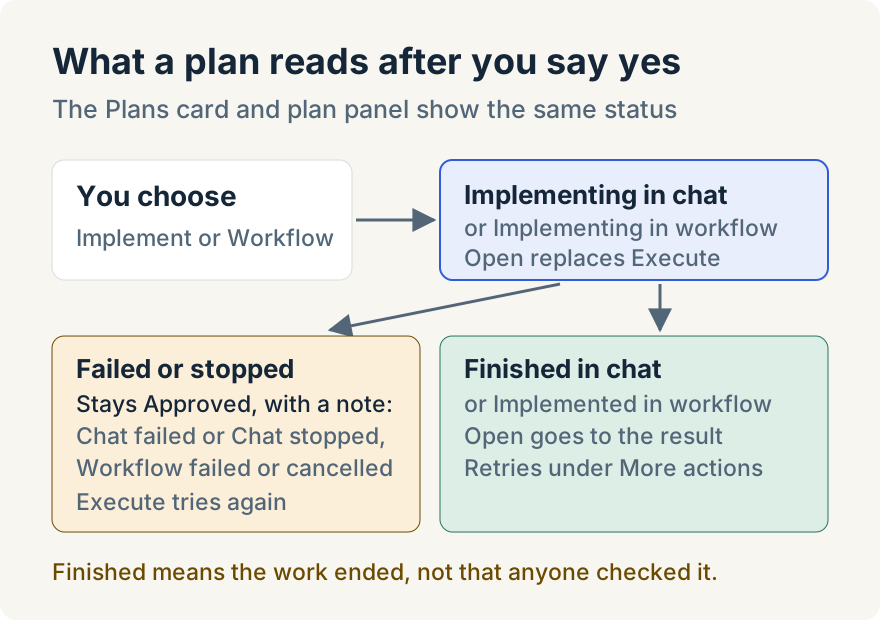
After you start, the plan's status follows the work:
- Implementing in chat or Implementing in workflow while it runs, and Open replaces Execute to take you to the chat or the run.
- Finished in chat or Implemented in workflow when it completes, and Open still goes there so you can read what was done.
- If the work fails or is stopped, the plan stays Approved with a note: Chat failed or Chat stopped with View chat, or "Workflow failed" or "Workflow cancelled" with View run. Execute is there to try again.
After a finished attempt, retries move into More actions as Implement again in chat and Run again as workflow, so a second run is a deliberate choice. Used this way, the Plans card works as a to-do list: the failed and stopped notes are the plans that need you, the implementing states are still in progress, and the finished states point to where to read the result.
Where it stops
- Finished isn't the same as correct. Finished in chat means the implementing turn completed. It doesn't mean anyone checked the result against the plan; read the diff and run the tests.
- Desktop app, Code projects. Plans belong to a worktree, so Work projects don't have plan mode. Implementation status, the unsent-comments answer and the plan panel are in the desktop app; on the web, plans show only Pending, Approved and Dismissed.
- Linear is read-only and key-based. There's no Linear sign-in screen, and nothing writes back to the issue. Only the issue's identifier, title and description become task text.
- Detection is suggestion-only. The app reads paths from completed chat turns; it doesn't scan the repository or watch files on disk. Only
.mdand.txtfiles qualify, and an imported plan doesn't change when its file does. - One attempt at a time per plan view. A new revision clears the status of older attempts. If the app restarts without a known end to the work, the plan reads Approved again.
Try it
Everything here is in version 1.21.0 of the Unstoppable Code desktop app, with no setting to turn on. Linear needs your own API key. Download Unstoppable Code, start your next change from New task or the issue it belongs to, and turn on Plan mode before you send it.