A Work project in Unstoppable Code keeps the background for a piece of work in one place: notes, saved prompts, files, and the instructions every chat should follow. Set these up once, and each new task in the project can use them without you pasting them in again.
Before you start
- Desktop app only. Notes, prompts, and attachments are managed in the desktop app.
- Create a Work project. See Create a Work project.
Open the activity panel
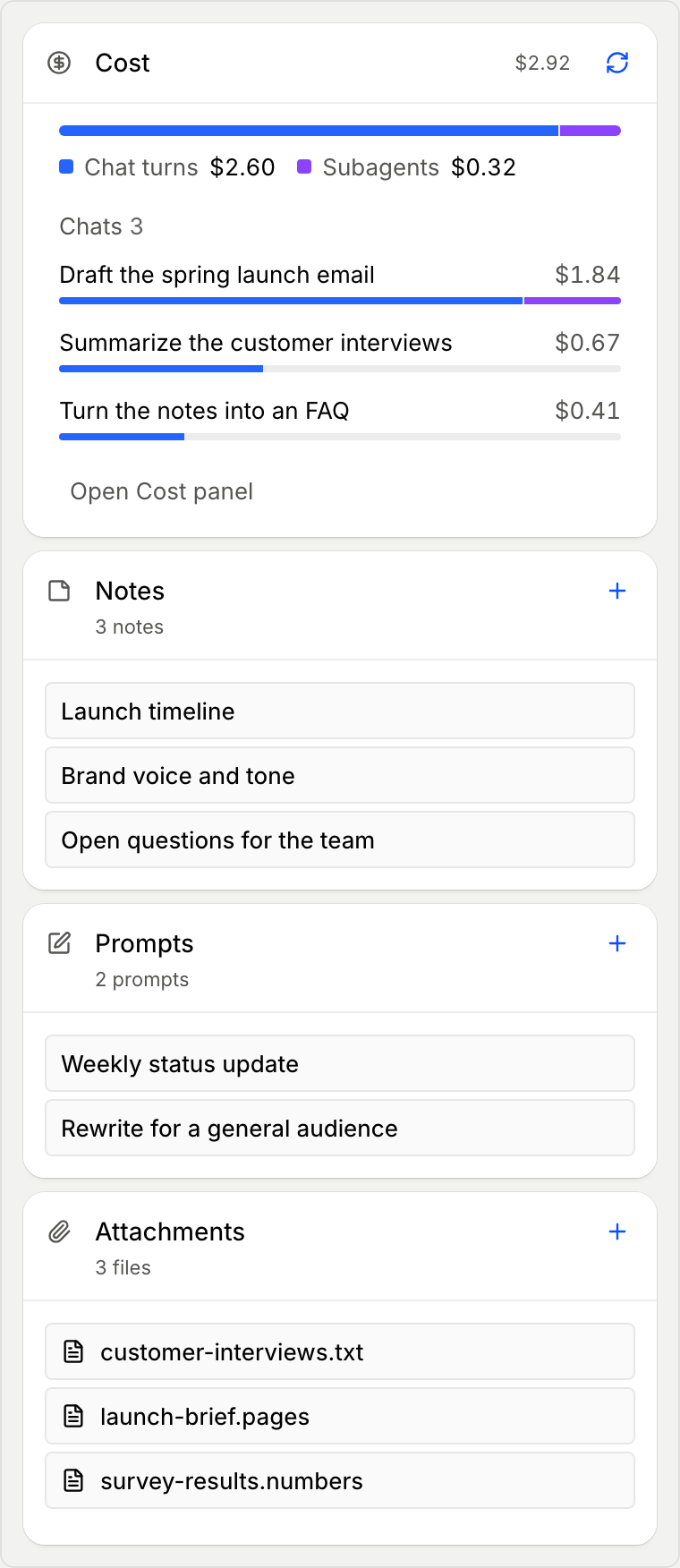
Notes, prompts, and attachments live in cards on the activity panel, on the right side of a task. If the panel is hidden, select Expand Side Panel at the top right of the window.
Save notes and prompts
Notes are for things you want to keep at hand, such as key facts, decisions, or a running list. Prompts are requests you make often, saved so you don't retype them. Both belong to the project, so every task in it can use them.
- On the Notes or Prompts card, select + (Add note or Add prompt).
- Enter a Title and write the Content. Markdown works here.
- Select Save.
To change one later, select it, then select Edit.
Add attachments
Attachments are files you want the agent to read, such as a document, a spreadsheet, or an image. Drop files on the Attachments card, or select + on the card and choose the files. Every task in the project can use them.
To attach a file to a single message instead, select + in the message box and choose Files and folders.
Use them in a chat
Type @ in the message box. Your notes, prompts, and attachments appear in their own Notes, Prompts, and Attachments groups. Choose one to add it to your message.
- A prompt is added to your message as text when you send it.
- A note or an attachment stays a reference to the file, and the agent reads it.
You can also select Mention in chat on any item in a card.
Find files the agent creates
When the agent creates a file, such as a draft or a report, it saves the file in the project folder and lists it under its reply. Select a file to open it beside the chat.
Set standing instructions
For guidance every chat should follow, such as your tone, your audience, or rules to respect, use the project's instructions.
- Open Project settings. Select the project name at the top of a task, or open the project's menu in the sidebar and choose Project settings.
- Select Instructions and write your guidance.
- Select Save.
On the General tab of the same window you can also change the project's Name, Description, and Color.
Mark a task done
When a task is finished, mark it done so the sidebar shows what's still open. See Fork and archive chats for Mark done and the other task actions.
Choose how long deleted chats are kept
Open Project settings, select General, and find Deletion retention.
- Keep deleted chats for sets how many days a deleted chat stays before it's removed for good. The default is 7 days. Archived tasks are kept until you delete them.
- Auto Delete deletes tasks that have been idle for a set number of days. It's off by default. Turn it on, then choose the number of days after After. A task that is still working is not deleted.
Select Save to apply your changes.