A Work project holds the chats, notes, and files for one piece of work, such as a campaign, a client, or a report. It's where you use Work in Unstoppable Code, with no code, git, or terminal involved. Every chat in the project can follow the same instructions, so you don't have to explain your situation again each time.
Before you start
- Desktop app only. Install the desktop app first.
Create the project
In the sidebar, select Add project (the plus button next to Projects).
Select Create new. The dialog opens on Clone repository, so make sure you switch.
Select Cowork from the project types. The type starts on New repository, even in Work mode.
Optional: under Start from, select a template. A template sets up the project's instructions and suggestions, and you can change any of it later. Select the template again to clear it.
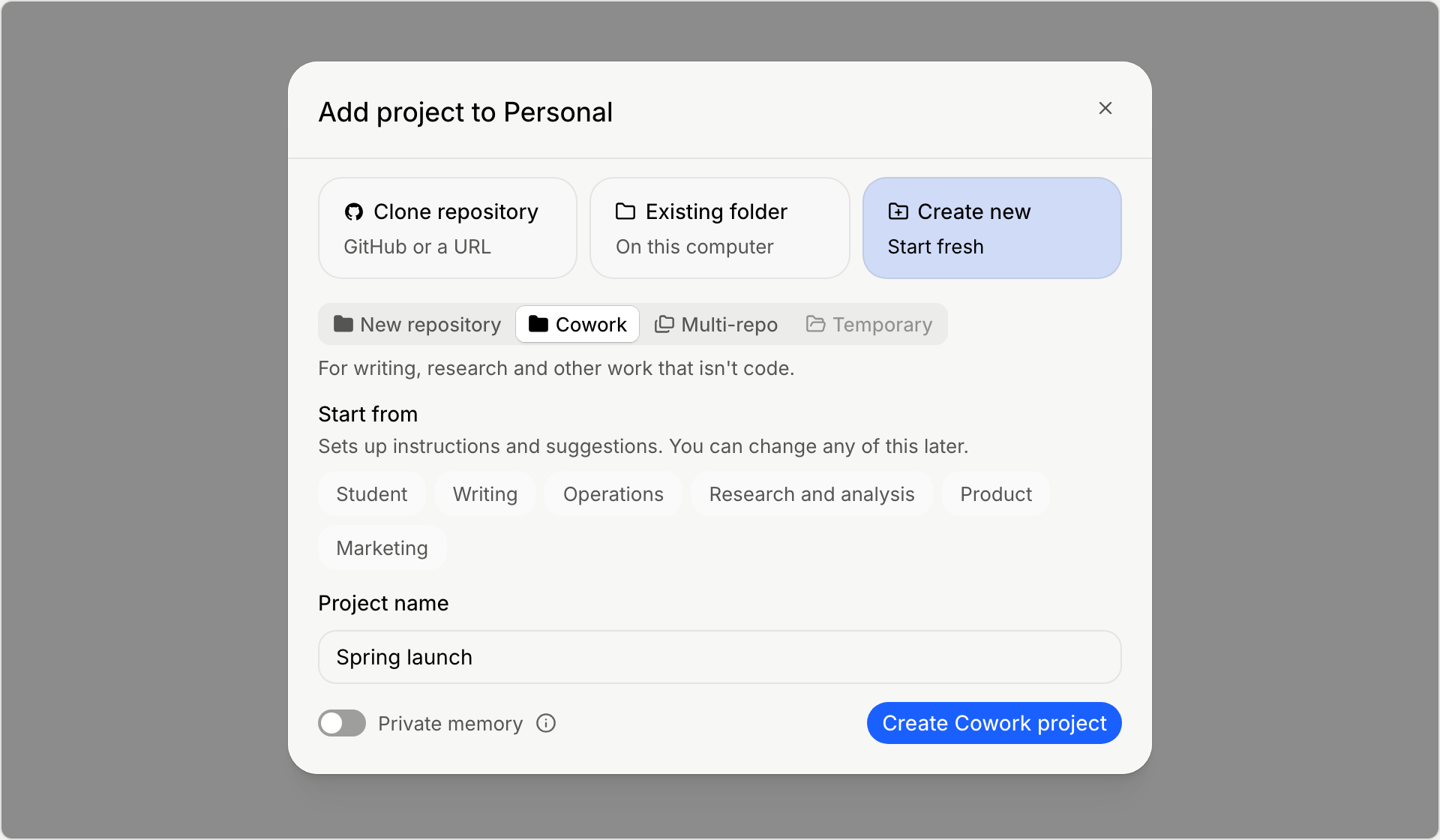
Enter a Project name.
Optional: turn on Private memory, next to the create button. Agents in this project then won't use memory from your other projects, and new memories stay in this project. It's off unless you turn it on.
Select Create Cowork project.
The new project opens, ready for its first task, and appears under Projects in the sidebar.
These steps are for a Personal project. When the sidebar shows an organization, the dialog usually starts with From my org, the type starts on Cowork in Work mode, and Private memory follows your organization's setting.
About templates
Start from appears only in Work mode. To switch modes, see Choose Code or Work mode.
- Shared with you lists templates other people shared with you.
- Set up after creating appears when the template you picked needs something more, such as a plugin to connect. The project is still created without it.
- If the templates don't load, you see "Starting points are unavailable right now." Select Try again, or create the project without a template.
Already have a folder of documents?
Select Existing folder instead and pick the folder. A folder without a git repository becomes a Cowork project. See Start your first project.
Add instructions
Instructions are standing guidance for every chat in the project, such as your tone, your audience, or facts the agent should keep in mind. You can skip this and add them later.
- Hover over the project in the sidebar and select Settings (the gear). You can also select More actions on the project and choose Project settings.
- Select the Instructions tab.
- Write your instructions, then select Save.
Start a task
- Hover over the project in the sidebar and select + (New task). The task opens right away.
- Describe what you want in plain words, such as "Draft a launch email for our spring sale," and send it.
You can also select New task at the top of the sidebar and pick the project under Choose project.
Each task stays listed under its project in the sidebar, so you can come back to it later and pick up where you left off.
Next steps
- Organize a Work project with notes, prompts, and attachments.
- Connect your tools to Work so the agent can use the apps you already use.
- What is Work in Unstoppable Code?