
An agent does most of its work in a chat, but the work around it happens in other places. You read the files it changed, run the tests, open the app to see whether a fix worked, and come back days later to find out why something was decided. When those places are separate windows, you end up copying text between them and describing by hand what you saw.
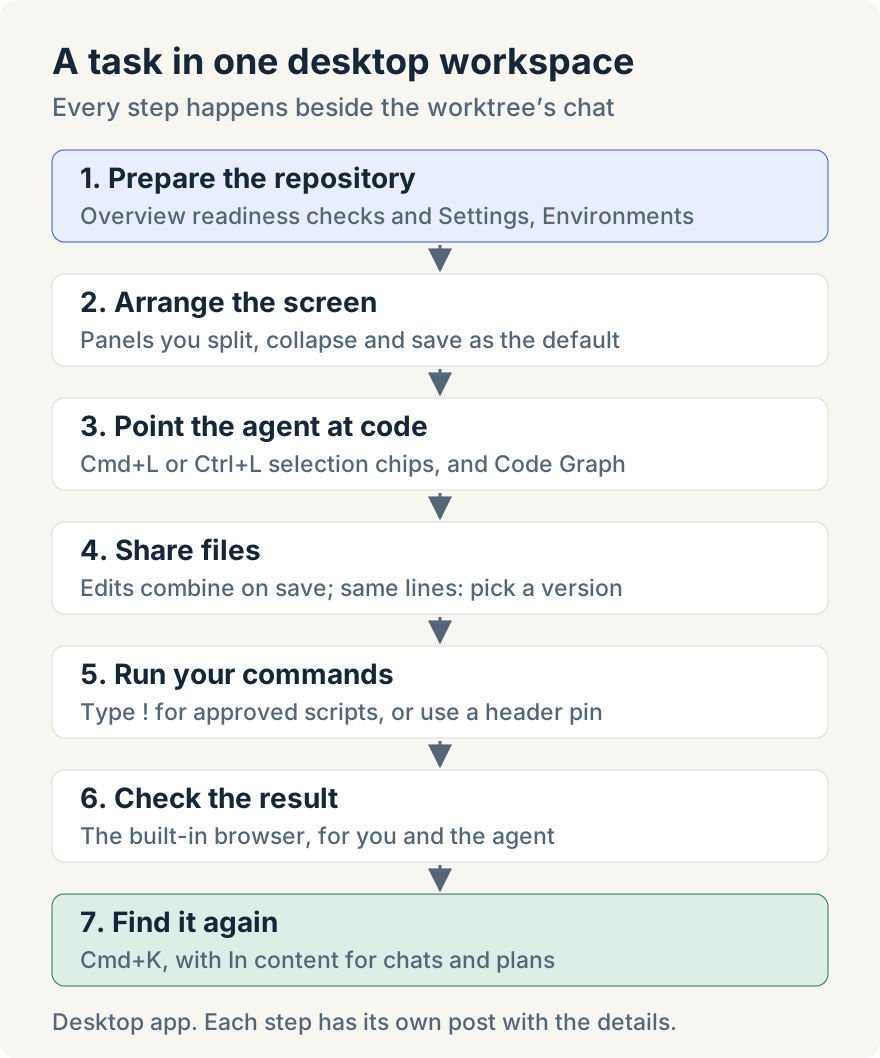
The Unstoppable Code desktop app keeps them together. Each worktree, the separate checkout an agent works in, has its chats, an editor, a terminal, a built-in browser and tools for the code itself on one screen. This post follows a task through that workspace: preparing the repository, arranging the screen, pointing the agent at the right code, sharing files with it, running your usual commands, checking the result and finding the conversation again later. Each part links to the post that covers it in detail.
Before the first task: make the repository ready
An agent that starts in a fresh worktree knows only what the repository tells it: how to install dependencies, how to start the app, which conventions to follow.
Overview, which sits in the sidebar's More menu unless you move it, checks each Code project for those pieces. It looks in every repository for setup and launch scripts, repository hooks and agent instruction files: CLAUDE.md for Claude Code and AGENTS.md for Codex. With only one instruction file it suggests Link agent instructions, so both agents get the same guidance; with neither, Initialize agent instructions. Each recommendation has Fix in new worktree, which starts an agent chat in a worktree of its own for that one fix, so your current checkout isn't touched. The check confirms that the pieces exist, not that they work, and what the agent writes is a proposal for you to review. Ryan Le built the readiness checks; Check whether your repository is ready for agents lists what each fix does.
Processes also need the right settings. Settings, Environments holds named sets of environment variables. An environment can inherit from another and override matching keys, and Resolved variables shows the final list before you rely on it. Environments are assigned separately to three runtimes: the app's own processes, such as scripts, hooks and terminals; agent sessions; and workflow runs. An agent can therefore get a test key that your own terminal never sees, and a project can override the global choice for any runtime. Values are encrypted with the operating system's keychain when one is available, and the editor warns when it isn't. Variables apply when a process starts, so start a new chat or terminal after a change. Tommy Irish built environments; Give agents and terminals their own environment variables explains inheritance and the built-in environments.
Arrange the screen around the work
A worktree's screen is a grid of groups, and each group holds panels as tabs: chats, open files, the terminal, the browser, the file explorer, activity and others. You can split a group up, down, left or right, drag a tab onto the edge of another group to split it or onto its centre to join it, and collapse a group to a narrow bar along the window edge. A collapsed panel's icon pulses while it is busy, so a terminal running a command can stay out of the way without dropping out of sight.
Two behaviours tie the layout to the chat. Clicking a file path in an agent's message, or a file in a turn's diff summary, opens the file beside that chat instead of replacing it, so the change and the agent's explanation sit side by side. Sending a terminal command from the chat box brings the Terminal panel into view.
When a layout suits you, Layout options, Save layout as default makes it the starting layout for new worktrees. It keeps the shape of the grid, the sizes and which groups are collapsed, not the chats or files, and existing worktrees keep their own layouts. The sidebar can be reordered as well, with Customize sidebar in its More menu. Tommy Irish built the panel system; Arrange chats, files and the terminal side by side covers the menus and keyboard shortcuts.
Point the agent at the right code
Much of directing an agent is telling it which code you mean. Two features replace that description with something exact.
For a specific passage, select it in the editor and press Cmd+L on macOS or Ctrl+L on Windows, or choose Send selection to chat from the editor's right-click menu. The selection becomes a chip above the composer showing its file and line range, such as api.ts:40-58, and the agent receives the text with its path, lines and language, noting whether it came from unsaved edits. You can collect several chips from different files before you send. A chip is a snapshot: if the file changes afterwards, its tooltip says so. Ryan Le built this; see Send selected code from the editor to your agent.
For structure, such as who calls a function or what a change might break, Code Graph gives the agent an index instead of a text search. The app builds one graph per worktree on your computer, recording files, symbols and the calls, imports, references and test links between them. Agents in Claude and Codex worktree chats query it through nine tools, three of which review a change: they map a diff against a base branch to the symbols it touches and to what depends on them. Code Graph indexes TypeScript, TypeScript with JSX (TSX) and JavaScript; languages it doesn't parse aren't indexed as code. The graph refreshes when an agent turn changes files, so edits you make between turns can leave it behind until the next refresh. It is controlled in Settings, Code Graph, where Availability is Enabled by default and can be set to Disabled or Select projects. A chat started while it was off doesn't gain the tools, so start a new one after turning it on. Tommy Irish built Code Graph; Let agents query a code graph of your project describes the nine tools.
Share files without overwriting each other
You don't have to stop editing while an agent works. If the agent saves a file you have open with unsaved edits, and your changes touch different lines, a notice says so and both sets of changes are combined when you save. Nothing is written before you save.
When you both changed the same passage, the notice shows both wordings for each passage, and you keep yours or the agent's one passage at a time; every other change from both sides is kept. Your choices go into the editor first, so you can read the result before saving, and Decide later closes the notice without writing anything. If the agent writes the file again while you're deciding, your save stops with Not saved instead of replacing its newer version. The merge works line by line on text files up to 2 mebibytes (MiB) or 50,000 lines; beyond that, you choose between whole versions. Aaron Quirk built this; How I keep editing a file while my agent changes it walks through each notice.
Run the commands you always run
Most of what you run while an agent works already exists in the repository: the dev server, the tests, the linter. The chat box has a terminal mode for this. A message that starts with ! runs as a command in a terminal instead of going to the agent.
The app also reads the files that define your scripts, such as package.json, Makefiles, justfiles and Taskfiles, without running them, and lists what it finds in Review scripts under Needs review. Only scripts you approve with Approve selected can run, and they run in a terminal, never through the agent. After that, typing ! lists the approved scripts. Picking one fills in the full command, so you can add arguments before pressing Enter, and it runs in its own package folder. Pin to header puts a script one click away, and a script can have its own keyboard shortcut. A script whose definition changes, for example after you pull a branch, goes back to Needs review so you read it again before it runs. Aaron Quirk built repository scripts; see How I run my repository scripts from the chat.
Check the result in the built-in browser
When an agent changes a web app, someone still has to open it and look. The built-in browser does that next to the chat, and it works in both directions.
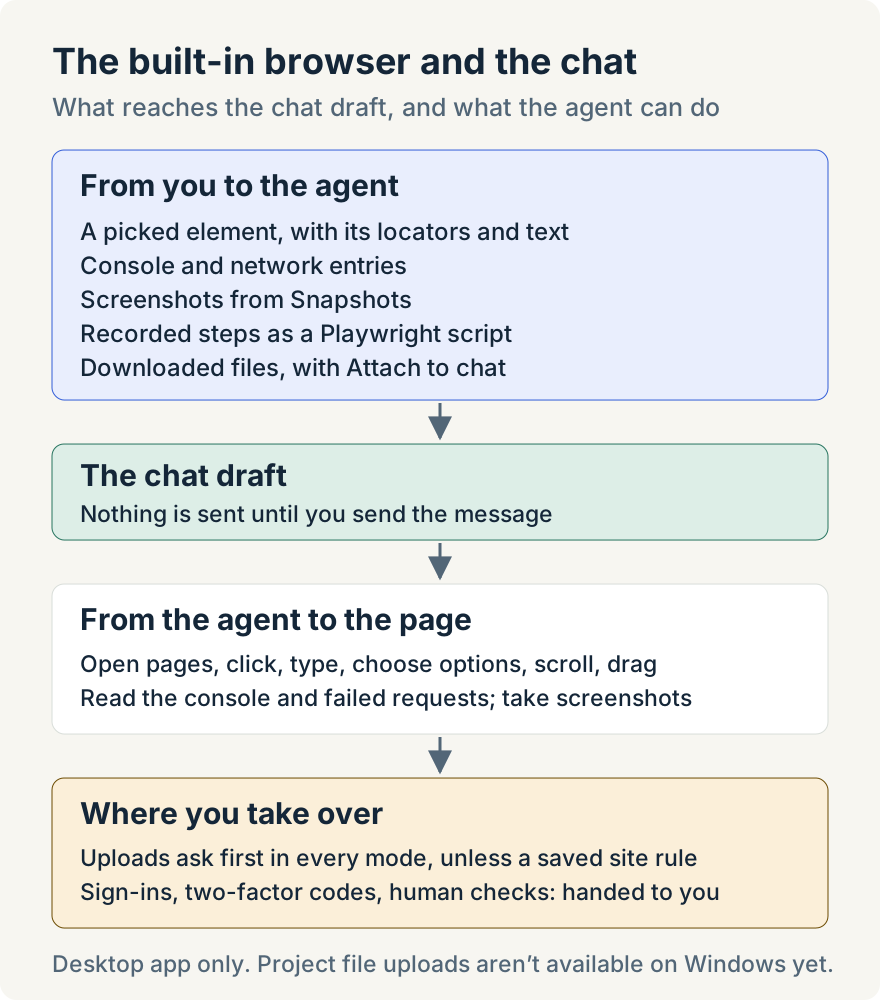
From you to the agent. The Chat button in the browser bar turns on pick mode: click the element you mean, and the chat draft gets its page address, locators, role, text, size and attributes, with an image when one can be captured. Console messages and network requests have their own Chat buttons, screenshots can be attached from Snapshots, and Record browser actions turns what you do on the page into a Playwright test script you can attach. Every item goes into the draft, and nothing is sent until you send the message.
From the agent to the page. The agent in a worktree chat can use the same browser. It can open and navigate pages, click, type, choose options and tick checkboxes, scroll and drag, take screenshots, and read the console and failed network requests. That makes "fix the form and check that it works" one request, and you can watch the page while it works. Downloads go to the task's own files, not into your project, until the agent or you save a copy there. Uploads ask for your approval in every approval mode, including Full access, unless you saved a rule for that site. Sign-ins, two-factor codes and human checks are handed to you: the agent brings the page up, says in the chat what you need to do and waits for your reply. Sergii Iurevych built the part that keeps the browser in front of you during that handoff.
The browser also opens local HyperText Markup Language (HTML) files by path, with their stylesheets, scripts and images, so a generated report or prototype doesn't need a server. Settings, Browser has Only allow local sites, off by default, for keeping the browser to sites running on your computer, and Open links in the built-in browser for links you click in the app.
Tommy Irish built the browser and the agent's browser actions, and Aaron Quirk built local files and the link settings. The details are in Check your local app in the in-app browser, How I let my agent work through websites and Preview local HTML files in the built-in browser.
Find it again later
Agent work leaves a long trail of chats whose titles no longer describe what happened in them. Cmd+K opens the command palette, which searches worktrees, chat titles, plans, automations, agents, skills, settings and commands. Below the matches by name, In content lists chats and plans whose text matches, with the matching words highlighted, across live chats, archived chats and plans. Typing > first searches commands only. The index is built on your computer from your messages and the agent's replies; tool output and the agent's thinking aren't searched. Tommy Irish built the palette and its content index; see Search your past agent chats from the command palette.
Where it stops
- This workspace belongs to the desktop app. Cloud chats have no built-in browser and can't run repository scripts; on the web with a paired desktop, you can review scripts but not run them.
- Uploading project files through the browser isn't available on Windows yet. On Windows, the agent can still upload files it downloaded in the browser.
- The agent can't sign in, enter passwords or solve human checks. It hands those steps to you.
- Code Graph covers one worktree at a time, and only worktree chats get its tools.
- Environments are assigned per project and per runtime, not per chat, and stay on your computer.
- Readiness checks find missing pieces; they don't test whether existing scripts or hooks work.
- A selection chip and a graph answer both reflect the code when they were made. When the code moves on, send the selection again or let the graph refresh.
Try it
This guide was checked against version 1.21.0 of the Unstoppable Code desktop app. Download the app, open a worktree and keep the chat, a file, the terminal and the browser on one screen while the agent works.